How to crop a PDF, and why cropping hides nothing

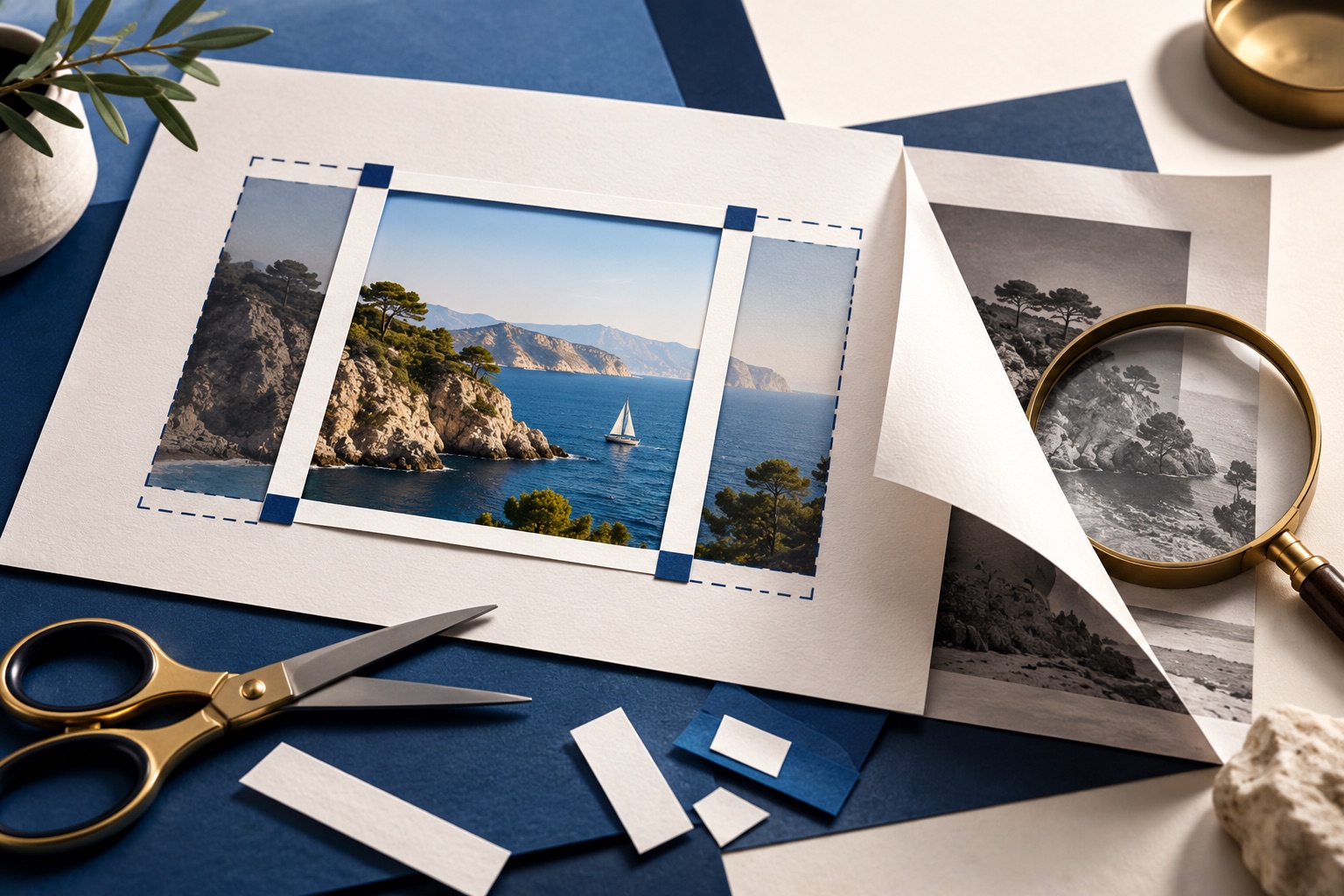
Open the PDF in a crop tool, drag the frame to the area you want to keep, choose whether it applies to one page or all of them, and download. Cropping sets a smaller CropBox, the rectangle a viewer draws. Everything outside it stays in the file, so cropping never hides sensitive content.
See the tools in action

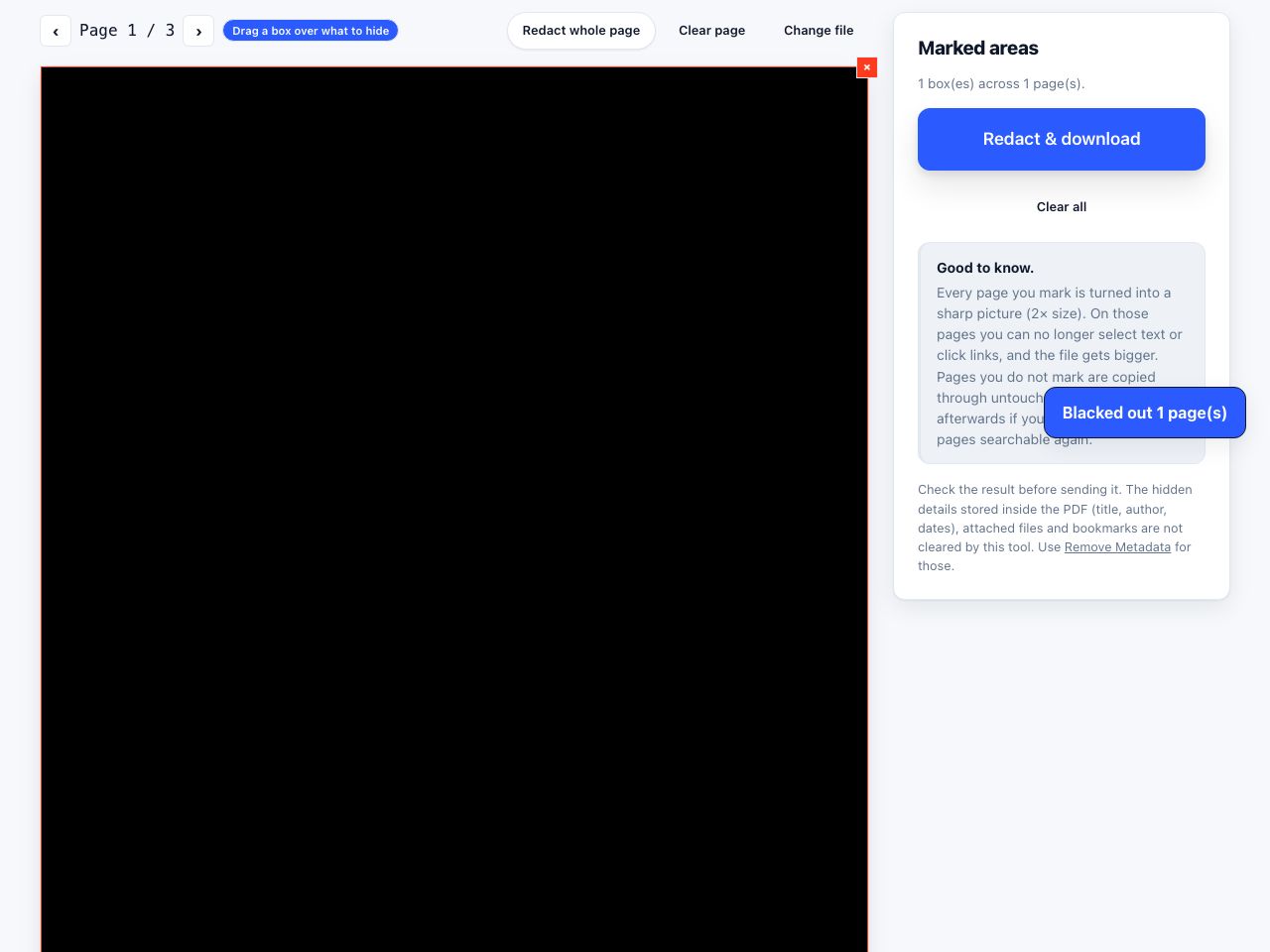
Cropping a PDF does not cut anything out. Every page carries at least two rectangles: the MediaBox, which is the sheet of paper the page was laid out on, and the CropBox, which is the part a viewer chooses to draw. Cropping sets a smaller CropBox. The ink outside it is still in the file, still selectable by anything that ignores the box, and one instruction away from coming back.
The page boxes, in plain terms
| Box | What it means | Who uses it |
|---|---|---|
| MediaBox | The full sheet the page was designed on. A4 is 595 x 842 points | Required. Every PDF page has one |
| CropBox | The region a viewer displays and prints. Defaults to the MediaBox | This is the one cropping changes |
| BleedBox | Slightly larger than the finished page, so ink can run off the trimmed edge | Print production |
| TrimBox | The finished page after the guillotine has cut it | Print production |
| ArtBox | The meaningful artwork, ignoring surrounding white space | Rarely set, rarely honoured |
PDF measures everything in points, where 72 points is one inch. A4 is 595 x 842 points and US Letter is 612 x 792, which is why an A4 document printed on Letter loses a strip from the bottom. Most crop tools show you the numbers; taking 40 points off each side of an A4 page leaves 515 x 762, roughly 18 cm by 27 cm.
Cropping, step by step
- Open the fileGo to crop PDF and drop the PDF in. Everything happens in your browser tab: the file is not uploaded, and no quota applies.
- Set the frame from a busy page, not the coverA frame measured on a sparse title page will clip a heading or a page number on a denser one. Find the page with the widest table or the longest header and set the frame there.
- Leave a margin of 6 to 10 points beyond the inkCropping flush to the text looks cramped in print and risks clipping the descender of a
gor ay. A few points of air costs nothing. - Choose the scopeAll pages, a page range, or odd and even pages separately. Odd and even matters for a scanned book, where the gutter shadow falls on the right of one page and the left of the next.
- Check the extremes before you commitLook at page 1, the last page, and any page with a full-width image or a landscape table. Those are where a uniform crop goes wrong.
- Download the cropped copyA new file is written and the original on your disk is unchanged, so you can redo the crop with different numbers as many times as you like.
Trim margins and scan edges from every page at once, without uploading the file.
Crop PDF →Cropping is not hiding
Resetting the CropBox back to the MediaBox is a single operation available in many free tools, and every pixel and every character you cropped away reappears intact. Text outside the crop can also be selected and copied without changing anything at all, because it is still in the page content stream. Cropping is a display setting, not a deletion.
This catches people out in specific, repeatable ways. A letterhead cropped off a reused document still carries the home address. A running header cropped away still carries the internal project name. A bank statement cropped to remove the balance column still contains every figure. If the reason you are cropping is that something in the margin should not be seen by the recipient, cropping is the wrong tool. Use redact PDF, which removes the content itself, and see redacting a PDF properly for how to check that it worked.
What people crop, and why
- Scanner edges. A black or grey border where the lid was open, or a strip of desk in a phone photo. This is the single most common reason.
- The gutter shadow of a book scan, a dark curved band down the inner edge of each page that also wastes toner when printed.
- Wide journal margins. Academic PDFs often carry 5 cm of white on both sides. Crop them and the text is noticeably larger on a phone or an e-reader.
- A letterhead or footer on a document being reused for another purpose.
- Slide handouts exported with a thick white border around each slide.
- A receipt printed onto A4, where the actual content occupies the top eighth of the page.
Cropping does not make the file smaller
Hide two thirds of every page and the file size barely moves, because the glyphs and the image data outside the box are all still stored. A 40 MB scan cropped hard is still about 40 MB. If size is what you are after, compress it instead.
There is one exception worth knowing. Some compressors re-render each page image to the visible area and genuinely discard the rest, in which case cropping before compressing does save real space. You cannot tell in advance which behaviour yours has, so just look at the output size: if a heavy crop plus compression beats compression alone, your tool rasterises to the crop box.
Printing a cropped PDF
A cropped page is a smaller page, and your printer driver has to decide what to do with it on an A4 sheet. It will either centre it with a wide border or scale it up to fill the paper. Scaling up is normally what you want, since making the text bigger was usually the point, but it enlarges scanner noise and any grain along with the words.
Choose the behaviour deliberately in the print dialog rather than accepting the default. Fit to printable area scales the cropped page up; Actual size or 100% keeps it at its cropped dimensions and leaves a border. If you are printing to save paper, see fitting more on a page.
Straighten first, crop second
A scan sitting 1.5 degrees off square cannot be cropped cleanly. Any rectangle tight enough to cut the black edge from one side will clip text on the other, because the text is not parallel to the frame. Deskew the pages first, or, if the file came from a phone scanning app, simply re-capture the page with the app holding the edges square. Two minutes of rescanning beats twenty minutes of crop arithmetic.
If you plan to do both, run OCR before cropping. Most OCR engines read the full page image and ignore the crop box, so cropping first does not stop them picking up a margin note. Cropping afterwards leaves the recognised text layer intact.
Other ways to crop
| Route | How | Notes |
|---|---|---|
| macOS Preview | Select the rectangle with the marquee tool, then press ⌘K | Applies to the current page only unless you select all thumbnails first |
| Adobe Acrobat Pro | Edit PDF, then Crop Pages, with numeric margins and a page range | Lets you set the boxes individually, and shows the point values |
| A browser crop tool | Drag a frame, apply to all pages, download | Works the same on Windows, macOS, Linux and ChromeOS |
| Print to PDF with scaling | Not really cropping, it re-renders the page | Loses links, bookmarks and form fields. Avoid for anything structured |
Whichever route you take, open the result and page through it once at full width before you send it. A crop is uniform and a document is not, and the page that breaks the frame is almost always one you did not look at.
Frequently asked questions
Does cropping a PDF delete the content outside the crop?
No. Cropping sets a smaller CropBox, which is only the region a viewer draws. The text and images outside it remain in the file and can be restored by resetting the box, or copied out without restoring anything at all.
Can I use cropping to hide confidential information?
No, and this is the most important thing to know about cropping. Hidden content is still present and recoverable. Use a redaction tool that removes the underlying text and image data, then check the result by selecting all the text on the page.
How do I crop every page of a PDF at once?
Set the frame on the page with the widest content, then choose the apply-to-all-pages option before downloading. For a scanned book, crop odd and even pages separately, because the gutter shadow sits on opposite sides.
Why is my cropped PDF the same file size?
Because nothing was removed. The glyphs and image data outside the crop are still stored. To reduce size, compress the file. Some compressors re-render pages to the visible area, which is the only case where cropping helps the size.
How do I crop a PDF on a Mac?
Open it in Preview, drag a selection rectangle with the marquee tool, and press Command+K. It affects only the current page unless you show thumbnails and select all pages first, which is easy to forget.