Clean web pages and printable records
 By Nasir Uddin Shamim11 guides
Use the correct focused tool, keep the source, review the output, and share only the approved copy.
Question-led guides for clean web pages and printable records, with clear actions, privacy context, and review steps.
Every guide in this topic
How to save an article without ads as a PDF
To save an article without ads, open PrintxPDF Web Page Cleaner, paste a public URL, and review the cleaned page. Then print it or save it as a PDF from your browser. Cleanup runs in your tab after the page loads. PrintxPDF first tries its own reader for the URL; if that fails or stalls, the URL may be sent to public reader services. For a private page, paste the content or open a local file instead.
How to print a web receipt cleanly
To print a web receipt clearly, first use the store’s Download or Print option. If the receipt is a public page covered with menus or ads, open it in Web Page Cleaner and save the clean view as a PDF. Private pages behind a login may not load from a pasted URL. Check amounts, date, tax, and order number before filing the copy.
How to print a recipe without ads
To print a recipe without ads, first use the website’s print button. If you only have a cluttered public page, Web Page Cleaner can remove menus and distractions before you print or save a PDF. Check ingredients, amounts, temperature, and steps because recipe sites may hide content in expandable sections. For private pages, print from your browser; do not paste login URLs.
How to save a dynamic web page for records
To save a dynamic web page as a record, first set the state you need to preserve, such as a date, price, or search result. Use the site’s download or print option when available; save a PDF from your browser and check the visible data. Web Page Cleaner can help with public pages, but script-loaded content may be missing. Keep the URL and access time.
How to fix browser print margins on a web page
To fix browser print margins, open the print preview and adjust margins, scale, and paper size before printing. Start with default margins; if content is clipped, reduce the scale or choose custom margins. The printer’s physical limits and the site’s CSS also affect the result. Check a sample page before saving or printing the full page.
How to print a web page with a dark background
To print a web page with a dark background, open the browser preview and check whether background colors are included. If the background is missing, enable Background graphics in print settings; if it uses too much ink, switch to the site’s light theme or a clean view. Check contrast and small text on a sample page before printing everything.
How to make an accessible print version
How to make an accessible print version starts by keeping the source file, using the right focused tool, checking the resulting copy, and sharing only the reviewed version. PrintxPDF provides this standard workflow with free core tools, no signup, no watermark, and local browser processing where the tool is labelled browser-local.
How to save selected web content as PDF
How to save selected web content as PDF starts by keeping the source file, using the right focused tool, checking the resulting copy, and sharing only the reviewed version. PrintxPDF provides this standard workflow with free core tools, no signup, no watermark, and local browser processing where the tool is labelled browser-local.
How to verify a saved web-page PDF
How to verify a saved web-page PDF starts by keeping the source file, using the right focused tool, checking the resulting copy, and sharing only the reviewed version. PrintxPDF provides this standard workflow with free core tools, no signup, no watermark, and local browser processing where the tool is labelled browser-local.
How to print a long article without bad breaks
How to print a long article without bad breaks starts by keeping the source file, using the right focused tool, checking the resulting copy, and sharing only the reviewed version. PrintxPDF provides this standard workflow with free core tools, no signup, no watermark, and local browser processing where the tool is labelled browser-local.
How to clean a web page before sharing
How to clean a web page before sharing starts by keeping the source file, using the right focused tool, checking the resulting copy, and sharing only the reviewed version. PrintxPDF provides this standard workflow with free core tools, no signup, no watermark, and local browser processing where the tool is labelled browser-local.
Tools for this job
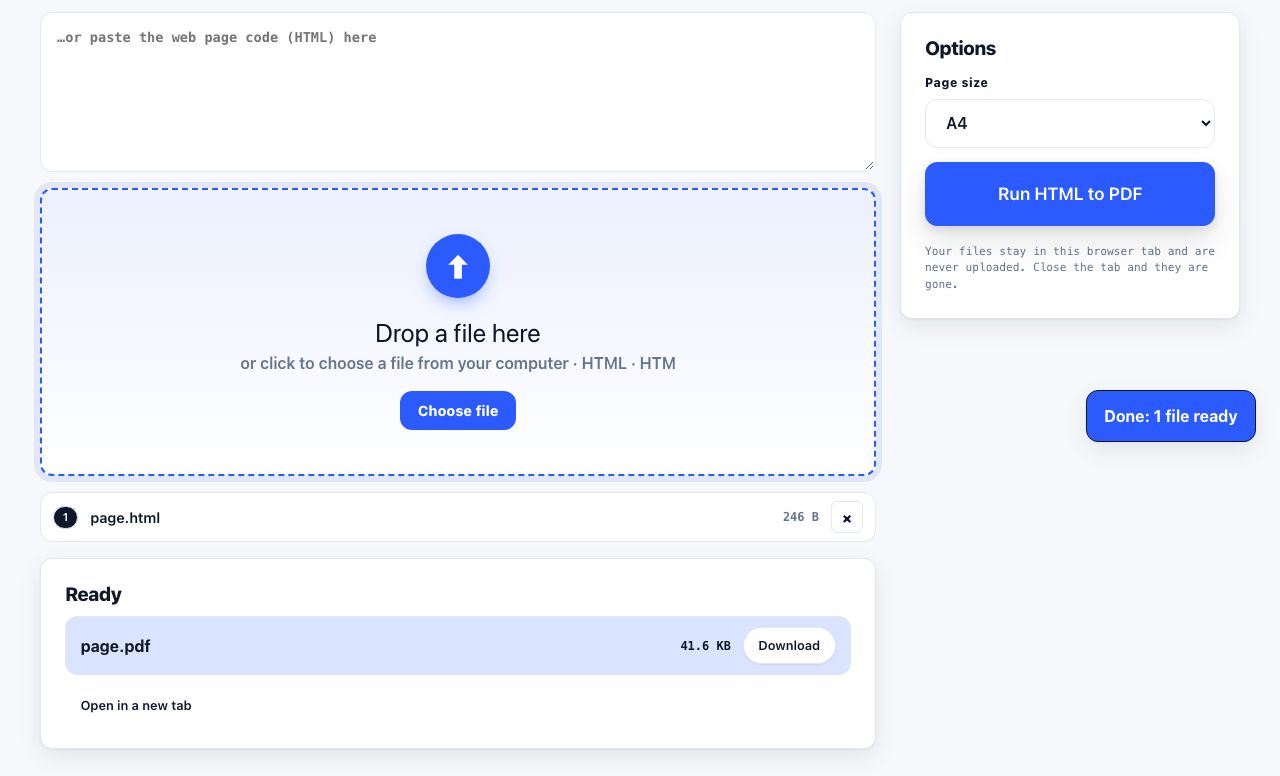
See the recommended tools in action
Other topics
Printing web pages
Print any web page without ads, sidebars or menus. Reader mode, print preview, browser settings and a free tool that cleans the page in your browser.
Saving web pages as PDF
Save any web page as a PDF in Chrome, Safari, Firefox, Edge, iPhone or Android. Print-to-PDF, full-page screenshots, and archiving that survives link rot.
Merging PDF files
Combine PDFs into one file for free. Drag to set the page order, mix in JPG and PNG images, keep bookmarks, and merge without Adobe Acrobat on Windows or Mac.
Splitting and extracting PDF pages
Split a PDF into single pages or custom ranges, extract only the pages you need, delete the rest, and cut a big file down to fit an email attachment limit.
Compressing PDF files
Compare three PDF compression presets, keep text searchable when needed, and learn when to split a large file or use a sharing link.
Converting PDF to other formats
How to get a PDF back into an editable format: Word, Excel, plain text and slides, what each conversion really preserves, and when the answer is to retype.