How to save an article without ads as a PDF

To save an article without ads, open PrintxPDF Web Page Cleaner, paste a public URL, and review the cleaned page. Then print it or save it as a PDF from your browser. Cleanup runs in your tab after the page loads. PrintxPDF first tries its own reader for the URL; if that fails or stalls, the URL may be sent to public reader services. For a private page, paste the content or open a local file instead.
See the tools in action
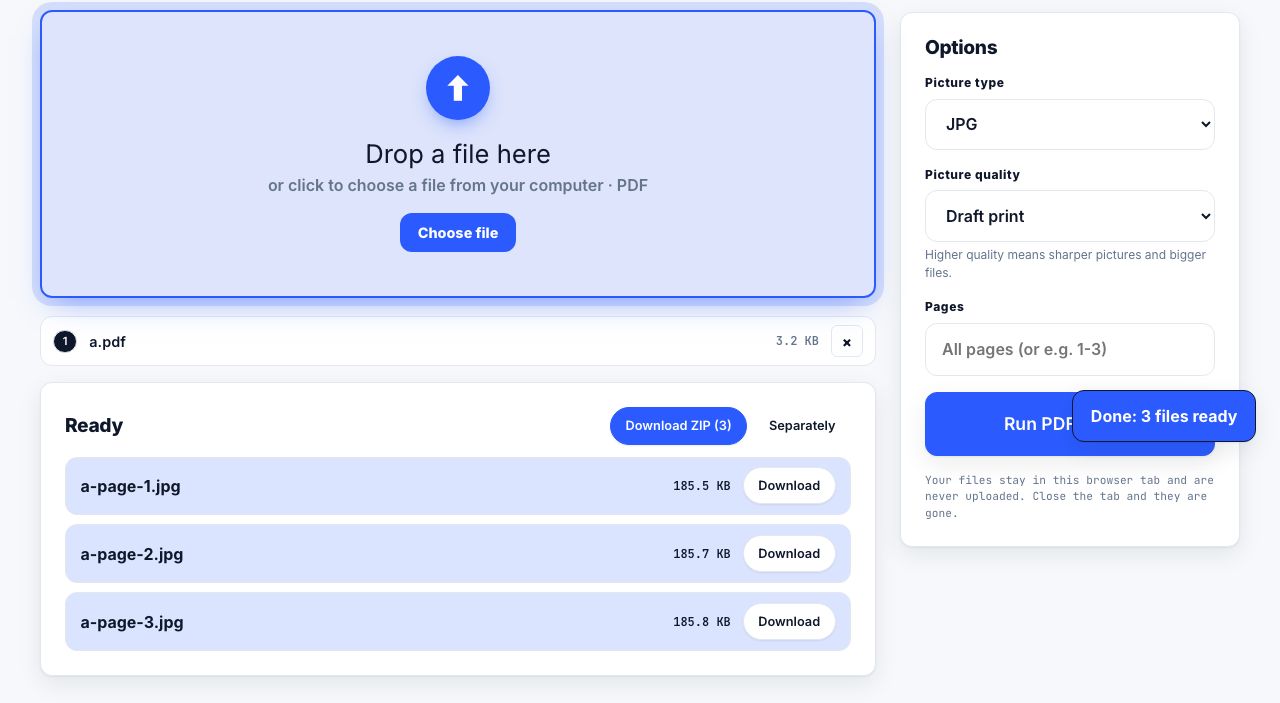
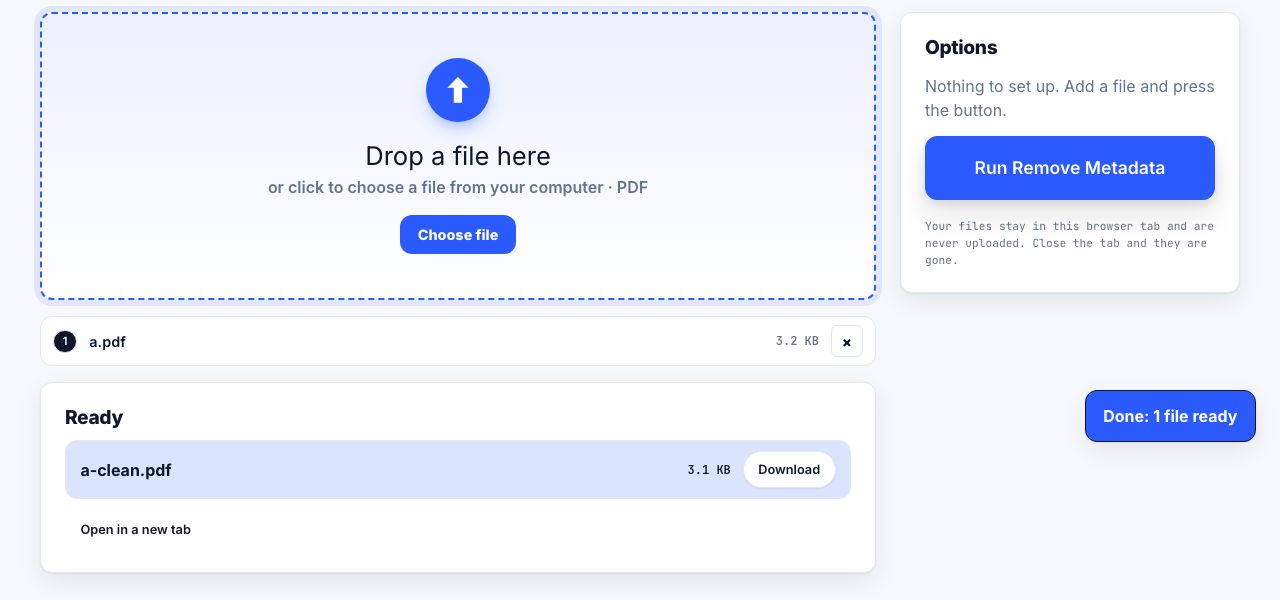
To save an article without ads, use Web Page Cleaner to remove menus and page clutter, then print the clean view or save it as a PDF. Keep the original URL and check that the article is complete before you archive or share the copy.
How to save an article without ads
- Open Web Page CleanerVisit PrintxPDF Web Page Cleaner in your browser. You do not need an account.
- Load the articlePaste a public URL. If the site blocks readers, paste the HTML or text, or open a supported local file.
- Review the clean pageCheck the title, article text, important links, and images. Dynamic pages or pages behind a login may not load fully.
- Print or save as PDFUse your browser’s Print option and choose Save as PDF. Adjust paper size and margins if needed.
- Open the final PDFCheck page breaks, clipped content, and small text. Keep the source URL and access date with the file.
Clean and print a web page. Free, no signup, no watermark.
Web Page Cleaner →What happens to the URL you paste?
The cleanup and reading view run in your browser tab after the page is fetched. To retrieve a URL, PrintxPDF tries its own reader first. If that reader fails or takes too long, the tool may try public third-party readers, which can receive the URL. Do not paste private or confidential links. For sensitive content, use the paste option or a local file when available.
Compare ways to save a clean page
| Method | Use it when | Keep in mind |
|---|---|---|
| Web Page Cleaner, then Save as PDF | You want a cleaner article copy without page clutter | Dynamic pages may lose interactive features. |
| Print from the website | The original site layout matters | Ads, menus, or awkward page breaks may remain. |
| Screenshot | You need the exact visual appearance | Text will not be selectable or easy to search. |
Check the PDF before you file it
Open the file and check the title, date, important links, images, and end of the article. Long pages can break in unexpected places. If the PDF is a record, keep its source URL and access date. For an image preview of a saved PDF, use PDF to JPG; a JPG does not keep selectable text.
Frequently asked questions
How do I save an article without ads?
Paste a public URL into Web Page Cleaner, review the clean page, then use your browser’s Print option and choose Save as PDF. Open the downloaded file before sharing it.
Does Web Page Cleaner work with every website?
Not always. Some sites block readers, require a login, or load article text with scripts. If the URL does not work, try pasting the text or HTML, or use your browser’s print feature.
Does the URL I paste stay only on my device?
Not necessarily. PrintxPDF tries its own reader first. If that fails or stalls, public third-party reader services may receive the URL. Avoid using private or confidential links.
Will the saved PDF still have ads?
The clean view removes many ads, menus, and other page clutter, but results depend on the website. Open the PDF and confirm the main article is complete.