How to repurpose a PDF for accessible publishing formats

Start with a PDF you own or are licensed to adapt, decide which audience needs a spreadsheet, slide deck or reflowable ebook, and convert only the content that fits that format. Review reading order, tables and images, add accessibility structure in the destination format, and keep the source PDF. Some conversion tools upload files to the server.
See the tools in action


A PDF is often the final layout, not the best source for every audience. A researcher may need a table in a spreadsheet, a presenter may need selected material on slides, and a reader using a small screen may prefer reflowable text. Repurposing can help, but conversion is not the same as recovering the original editable document or making an inaccessible source accessible automatically.
Confirm rights and choose the destination first
Work only with material you own or have permission to adapt. Then identify the actual need: data that must be analyzed, visual pages for a talk, or text that should reflow on a reader. Avoid generating several formats just because a converter offers them; every alternate version creates another file to review, secure and update.
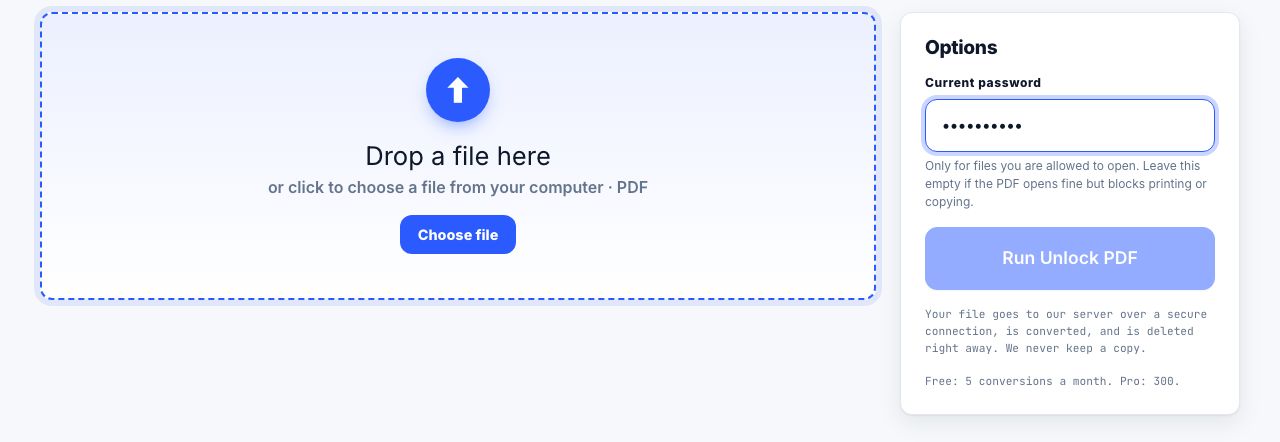
- Prepare an authorized copyKeep the authoritative source untouched. If the PDF requires an opening password, use Unlock PDF only when you know the password and are allowed to remove that protection.
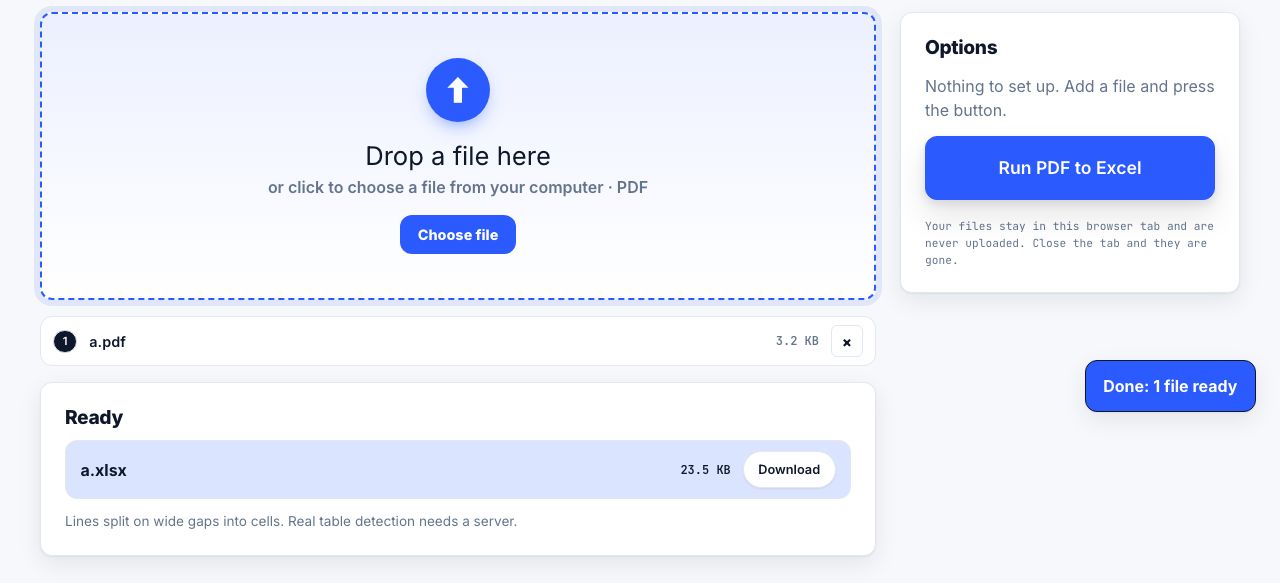
- Extract data only when it is tabularUse PDF to Excel for simple text-based tables. Scanned, multi-column or irregular tables need manual verification because gaps and alignment do not always map to cells.
- Create a slide draft when presentation is the goalPDF to PowerPoint can create a starting deck from page content. Inspect every slide: layout, fonts and text boxes may not match the source and some items can be treated as images.
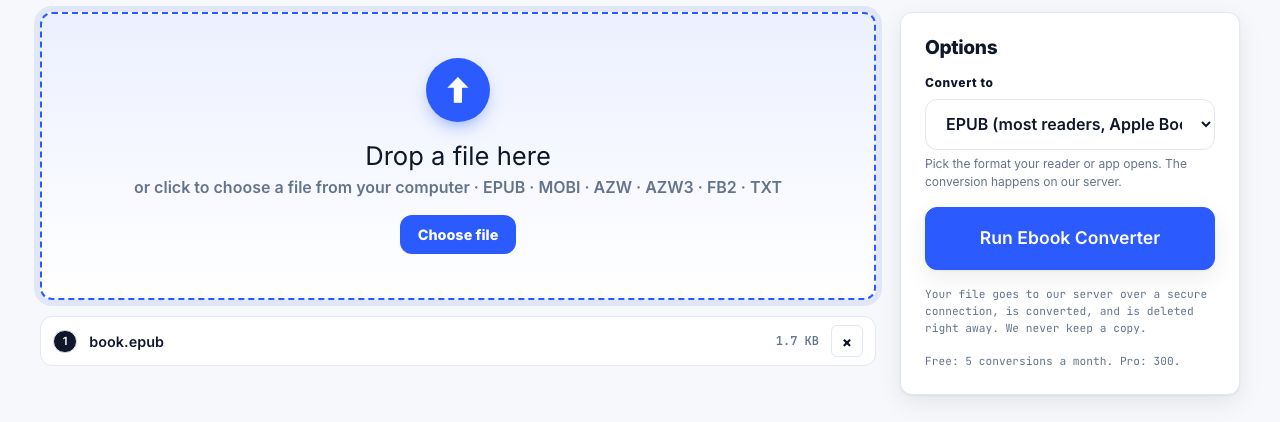
- Choose an ebook format deliberatelyUse Ebook Converter or MOBI to PDF for supported ebook jobs. Reflow and pagination differ by format, and DRM-protected files may not be convertible.
- Review accessibility and update pathsCheck headings, reading order, alternative text, contrast and keyboard navigation in the destination file. Label it as an adapted version and record which source revision it came from.
Extract simple text-based tables into a workbook, then verify every row and number.
PDF to Excel →Why the converted output needs human review
PDF pages may encode text as separate glyphs at exact coordinates. A table that looks aligned can contain no underlying table structure. Likewise, a slide deck may be assembled from page images, and an EPUB conversion may require a new reading order. Searchable or selectable text is helpful, but it does not guarantee that a screen reader will understand the content.
For a slide workflow, compare the generated PPTX with the original using PDF to PowerPoint and inspect it in a presentation app before presenting. If the source is a scanned printout, run OCR first and verify the recognized words. Do not publish sensitive or client PDFs through a server conversion unless approved; PowerPoint and ebook conversions are among the jobs that upload a file over HTTPS for processing.
Label versions so readers know what they are using
Include a short note such as "Adapted from report version 2.1, checked 3 October 2026" in the file or its release notes when that history matters. For a multi-page release copy, add page numbers to make references easier, or add a visible watermark when the audience needs to identify a draft or sample. Those marks do not create access control or prove authorship. Keep a copy of the original and do not present a converted spreadsheet, deck or ebook as the author's source file. If you update the PDF later, repeat the accessibility and accuracy checks rather than assuming the earlier alternate version is still aligned.
Ebook conversion services do not remove DRM and do not grant permission to redistribute a book. Follow the publisher's license and the site's terms. The converter is not a substitute for an accessible source document or a professional accessibility review.
For document delivery on a website, see adding a print button to WordPress and printer-friendly page design. For ebook-specific limits, read ebook formats explained and DRM and conversion.
Frequently asked questions
Can converting a PDF make it accessible automatically?
No. Conversion may help create an alternate format, but reading order, headings, labels, contrast and alternative text still need review in the destination file.
Can I convert any ebook to PDF or another format?
Only supported, unprotected files that you are allowed to convert. DRM and licensing terms may prevent conversion or redistribution.
Does PDF to PowerPoint recreate the original presentation?
It produces a starting deck, not the original editable source. Review text, diagrams, fonts, layout and objects before using or publishing it.