Slide decks and PDF, in both directions
 By Nasir Uddin Shamim4 guides
Convert a deck to PDF when you are sending it, because fonts and layout stop moving and the reader needs no presentation software. Convert a PDF back to a deck when you need the words editable and the original is lost, accepting that the result is a reconstruction. Print decks as handouts, three or six slides to a sheet.
A deck and a PDF are two different kinds of object. A .pptx is a set of instructions that PowerPoint reassembles on whatever machine opens it, which is why fonts move and text overflows on somebody else's laptop. A PDF is the finished picture, one page per slide, with every glyph and colour already decided. These four guides cover sending a deck as a PDF, rebuilding an editable deck out of a PDF when the original is gone, printing a deck as handouts instead of burning a sheet per slide, and designing slides that still work once the colour has been taken away.
Every guide in this topic

How to convert a PowerPoint deck to PDF
Upload the .pptx to a PowerPoint to PDF converter and download the PDF: every slide becomes one page at the deck's own aspect ratio. Fonts and layout are fixed in place, so the reader sees what you saw. Animations, transitions and embedded video do not survive, and speaker notes are left out unless you ask for them.

How to convert a PDF back into an editable deck
Upload the PDF to a PDF to PowerPoint converter and you get a .pptx with one slide per page, where each block of text has become a real text box positioned where it sat on the page. It is a reconstruction, not a recovery: fonts, grouped graphics and multi-column layouts need tidying. Worth it for text-heavy decks, rarely worth it for design-heavy ones.
How to print slide handouts without wasting a stack of paper
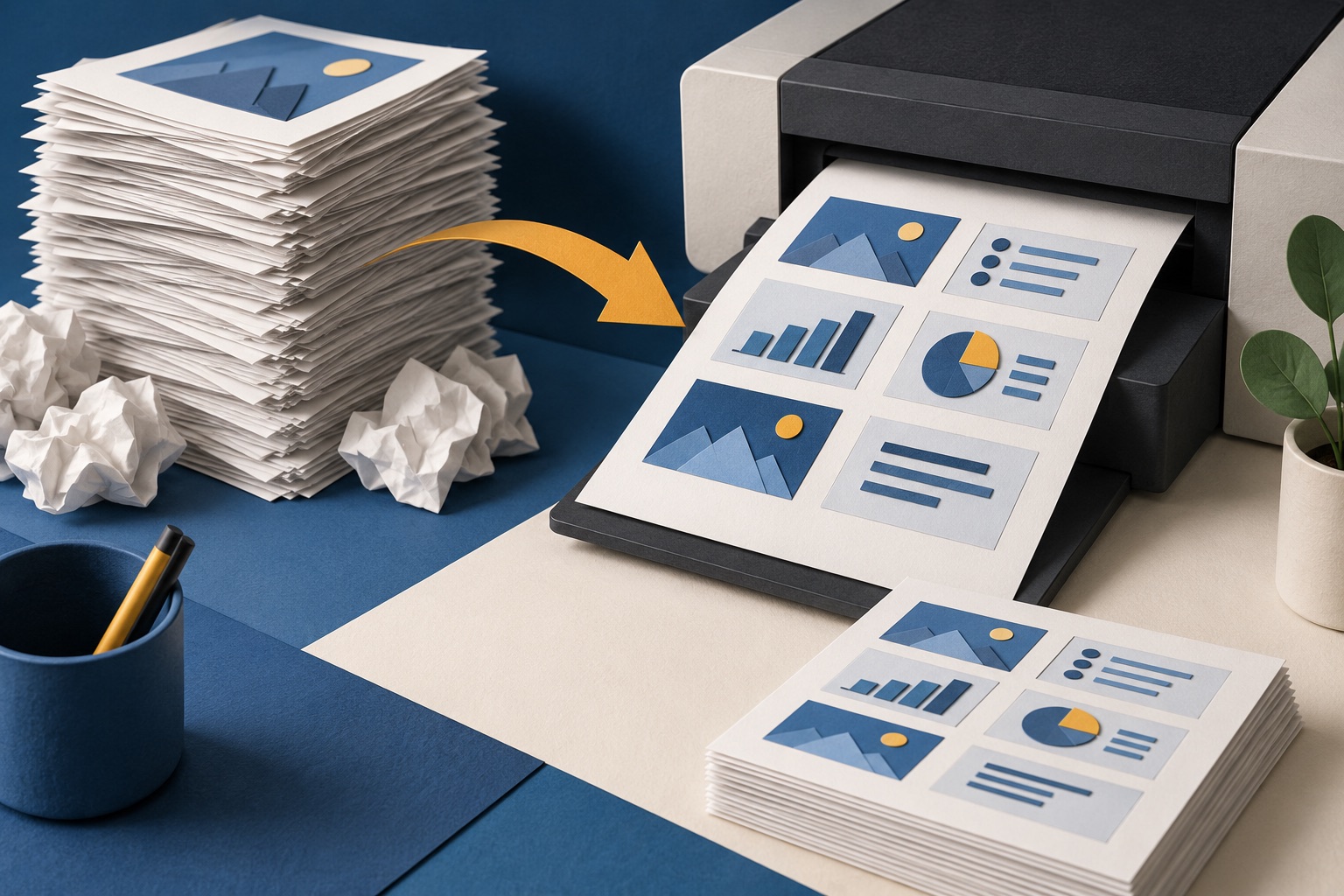
Print handouts from the PowerPoint print dialogue, not the slide layout menu: set Full Page Slides to Handouts and choose 3 or 6 slides per page. Three per page puts notes lines beside each slide; six fits a 24-slide deck on four sheets instead of twenty-four. Convert to PDF first if the printing is happening on a machine that is not yours.

How to design a deck that still works on paper
Design for the worst case: greyscale, on paper, at a quarter of the size. That means light backgrounds, text no smaller than 18 point, fonts with real stroke weight, and charts that separate by pattern or label rather than by colour alone. Check it by printing one slide in black and white before you commit the deck.
Tools for this job
PowerPoint to PDF
PowerPoint → PDF
PDF to PowerPoint
Pages → slides
JPG to PDF
Turn pictures into one PDF
Compress PDF
Shrink the file size
See the recommended tools in action


Other topics
Printing web pages
Print any web page without ads, sidebars or menus. Reader mode, print preview, browser settings and a free tool that cleans the page in your browser.
Saving web pages as PDF
Save any web page as a PDF in Chrome, Safari, Firefox, Edge, iPhone or Android. Print-to-PDF, full-page screenshots, and archiving that survives link rot.
Merging PDF files
Combine PDFs into one file for free. Drag to set the page order, mix in JPG and PNG images, keep bookmarks, and merge without Adobe Acrobat on Windows or Mac.
Splitting and extracting PDF pages
Split a PDF into single pages or custom ranges, extract only the pages you need, delete the rest, and cut a big file down to fit an email attachment limit.
Compressing PDF files
Compare three PDF compression presets, keep text searchable when needed, and learn when to split a large file or use a sharing link.
Converting PDF to other formats
How to get a PDF back into an editable format: Word, Excel, plain text and slides, what each conversion really preserves, and when the answer is to retype.