How to print slide handouts without wasting a stack of paper

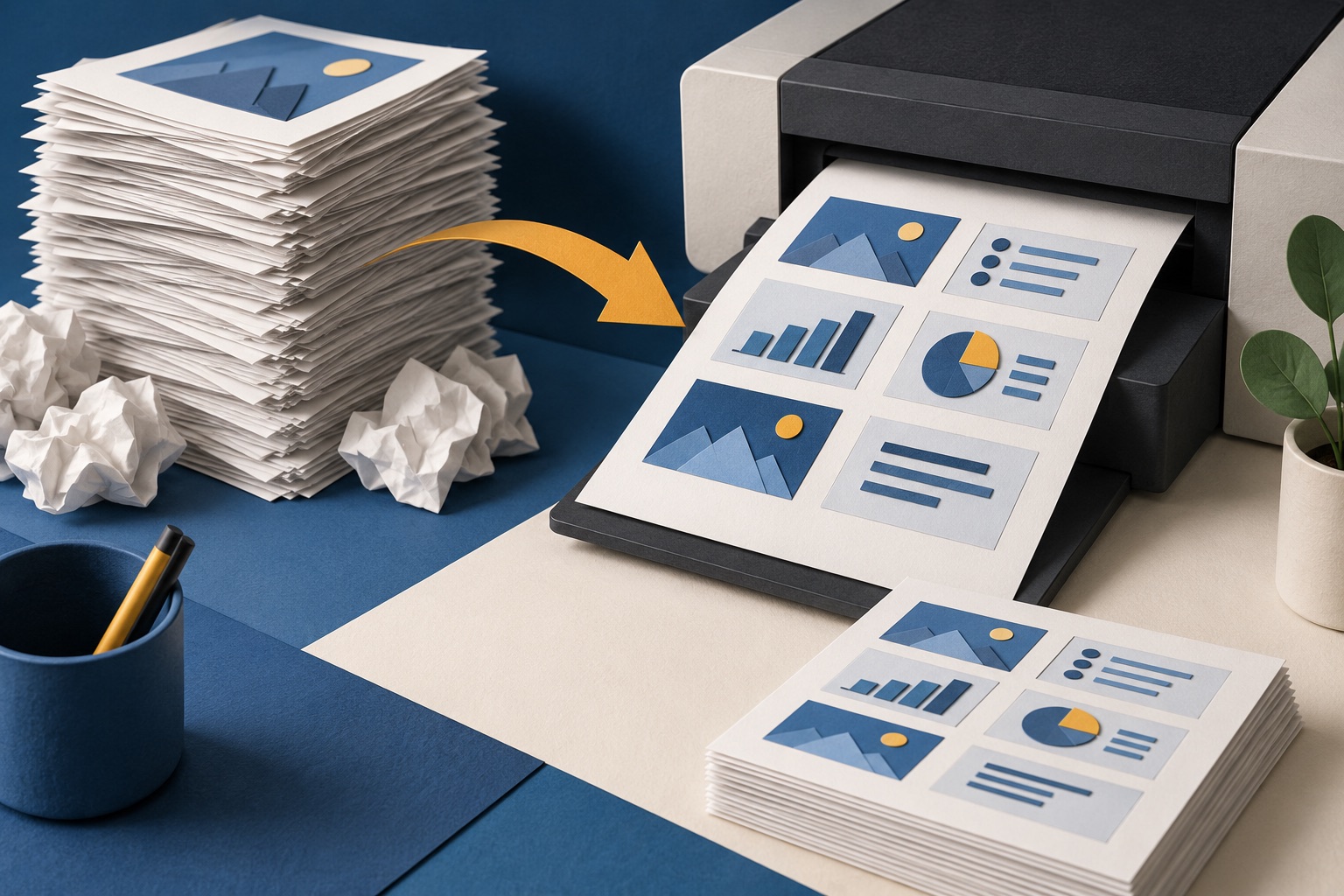
Print handouts from the PowerPoint print dialogue, not the slide layout menu: set Full Page Slides to Handouts and choose 3 or 6 slides per page. Three per page puts notes lines beside each slide; six fits a 24-slide deck on four sheets instead of twenty-four. Convert to PDF first if the printing is happening on a machine that is not yours.
See the tools in action

One slide per sheet is the default, and it is the wrong default for nearly every reason anyone prints a deck. A 16:9 slide on A4 portrait occupies about half the page and the rest is margin. Print 24 slides that way and you have spent 24 sheets delivering roughly 12 sheets of content, most of it title text set at 40 point that nobody needed to read that large on paper.
The handout layouts, and what each one is for
| Layout | Sheets | Slide width on the page | Use it for |
|---|---|---|---|
| 1 per page | 24 | About 19 cm | A single slide with a dense diagram or a table people must actually read |
| 2 per page | 12 | About 17 cm | Design reviews and anything built out of screenshots |
| 3 per page | 8 | About 11 cm, with ruled notes lines beside it | Training and lectures. The most useful layout by a distance |
| 4 per page | 6 | About 9 cm, two across and two down | Reference copies and anything going on a wall |
| 6 per page | 4 | About 9 cm, two across and three down | A deck you are skimming, circulating or filing |
| 9 per page | 3 | About 6 cm, three across | A contact sheet. Titles just about survive, body text does not |
| Notes pages | 24 | Half the page, notes underneath | The presenter's own copy, or a stand-in's |
Four per page and six per page give the same slide width on A4, because both put two slides across the sheet. Six only uses the vertical space you were leaving blank anyway. If you were about to choose four, choose six and save two sheets in every six for no loss of legibility at all.
Printing handouts, step by step
- Open the print dialogue, not the View menuIn PowerPoint: File → Print. The layout setting lives here, behind the button reading Full Page Slides. The Handout Master under the View menu only controls headers, footers and the date, it does not choose the layout.
- Pick the layoutClick Full Page Slides and choose from the Handouts column: 1, 2, 3, 4, 6 or 9 slides per page. The preview updates immediately, so you can see how small the text becomes before you commit any paper to it.
- Set the colour modeSame dialogue, the Color button at the bottom. Pure Black and White drops fills to white and keeps text black, which saves a startling amount of toner on a dark-themed deck. Grayscale keeps the tones. Compare both in the preview.
- Turn on double-sidedPrint on Both Sides, flipping on the long edge for portrait handouts. Six per page plus duplex takes a 24-slide deck down to two sheets of paper.
- Save it as a PDF instead of printingChoose the PDF destination in the same dialogue. The handout layout is now baked into a file you can email, and the recipient cannot accidentally print it one slide per sheet.
- Read the page count before you press printThe dialogue tells you. If it still says 24 after you chose six per page, the layout did not apply, which almost always means it was set in the Handout Master rather than here.
Convert the deck to PDF first so the handout leaves as a fixed file.
PowerPoint to PDF →Converting a deck is a server job: the file is uploaded over a secure connection, converted on our server, and deleted the moment it finishes. Free accounts get 5 of those a month, Pro and Lifetime 300, and API keys 5,000. Compressing the resulting PDF runs inside your browser and uploads nothing, so it never touches that allowance.
Handouts when all you have is a PDF
If the deck reached you as a PDF, you do not get PowerPoint's handout menu, but you get the same result from the operating system's print dialogue. A converted deck is one slide per page, so several pages per sheet is exactly several slides per sheet.
- Windows, in Adobe Acrobat Reader or Edge: Print → Multiple → Pages per sheet, then choose 2, 4, 6, 9 or 16 and a page order.
- macOS, in any application: File → Print, expand the dialogue, choose Layout from the pop-up menu and set Pages per Sheet. Add a border if the slides have white backgrounds, otherwise they run into each other on the sheet.
- Google Chrome, printing a PDF: Print → More settings → Pages per sheet, offering 1, 2, 4, 6, 9 and 16.
- A folder of slide images rather than a PDF: build one with images to PDF, which runs in your browser and uploads nothing, then print that several to a sheet.
The rest of the settings that matter here, margins, scaling and page order, are in fitting more on a page.
Pages per sheet shrinks the whole page, including the white margin around each slide, so you lose more than the arithmetic suggests. Nine to a sheet on A4 leaves each slide about 6 cm wide with its own margin inside that, which is how 18 point body text ends up nearer 4 point on paper. Read the preview, not the page count.
The printed deck is not the presented deck
A handout is a different document with a different job, and the cheapest improvement you can make to one is deciding what to leave out of it. Before you print:
- Cut the slides that existed only for the room: the agenda you talked through, the section dividers, the thank-you slide, the build you already flattened.
- Use Slide Show → Hide Slide rather than deleting. Hidden slides stay out of the handout as well as out of the presentation, and you still have them.
- If the deck ends with 12 appendix slides nobody will discuss, type
1-18in the range box instead of printing all 30. - Add handout page numbers through Insert → Header & Footer → Notes and Handouts. That is a separate tab from slide numbering, and it numbers the sheet, which is what people call out in a room.
- Three per page with notes lines beats six per page whenever the audience is expected to write. Nobody annotates a 9 cm slide.
Emailing the handout instead of printing it
A handout PDF built from a photo-heavy deck is still carrying full-resolution photographs, six to a page, and reaches 30 MB without trying. Run it through compress PDF, which works entirely inside your browser. At 150 DPI the images are still far finer than a 9 cm printed slide can show, and the file typically drops by two thirds.
Shrink the handout PDF before you send it to thirty people.
Compress PDF →One last check before a print run of any size: whether the deck itself survives paper at all. Dark backgrounds, hairline fonts and colour-coded charts are all fine on a projector and all fail in greyscale at 9 cm wide. Designing a deck that prints well covers what to change, and ten minutes there is worth more than any print setting.
Frequently asked questions
How do I print multiple slides on one page?
In PowerPoint, go to File → Print, click the button reading Full Page Slides, and choose a handout layout of 1, 2, 3, 4, 6 or 9 slides per page. The preview on the right shows exactly how small the text becomes before you print anything.
What is the best handout layout for a lecture?
Three per page. It is the only layout with ruled notes lines beside each slide, the slide is still about 11 cm wide, and a 24-slide deck fits on eight sheets. Six per page is better only when nobody is expected to write on it.
How do I print PDF slides several to a sheet?
Use the print dialogue rather than the PDF itself. On Windows choose Multiple, then Pages per sheet. On macOS expand the print dialogue and pick Layout, then Pages per Sheet. In Chrome it is under More settings, Pages per sheet.
Do handouts include the speaker notes?
No. Handout layouts show slides only, and the three-per-page layout gives blank lines rather than your notes. For the notes themselves choose Notes Pages in the same menu, which prints one portrait page per slide with the notes underneath.
How do I stop handouts using so much colour?
In the print dialogue, set Color to Grayscale or to Pure Black and White. Pure Black and White drops background fills to white entirely, which matters most on a dark-themed deck where each sheet would otherwise be almost solid toner.