How to make a Wi-Fi QR code and add it to a printable PDF

Choose the Wi-Fi network name and security type, enter its password in a QR generator, and download the code. Add it to a one-page handout with a short manual connection fallback, then test the printed copy from several phones. Anyone who can scan the code may obtain the network credentials, so share it only where intended.
See the tools in action
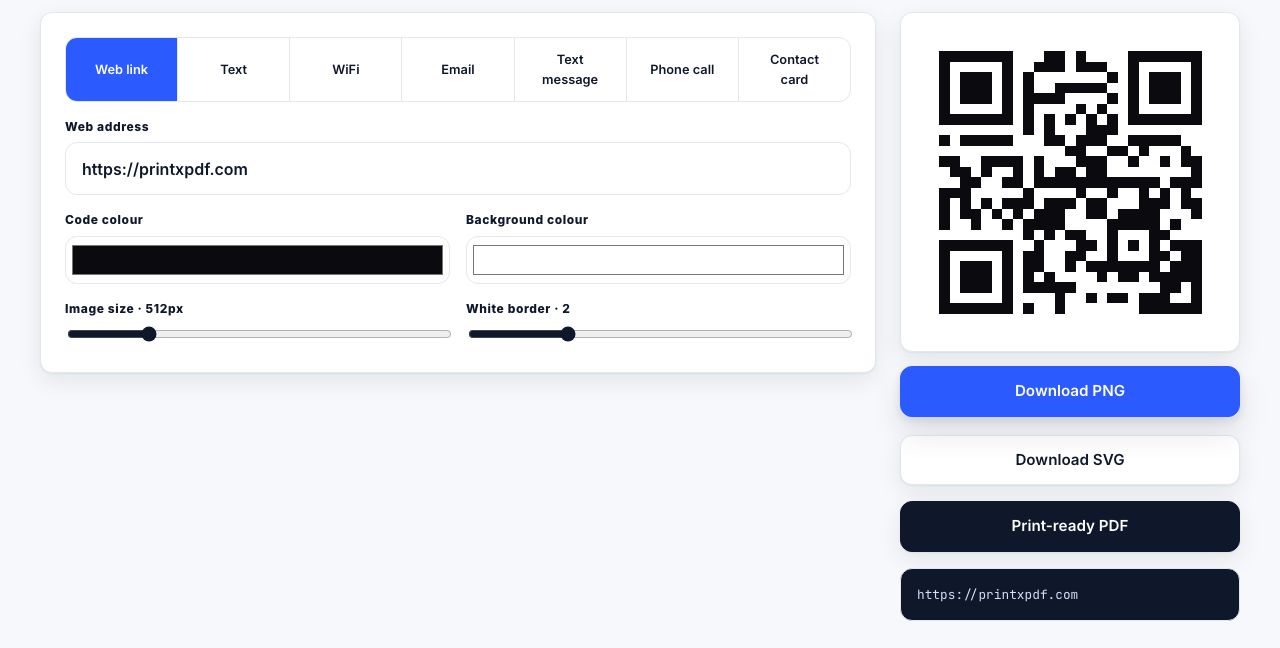
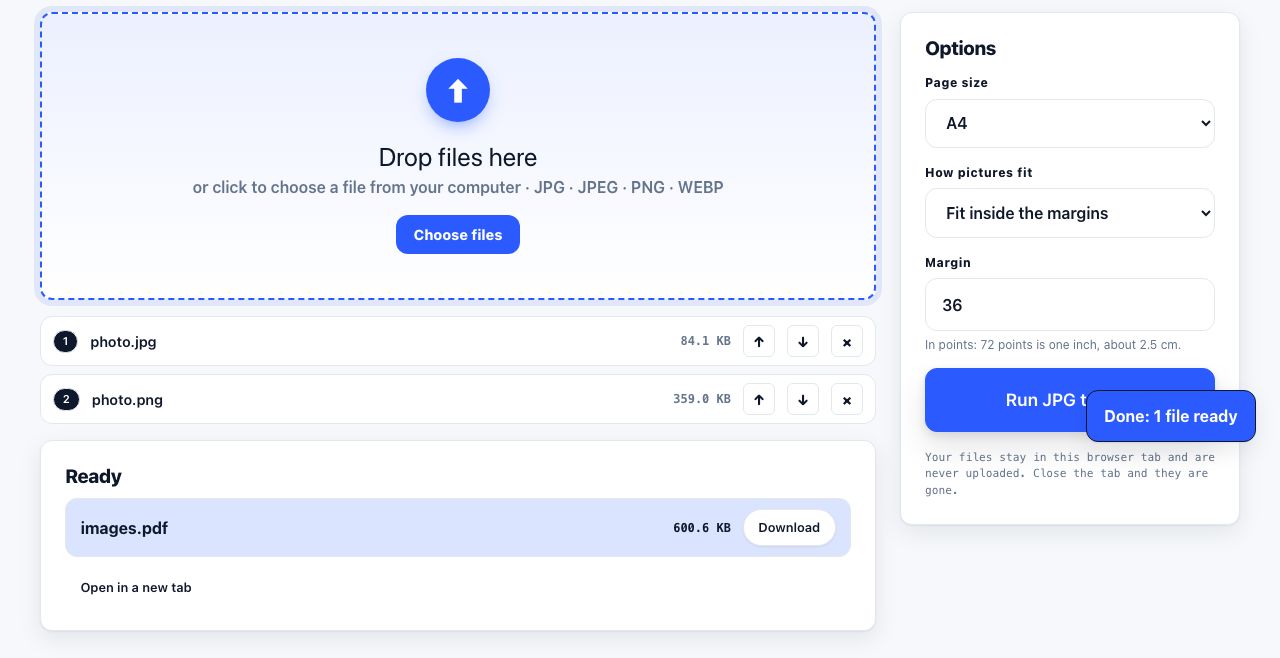
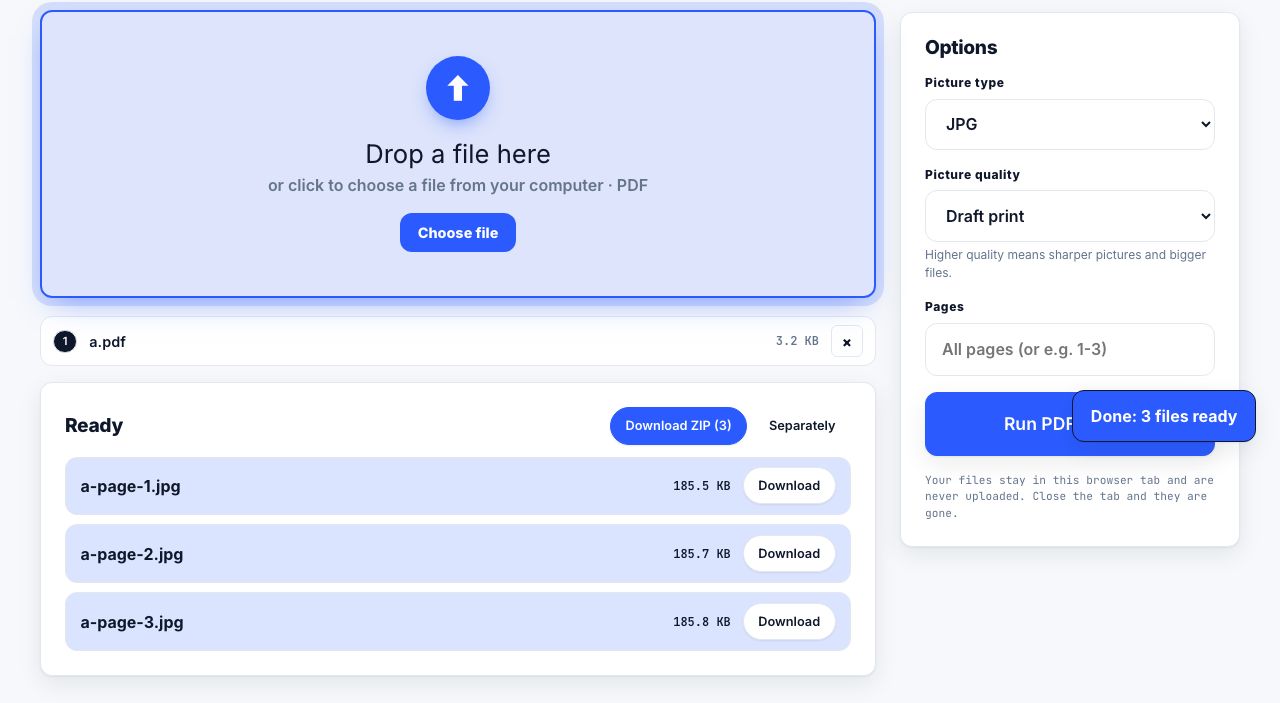


A Wi-Fi QR code saves guests from typing a long network password, but it also makes that password easy to share. The code usually contains the network name, security type and password as readable text encoded in a standard payload. Treat the printed code as a credential, not as decoration, and avoid posting it somewhere public if the network is private.
Create the code with the exact network settings
- Confirm the network detailsCopy the SSID exactly, including spaces and capitalization. Confirm whether the network uses WPA/WPA2, WPA3, or no password with the person who manages it.
- Generate the Wi-Fi payloadOpen Wi-Fi QR Code, choose Wi-Fi, enter the network name and password, and select the correct security option. Avoid a leading or trailing space accidentally copied into either field.
- Download a sharp versionDownload the vector SVG if the layout tool accepts it, or use the PNG at its original pixel size. Do not enlarge a tiny raster code until its square modules become blurry.
- Build the handoutPlace the code on a simple page with the network name, a brief scan instruction and a manual-connection fallback. Keep clear white space around the code and enough contrast between dark modules and the background.
- Test the physical printPrint at the actual size, then scan it using at least two different phones. Try the code from the distance guests will use and verify the device joins the intended network.
Create a Wi-Fi code in your browser, then test it before distributing the handout.
QR Code Generator →Make the page useful even when scanning fails
A printed sheet can be photographed, damaged or scanned by a phone that cannot join the network automatically. Include the SSID and a way for an authorized host to provide the password, but do not print the secret in plain text if the handout may be seen by strangers. For a public venue, consider a separate guest network with limited access instead of exposing your main network.
If the code itself is a transparent PNG, put it into a page with a document editor or use JPG to PDF only if you have converted the art to JPG and do not need transparency. When you export a full-page image for a screen, PDF to JPG can render the handout, though the image no longer has selectable text.
Troubleshoot a code that will not scan
Check that the Wi-Fi security type matches the access point and that the password has no typo. Increase the printed code size, restore a clear border around it, and remove logos or patterns that cover the modules. Avoid low contrast, glossy glare and curved surfaces. A denser payload needs more room; the QR code size guide explains print dimensions and quiet zones.
Do not publish a private Wi-Fi password in an open website, public directory or social post. Anyone who can read the page or scan a clear photo may be able to join. If credentials change, replace or remove every printed and digital copy of the old code.
For alternate payloads and layout advice, read how to make a QR code for print, choosing the right print size, and Wi-Fi QR code basics. Keep the network access intentional, and verify the finished handout instead of trusting a screen preview.
Frequently asked questions
Can someone read my Wi-Fi password from the QR code?
Yes. A standard Wi-Fi QR code encodes the network details needed to connect. Treat a copy of the code like a copy of the password.
Why does a phone scan the code but not connect?
The SSID, password or security type may be wrong, the network may be out of range, or the phone may not support its security settings. Verify the details with the network owner.
What size should I print a Wi-Fi QR code?
Use a size that scans reliably at the intended distance, maintain a clear quiet zone and test a physical print. Dense codes generally need more room than short web links.