How to make a QR code that actually scans off paper

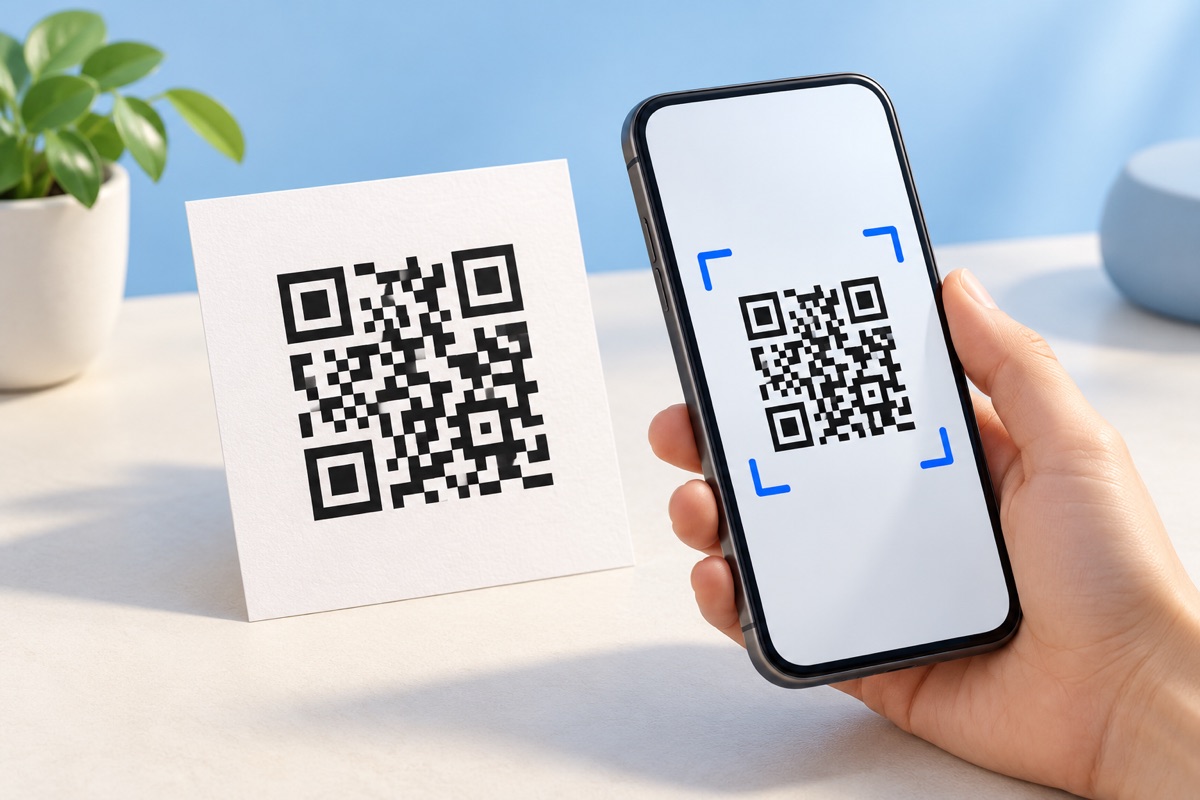
Export the QR code as vector SVG, print it at least 2 cm (0.8 in) wide, keep a quiet zone of four blank modules on every side, and use dark ink on a light background. Choose error correction level M for most jobs, then scan a real test print before running the full batch.
See the tools in action
A printed QR code almost never fails because of the code. It fails because someone exported a 200-pixel PNG and scaled it up, printed it pale grey over a photograph, squeezed it into a 12 mm corner, or cropped away the margin. All four are avoidable in two minutes.
The QR Code was designed by Denso Wave in 1994 and standardised as ISO/IEC 18004, a standard unusually specific about the physical conditions a symbol needs. The four rules below come straight out of it.
Rule 1: Export vector, never a small raster
A QR code is a grid of black squares, which is a vector drawing rather than a photograph. An SVG or PDF stays perfectly sharp at 15 mm on a card and at 3 metres on a banner; a PNG is locked to the pixel grid it was made at.
If you must use raster, do the arithmetic. At 300 DPI one millimetre is 11.8 pixels, so a 25 mm code needs 295 pixels square as a minimum. Export at 1024 px or more and let the layout scale it down, never up.
| Format | Good for | Watch out for |
|---|---|---|
| SVG | Anything a designer or print shop handles | Nothing. Scales to any size with no loss of edge quality. |
| Print-ready PDF | Sending straight to a printer | Check the driver is not scaling the page. |
| PNG, 1024 px or larger | Documents, slides, email signatures | Never enlarge after export. Re-generate at the size you need. |
| PNG, 256 px or smaller | Screens only | Prints as soft, blurred modules. The most common cause of a failed scan. |
| JPG | Nothing at all | Compression smears the hard black-and-white edges a scanner reads. |
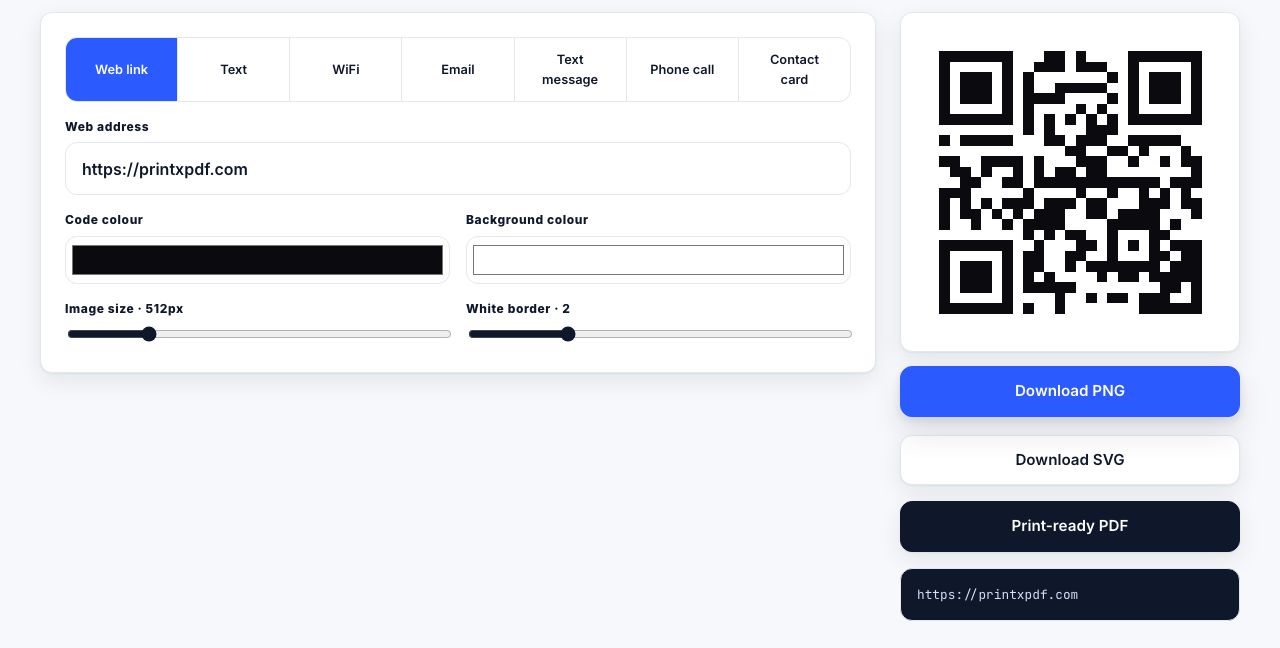
The QR code generator exports SVG, PNG up to 2048 px and a print-ready PDF, all in your browser, so what you type never leaves your machine.
Rule 2: 2 cm is the practical floor
The smallest square in a QR code is a module. A version 1 symbol is 21 modules across and every version up adds four, so a typical short URL at error correction M lands on version 3, or 29 modules across.
Consumer printing and phone cameras need each module to be roughly 0.5 mm wide; 0.4 mm is where things get unreliable. Twenty-nine modules at 0.5 mm is 14.5 mm, so 15 mm is the theoretical floor. Round up to 20 mm (0.8 in) for tolerance against cheap paper, ink spread and a shaky hand. For anything read from further away, see what size a QR code should be.
Rule 3: The quiet zone is part of the code
The blank border is not whitespace, it is a required component. ISO/IEC 18004 specifies four modules of clear margin on all four sides, and scanners use it to find where the symbol starts and stops. On a 25 mm code with 0.7 mm modules that is a 2.8 mm blank frame.
Do not crop the margin to make the code fit, do not butt it against a photograph, and never place it within 5 mm of a trim edge. Press trimming tolerance is 1 to 2 mm per cut and it will eat your quiet zone.
The generator here defaults its quiet zone slider to 2 modules, fine on screen and marginal on paper. Drag it to 4 before downloading anything you will print.
Rule 4: Dark on light, with real contrast
- Never invert the code. Light modules on a dark background break older scanners and point-of-sale hardware, even though phone cameras cope.
- Print the dark modules as 100% K, not rich black. A single ink plate cannot misregister, so module edges stay crisp.
- Avoid red, orange and yellow modules. Laser scanners read with a red beam and cannot tell red ink from white paper.
- No gradients or photographs behind the code, and keep a clear tonal gap. Charcoal on cream is fine; mid-grey on light grey is not.
Error correction: L, M, Q and H
QR codes carry Reed-Solomon error correction, so a partly damaged symbol still decodes. You choose how much redundancy to spend: more correction means more modules for the same data, which at a fixed size makes the code harder to scan.
| Level | Data recoverable | Effect on the symbol | Use it for |
|---|---|---|---|
| L (Low) | About 7% | Smallest, fewest modules | Long payloads such as a vCard, on clean flat paper |
| M (Medium) | About 15% | The default, right most of the time | Flyers, cards, menus, posters, packaging |
| Q (Quartile) | About 25% | Noticeably denser | A small centre logo, labels that get scuffed |
| H (High) | About 30% | Densest for the same data | Outdoors, curved bottles, larger logo overlays |
The trap is treating H as free insurance. On a 20 mm code it can push module size below 0.4 mm, making the symbol harder to read than the L version would have been. On flat paper indoors, with no logo, M is correct.
A logo in the middle must stay under about 20% of the code area at level H, and must never touch the three large corner squares. Those are the finder patterns and the decoder needs all three.
Test before you print 500 copies
- Print one proof at final sizeOn the real stock, at 100% scale. Turn off "fit to page", which silently shrinks the code.
- Scan with three phonesA current iPhone, a current Android, and one that is three or four years old. The old phone finds your mistakes.
- Scan at the real distance and lightHold the phone where a customer would. Dim rooms and glossy laminate under a spotlight behave unlike your desk.
- Follow the linkCheck it lands where you meant, works on mobile, and has no redirect that could expire.
- Only then run the jobKeep the SVG and exact payload on file so a reprint is identical.
Generate an SVG, PNG or print-ready PDF QR code in your browser. Nothing is uploaded.
QR Code Generator →Quick diagnosis when a printed code will not scan
- Measure it. Under 20 mm on a hand-held piece is the likeliest answer.
- Check the blank border. Under four modules of margin, or a photograph running beneath it, breaks detection.
- Check the source file. A JPG or a small PNG needs regenerating as SVG.
- Shorten the payload. A 900-character vCard makes a dense symbol; a short URL scans from twice the distance.
Once the artwork is right, combine the proofs into one PDF before sending. For cards, the layout details are in putting a QR code on a business card.
Frequently asked questions
Why does my QR code work on screen but not when printed?
Almost always size or resolution. A code that fills your monitor is huge; the same file at 15 mm on paper has modules under 0.4 mm. Re-export as SVG, print at 20 mm or larger, and keep a four-module quiet zone.
What is the minimum size for a printed QR code?
Twenty millimetres, about 0.8 inches, for anything held in the hand. The absolute technical floor is roughly 15 mm for a short URL, but 20 mm gives you tolerance for paper, ink spread and older phone cameras.
Which error correction level should I use?
Level M, which recovers about 15% of the data, is right for most printed material. Move to Q or H only if you are placing a logo over the centre, printing on a curved surface, or expecting the code to get scuffed.
Can I print a QR code in colour?
Yes, as long as the modules stay clearly darker than the background. Keep the dark modules a deep, desaturated colour and the background near-white. Avoid red, orange or yellow modules, which red-beam laser scanners cannot see.
Should I use PNG or SVG for a QR code?
SVG for anything printed, because it stays sharp at every size. PNG is fine for screens and for documents where you cannot embed vector, but export at 1024 pixels or more and only ever scale it down.