How to make a searchable PDF from scanned paper

To make scanned paper searchable, capture clear pages, place them in a PDF, run OCR to add a text layer, and test search and copy on the output. OCR can misread small, skewed, faint or handwritten text, so compare important names, numbers and dates with the page image before using the recognized text.
See the tools in action
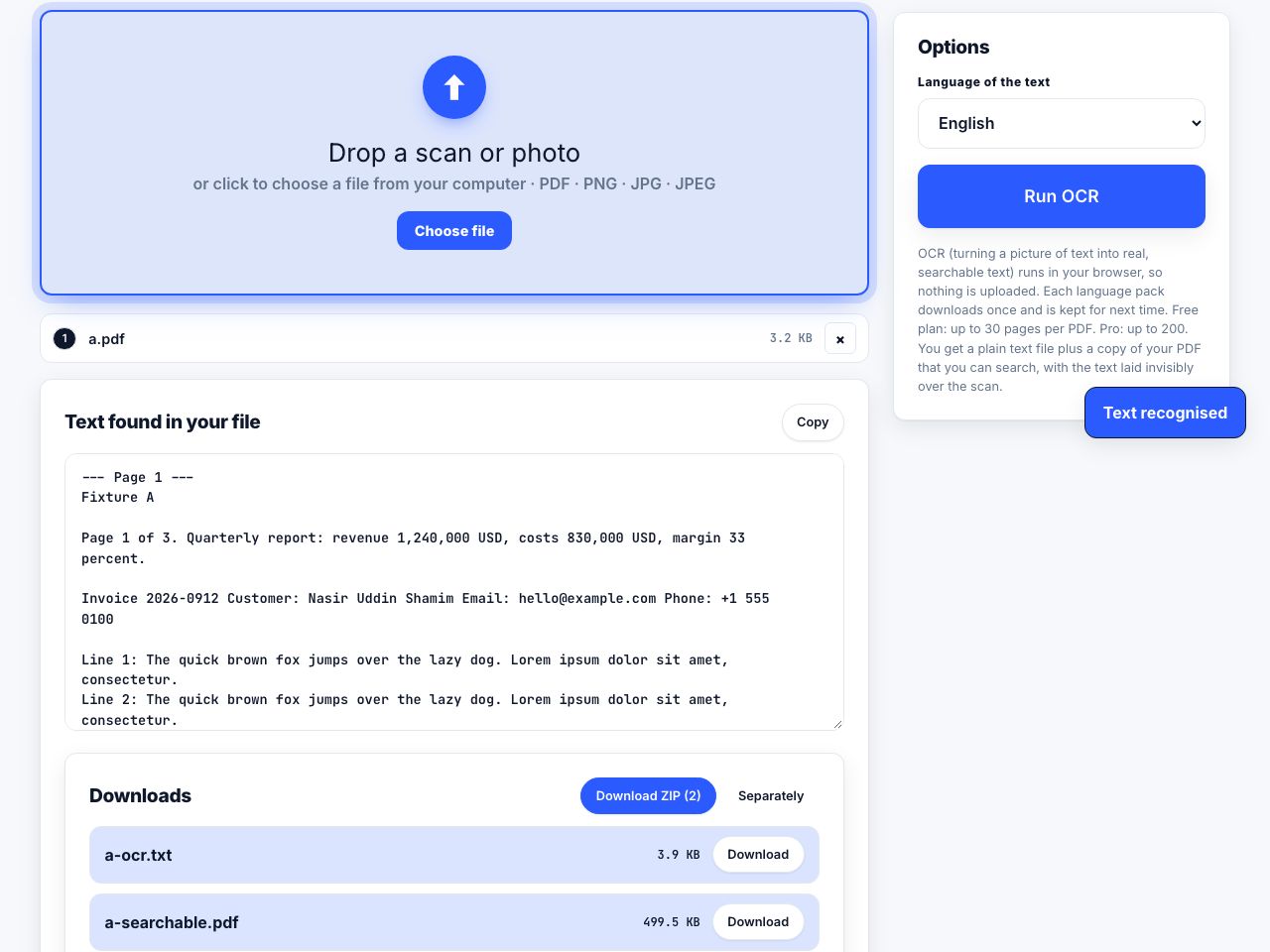


A scanned PDF can look like a normal document while containing only page photographs. Search, copy and screen readers have no words to work with until optical character recognition (OCR) identifies text in those images. OCR adds a searchable text layer; it does not turn a poor scan into a perfect source document.
Capture a clean source first
Place the paper flat, include all four edges, avoid shadows and glare, and capture pages in order. If you are using a phone camera, hold it parallel to the page and use enough light to keep letters sharp. For an existing PDF, open it and zoom in: if letters break into visible pixels or a page leans sharply, OCR quality may suffer. A very low-resolution scan can make similar characters such as 3 and 8 hard to distinguish.
- Scan pages into a PDFUse a scanner or the Scan to PDF tool with your camera. Review the edges and page order before saving.
- Make a working copyKeep an untouched copy of the image-only source. OCR may append or rebuild page content, so preserve the scan if exact visual evidence matters.
- Run OCROpen OCR PDF, choose the scan and start recognition. Wait for the output file to finish before closing the tab.
- Test the text layerSearch for a word visible on page one, select a sentence, and copy it to a text editor. Use Extract Text or another text output when you need the recognized words outside the PDF.
- Verify high-impact detailsCompare names, dates, totals, account numbers, citations and negative signs against the image. Correct errors in a separate document rather than assuming OCR is authoritative.
Add a searchable text layer to scanned pages, then verify what the recognizer read.
OCR PDF →Understand what the OCR result contains
OCR typically places recognized words so they line up with the image. Depending on the source and tool, the output may be searchable without being comfortably editable. Tables, columns, handwriting, stamps, vertical text and unusual fonts are difficult because the software must infer reading order and character shapes. Exported words may have different line breaks from the visual page.
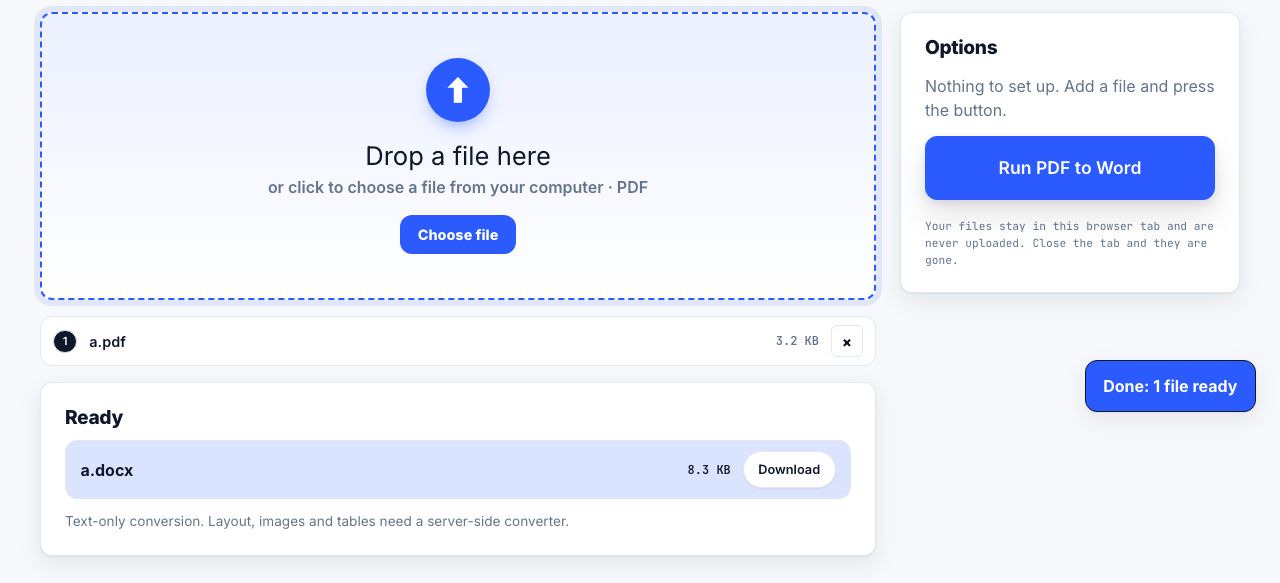
For a workflow that needs editable prose, try PDF to Word after OCR and review the document structure. For tables, PDF to Excel may help with simple rows, but it does not guarantee spreadsheet cells match the original. If you need text for notes or documentation, PDF to Markdown is a plain-text-oriented option. All extractions need checking.
Improve recognition before trying again
Start with a sharper, straighter scan rather than repeatedly running the same blurry image. Remove dark borders, increase contrast where it helps, and split a very large file into smaller groups if the device runs short of memory. Keep the original page size when possible. Excessive sharpening can make punctuation and small print worse, so compare a test page before processing a large archive.
OCR is not a translation tool and cannot reliably reconstruct missing text. It may also produce different results for languages or scripts the recognizer does not support. For legal, medical, financial or identity records, have a person verify every field that could affect a decision.
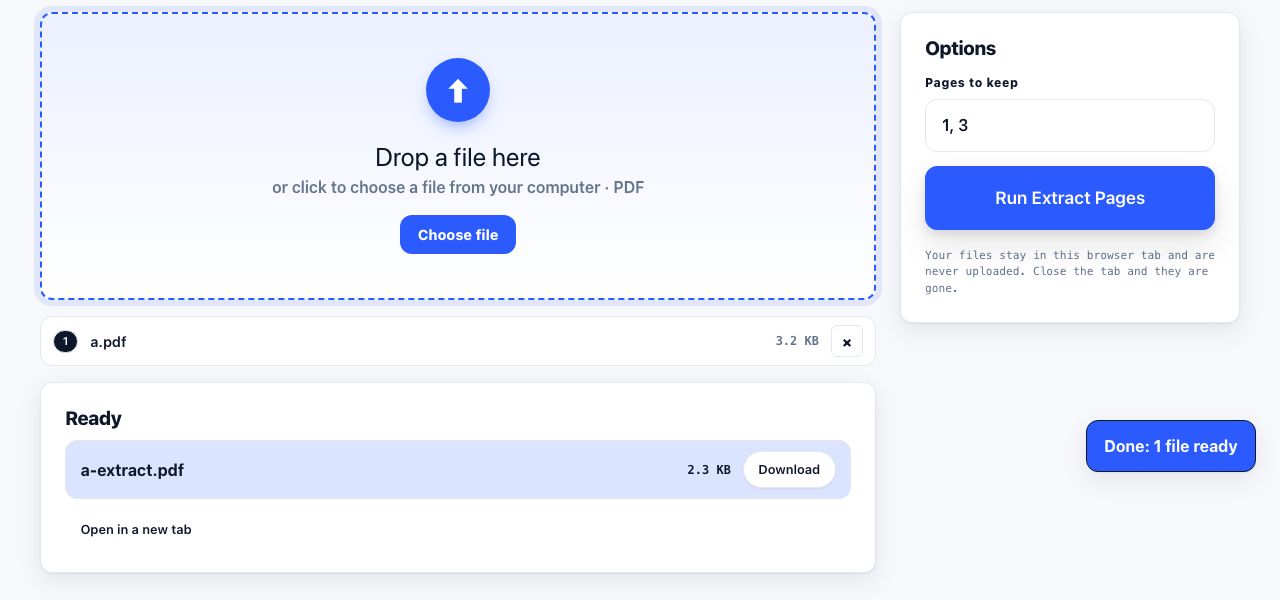
If you only need a subset, extract the pages first and OCR that smaller file. For more about searchable scans, see make a PDF searchable, improve OCR accuracy, and extracting text from a PDF. The important end test is practical: can you find, select and copy the words you need, and do they match the page?
Frequently asked questions
Does OCR make scanned text editable?
OCR recognizes text and may add a searchable layer. It does not guarantee a well-formatted editable document. Use a conversion tool for editing and inspect its layout.
Why can I see words but not search them in my PDF?
The page may be a flat image without a text layer. Run OCR on a copy, then search for a word you can clearly see.
Can I trust OCR for numbers and names?
Not without checking. Similar characters, faint printing and skew can cause errors. Verify high-impact details visually against the original scan.