How to annotate PDFs for studying

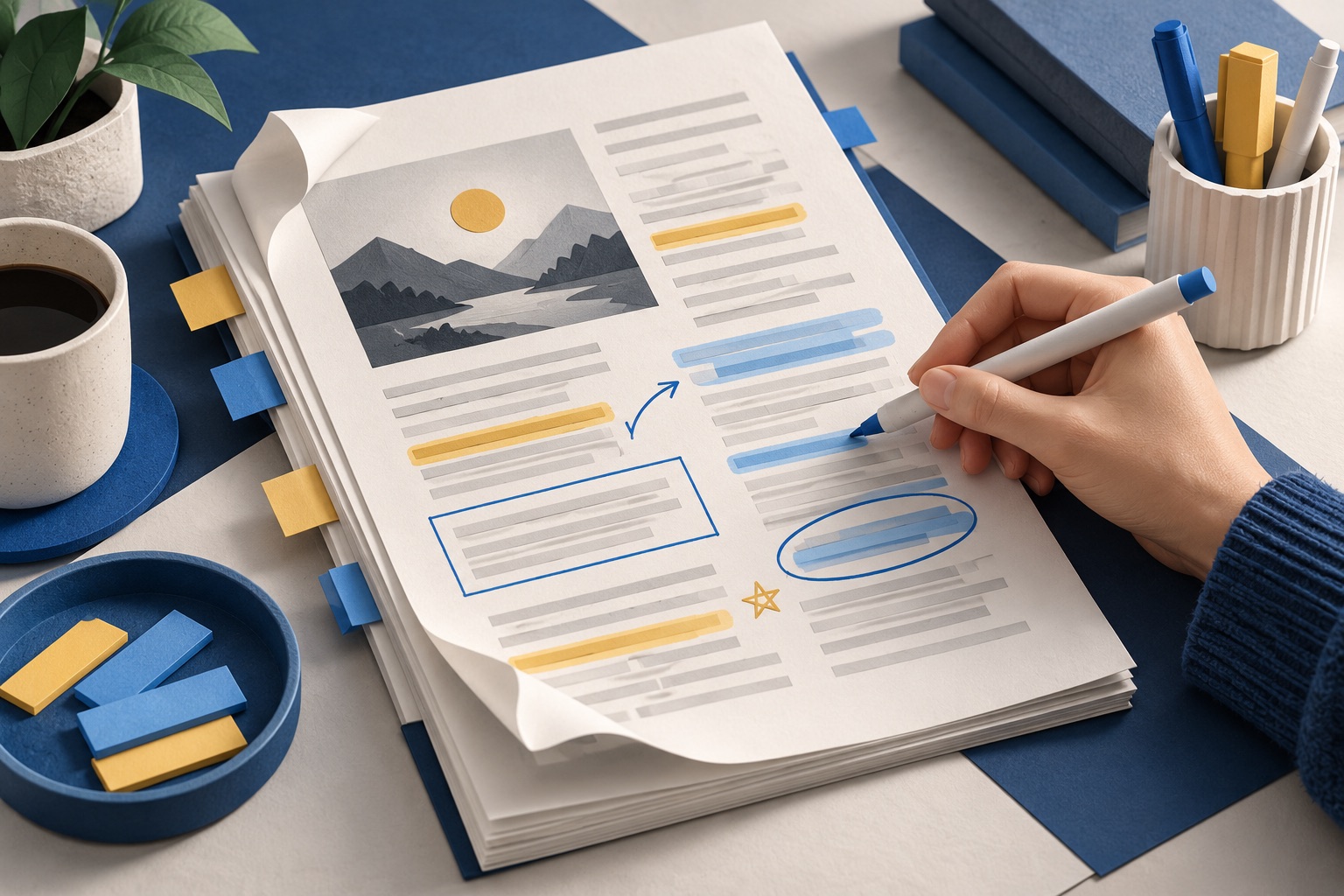
Read once without marking anything, then highlight on a second pass using a fixed colour code and write a margin note in your own words beside every highlight. Use Zotero or Adobe Acrobat Reader on a laptop, GoodNotes or Notability on an iPad, and export the highlights into your notes before revision starts.
See the tools in action
Most PDF annotation goes wrong in the same way: a first read with the highlighter already in hand, half the page turns yellow, and in June the highlights say nothing that the plain text did not. The fix is not a better app. It is a two-pass habit and a rule about what a highlight means.
Highlighting on its own does almost nothing
When cognitive psychologists ranked common study techniques by how well they hold up in controlled experiments, highlighting and rereading came out near the bottom, while self-testing and spaced practice came out on top. Highlighting is not useless, but it only earns its place when it feeds something else: a question, a flashcard, a paragraph you write yourself.
A highlight is a promise to come back. If you are never coming back, do not make it.
So the working rule is: every highlight gets a margin note, and every margin note is in your own words. If you cannot restate the sentence, you have not understood it, and colouring it in will not help.
The two-pass method
- Pass one: skim, mark nothingFive to ten minutes. Title, abstract, section headings, figures, conclusion, and a glance at the reference list. You are deciding whether this paper deserves a second pass at all. Roughly half do not.
- Pass two: read and highlight sparinglySet yourself a budget: no more than one sentence in ten. If more of the page is coloured than not, you are marking topic rather than argument.
- Write the margin note immediatelyAttach a sticky note or text comment to each highlight while the sentence is still in your head. Aim for one line: "claims X causes Y, sample only 42 undergrads".
- Turn the notes into questionsAt the end of the section, convert two or three notes into questions you could be asked. "Why does the effect disappear above 30 degrees?" A question you can answer later is worth ten highlights you cannot.
- Export before you close the filePull the highlights and notes into a single document per topic, with page numbers. This is the artefact you will revise from. The PDF is the source, not the study material.
Use a colour code and never change it
Four or five colours, one meaning each, applied identically across every paper for the whole term. The value is in the consistency, not in the specific mapping.
| Colour | Means | What you do with it later |
|---|---|---|
| Yellow | A core claim or a definition | Becomes a flashcard |
| Green | Evidence: a number, an effect size, a sample | Goes in the results table of your notes |
| Pink or red | I disagree, or this contradicts another source | Becomes a paragraph in your discussion |
| Blue | A method or term I need to look up | Goes on the to-read list |
| Purple | A sentence worth quoting verbatim | Copied with the page number, ready to cite |
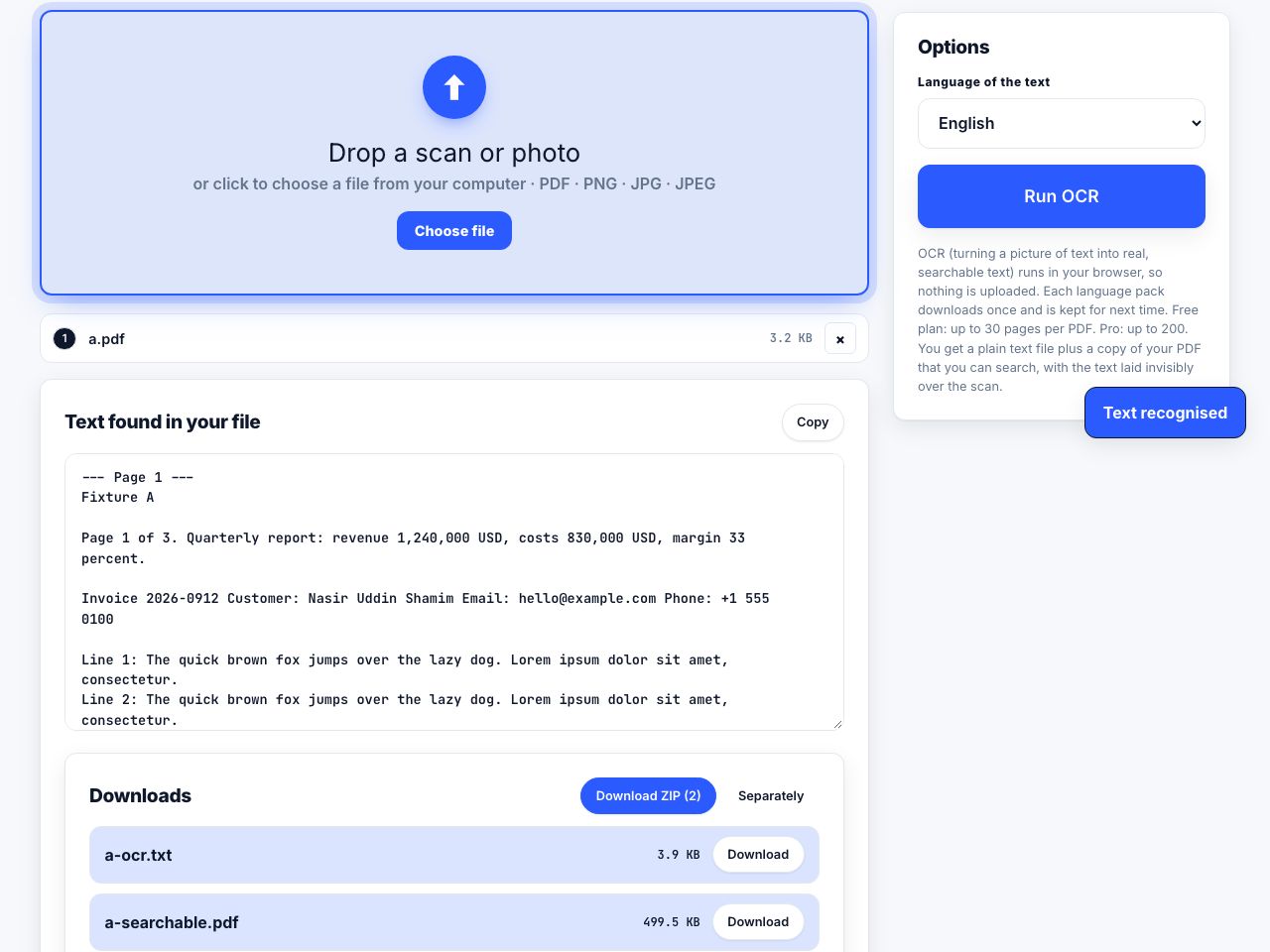
You cannot highlight text that is not there. A scanned PDF is a picture of a page: the highlighter tool will either be greyed out or will draw a free-form box that never matches the line. Run OCR first to add a real text layer, then annotate.
Scanned chapter or a photographed handout? Add a searchable text layer before you start marking it up.
OCR PDF →Which app, on which machine
| Platform | App | Cost | Getting the highlights out |
|---|---|---|---|
| Windows | Microsoft Edge | Free, already installed | None. Highlights save into the file and stay there |
| Windows and Mac | Adobe Acrobat Reader | Free | Print → Summarize Comments produces a printable list of every comment with its page number |
| macOS | Preview | Free | View → Highlights and Notes opens a sidebar listing every mark; select all and copy |
| iPad | GoodNotes or Notability | Roughly $10-15 | Export the annotated PDF; handwriting stays searchable inside the app |
| Any desktop | Zotero 7 | Free and open source | Best in class. Right-click the item → Add Note from Annotations turns every highlight into a note with page numbers and a live citation |
If you are managing more than about twenty sources, the Zotero route is worth the afternoon it takes to set up. It stores the PDF, the annotations and the citation metadata in one record, so the highlight you made in February is still attached to the reference you need in May. Everything else on that list is a reader that happens to write marks into a file.
Notes on the iPad workflow
- An Apple Pencil changes the maths. Handwritten margin notes are faster than typing and, in GoodNotes and Notability, still searchable.
- Import PDFs into the app rather than annotating in Files, or your marks end up scattered across three places.
- Set the app to a two-page spread for two-column journal PDFs; single-page view forces constant zooming.
- Back up. An annotated PDF that exists only inside one iPad app is one restore away from being gone.
Before you hand anything in or share it
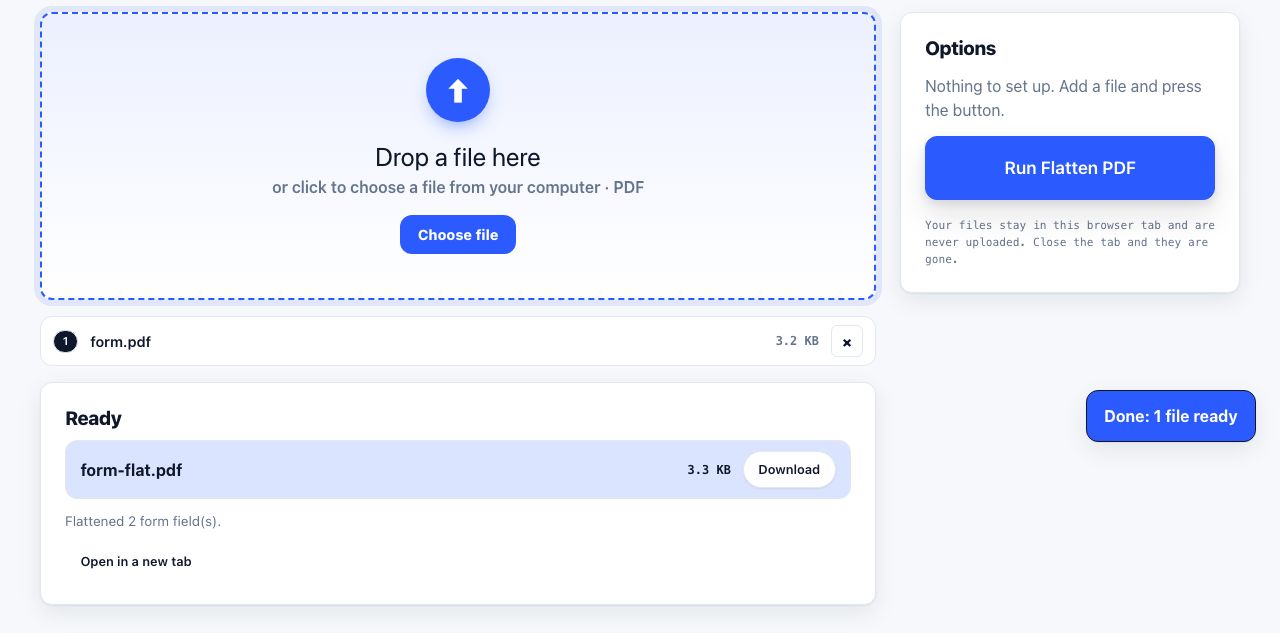
Annotations are live objects. Anyone who opens your PDF can drag your notes around, delete them, or read the comments you meant only for yourself. If you are sending a marked-up paper to a supervisor or a study group, flatten it first so the marks become part of the page.
Flatten comments and highlights into the page before you send a marked-up PDF to anyone.
Flatten PDF →Paper still wins for some things
Dense mathematics, anything you need to sketch alongside, and long theory chapters are genuinely easier on paper with a pencil. The sensible split is: annotate digitally the things you will search later, and print the things you will think with. If you are printing, do it economically, see printing journal articles properly and printing lecture slides. And when you quote anything you found online, record the details you will need for the citation while the tab is still open.
Frequently asked questions
What is the best free PDF annotator for students?
Zotero 7 if you are managing a reference list, because it exports every highlight into a note with page numbers and citations. Adobe Acrobat Reader if you only need to mark up individual files, and Microsoft Edge if you want zero installation on Windows.
Why can I not highlight text in my PDF?
The file is almost certainly a scan with no text layer, so there are no characters to select. Run OCR on it to add one, then the highlighter will snap to lines normally. A locked or permission-protected PDF can also block commenting.
How do I export all the highlights from a PDF?
In Zotero, right-click the item and choose Add Note from Annotations. In Adobe Acrobat Reader, open Print and click Summarize Comments. On macOS Preview, open View → Highlights and Notes and copy the sidebar list. Edge has no export at all.
Do annotations stay in the file if I send it to someone else?
Yes, and they stay editable, so the recipient can move or delete them. Flatten the PDF first if you want the marks to be permanent and non-editable, which is also what you want before submitting anything.
Is it better to annotate on paper or on a tablet?
Paper is better for material you need to think through, sketch alongside or read in one long sitting. A tablet is better for anything you will need to search or quote later, because the highlights stay attached to text you can find again.