How to merge PDF files without uploading them

To merge PDF files without uploading them, use a browser-local merger that reads and writes the PDF inside your tab. Add the files, set their order, merge them, and download the new copy. PrintxPDF performs standard PDF merges locally, so sensitive files stay on your computer. It is free, requires no signup, and adds no watermark.
See the tools in action
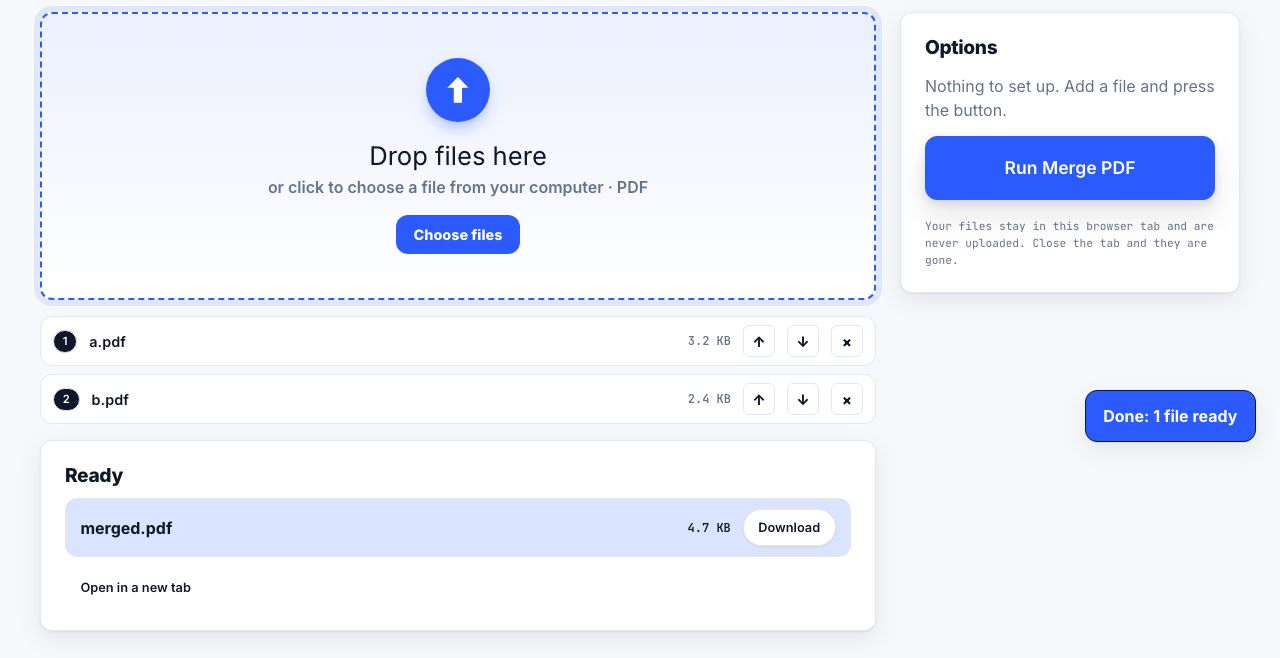
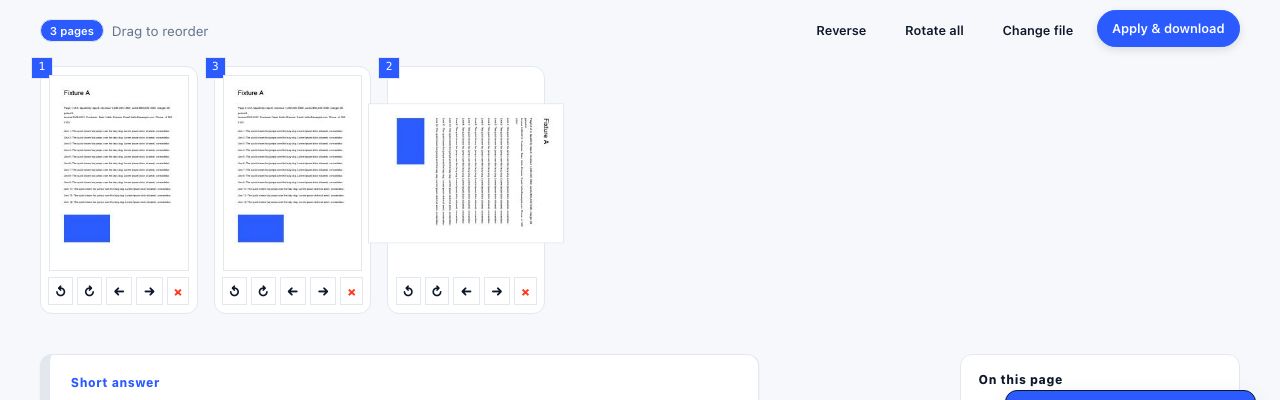
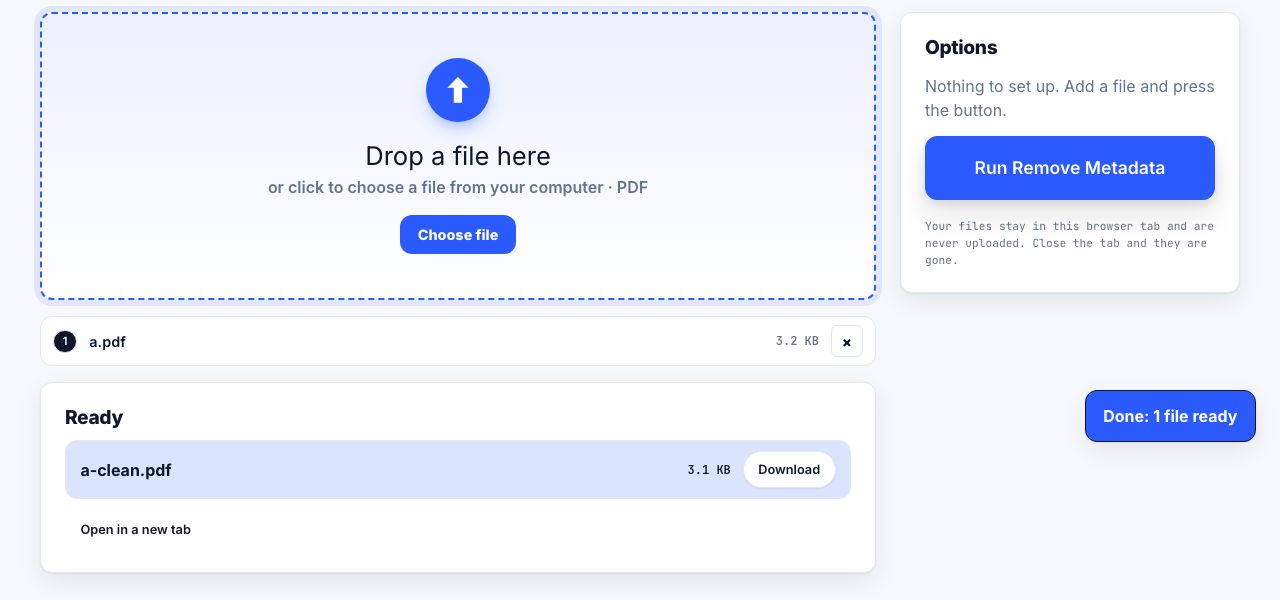
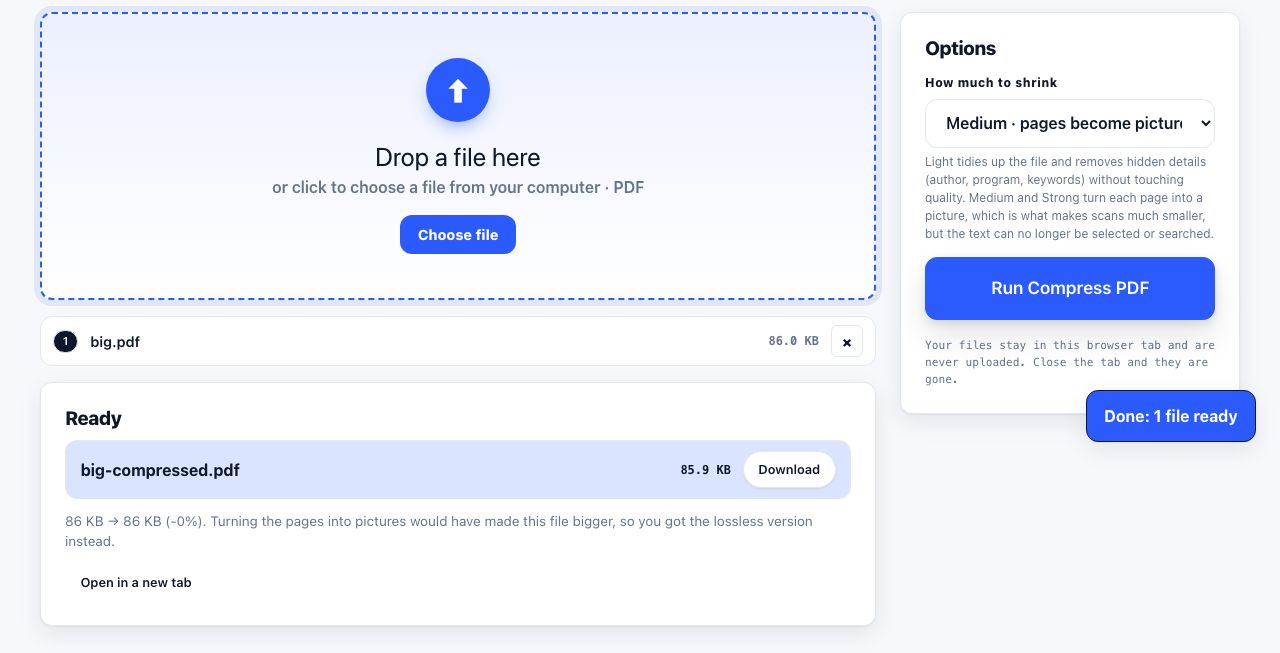
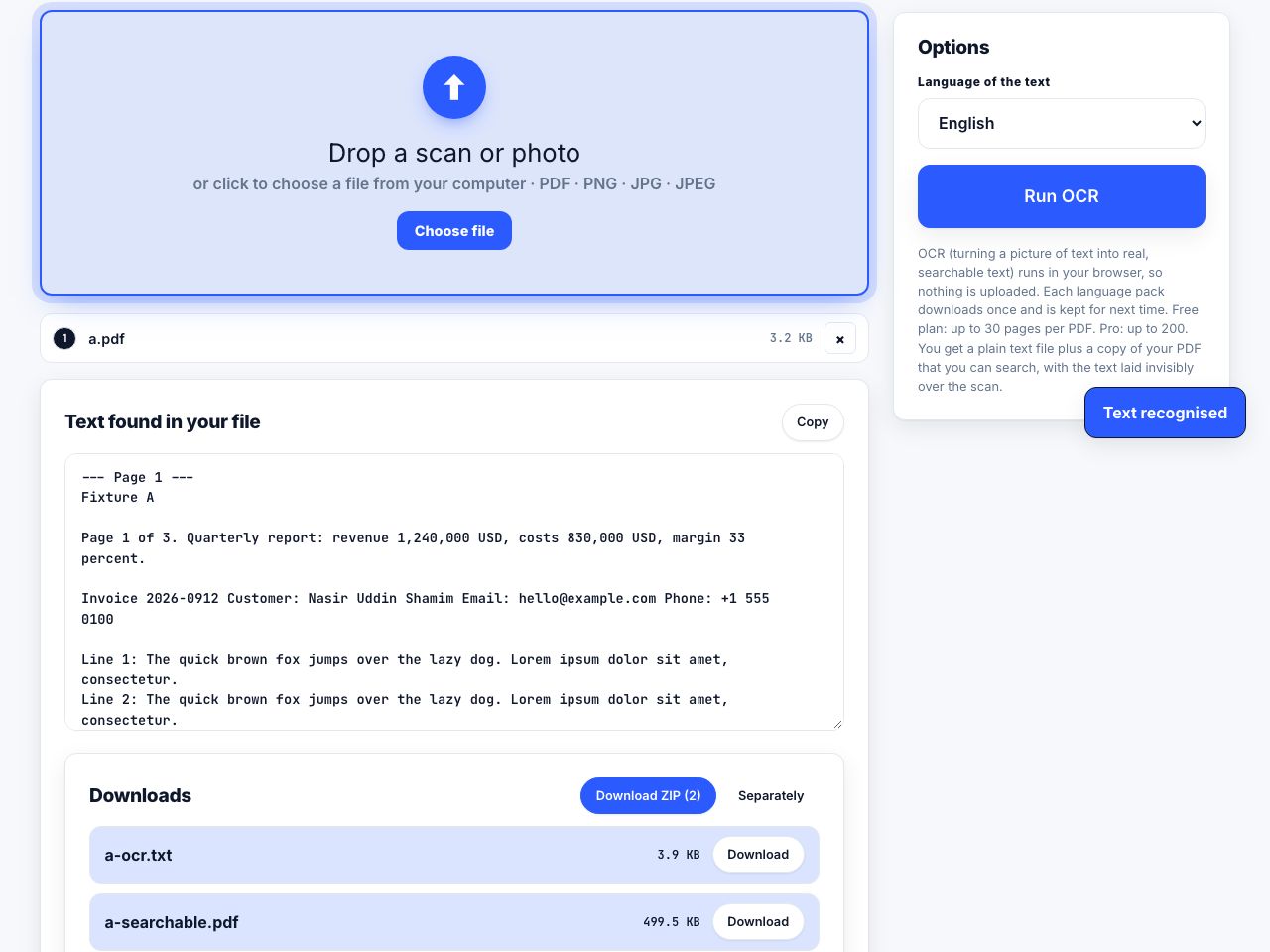
A PDF merger does not need to be an upload service. For a standard merge, PrintxPDF processes the files in the browser tab you are using and creates a separate combined copy on your computer. That is useful when the documents contain account numbers, medical information, contracts, client work, or anything else you should not place in an unknown cloud queue. No account, card, watermark, or fake free trial is involved.
How to merge PDFs privately in your browser
- Keep the original filesWork with copies when the documents are important. A merge creates a new output, but keeping sources makes it easy to correct an order mistake.
- Open Merge PDFUse Merge PDF and add the documents from your device. The standard merge runs in your browser tab.
- Arrange the input orderPut files in the intended sequence before merging. Check attachment names and page counts so the right version is included.
- Merge and download the copyCreate the combined PDF, download it, and open it in a reader to confirm every section and page transition.
- Apply only the follow-up tools you needUse Organize Pages for page-level changes, Remove Metadata when policy calls for clean document properties, and Compress PDF only if the output is too large.
Merge PDFs locally in your browser. Free, no signup, no watermark, and no standard-file upload.
Merge PDF →Why local processing matters for confidential PDFs
An upload-based PDF tool receives a copy of your file before it can do any work. That can be acceptable under an approved business agreement, but it is not the only option. Browser-local processing keeps the file on the device you control for this type of task. It reduces one avoidable transfer and makes the workflow simpler for sensitive everyday documents.
Local merge versus a cloud PDF merger
| Question | Browser-local merge | Typical cloud merge |
|---|---|---|
| Where is the PDF processed? | Inside the browser tab | After upload to a remote service |
| Account needed? | No for PrintxPDF core tools | Often optional or required |
| Watermark risk? | No PrintxPDF watermark | Varies by provider and plan |
| Best use | Private routine document assembly | Workflows already approved for cloud processing |
Metadata and visible content are separate privacy questions
Keeping a file local does not automatically remove what is inside it. A PDF can retain author fields, titles, timestamps, comments, attachments, and visible private information. Use Remove Metadata for standard document properties and catalog XMP when appropriate. Use true redaction for content that must no longer be recoverable, then inspect the output. Do not confuse hiding a page, drawing a black box, or deleting a page with verified redaction.
Verify the result before sharing
Open the output, check the page count, and inspect key pages at normal reading size. If scans need text search, use OCR PDF on a copy and verify critical names and figures. If a signature is important, keep the original signed document because creating a merged copy can affect signature status. Privacy is strongest when you keep originals, make an intentional distribution copy, and check exactly what that copy contains.
Frequently asked questions
Are my PDFs uploaded when I use PrintxPDF Merge PDF?
Standard PDF merging runs inside the browser tab, so the files stay on your device for that task. The page identifies tools that require server processing separately.
Can I merge bank statements or contracts privately?
A browser-local merge avoids sending the files to a processing server. Keep originals, check the combined copy, and remove metadata or redact content separately if your sharing policy requires it.
Does merging PDFs remove metadata?
No. Merging combines pages; it does not promise to remove document properties or embedded information. Use a dedicated metadata-removal step when needed.
Will a merged PDF keep digital signatures valid?
A new merged document can affect signature status. Preserve original signed files and verify the recipient’s requirements before relying on the combined copy.