How to merge PDF files without Adobe for free

To merge PDF files without Adobe, open a browser-based merger, add the documents in the order you want, combine them, and download the new file. PrintxPDF runs this job in your browser, so the PDFs stay on your computer. It is free, needs no signup, adds no watermark, and keeps the original files unchanged.
See the tools in action
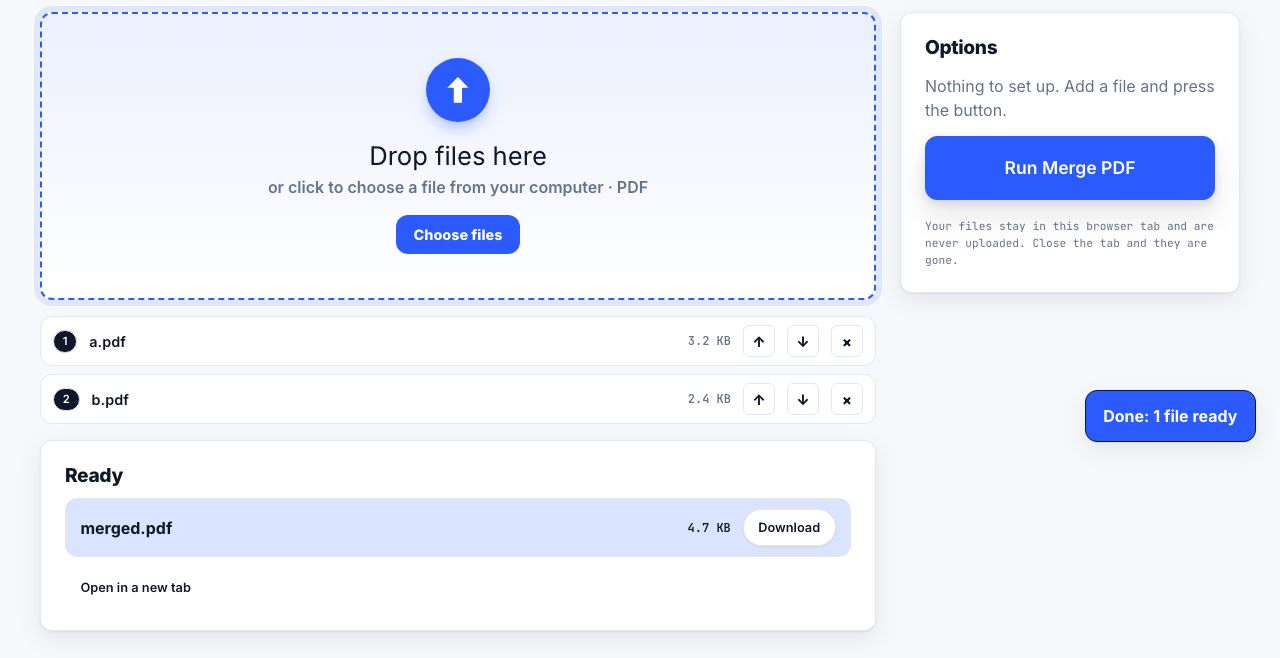
You do not need Adobe Acrobat to put several PDFs into one file. Add the documents to PrintxPDF, set their order, merge them, and download a new copy. The work happens in your browser tab, which matters for bank statements, contracts, medical records, or anything you do not want sitting on a third-party upload server. There is no account, card, watermark, or trial timer.
How to merge PDF files without Adobe
- Open Merge PDFGo to Merge PDF. Add two or more PDFs from your computer. Your source files are not changed.
- Set the document orderMove files until the list matches the order you want. Put a cover first, attachments after the main document, and signed pages where they belong before combining.
- Merge the filesChoose Merge PDF. PrintxPDF builds one new document locally in the browser instead of sending the pages to a server.
- Check the new PDFOpen the downloaded copy and confirm the page count, order, and orientation. Keep the sources until the final packet has been accepted.
Merge PDFs free in your browser. No signup, no watermark, and your files stay in your tab.
Merge PDF →Compare a browser merger with Adobe and cloud upload tools
| Option | Cost and access | Where the file is processed | Best fit |
|---|---|---|---|
| PrintxPDF Merge PDF | Free, no signup, no watermark | In your browser tab | Private everyday merges |
| Adobe Acrobat | Paid desktop plan or trial | On your device | Teams already using Acrobat |
| Typical cloud merger | Often requires upload or limits | A third-party server | Only when you accept that processing |
Keep the page order correct before you send the file
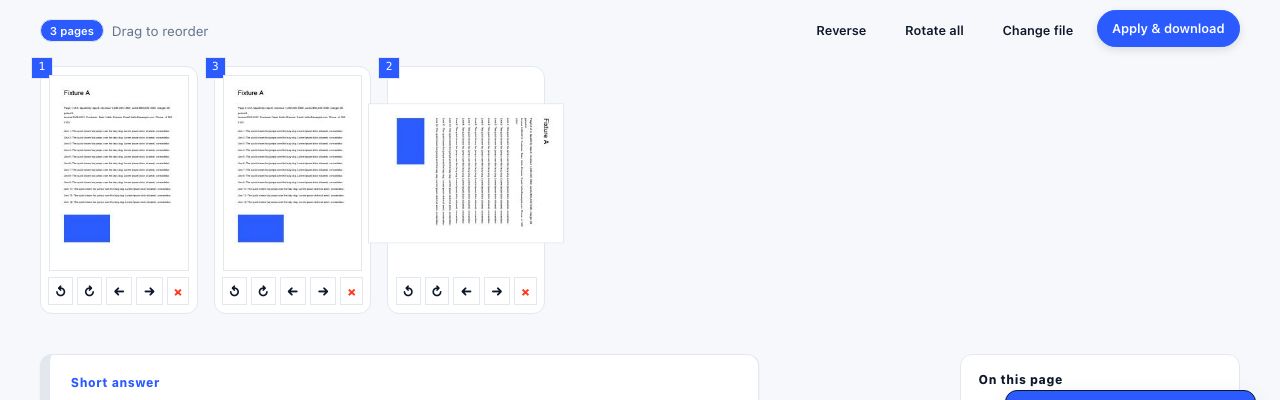
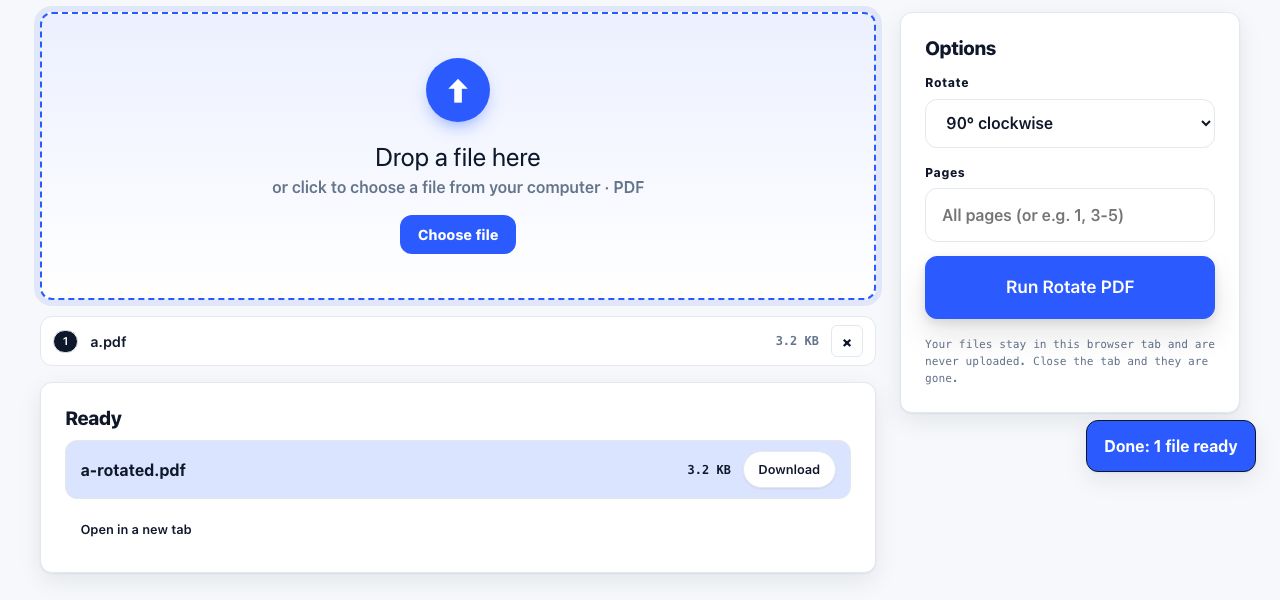
Merging preserves each input document as a block. If a two-page attachment needs to sit between pages in another PDF, merge first and use Organize Pages to move individual pages. Use Rotate PDF for sideways scans, or Delete Pages to remove an accidental blank page. Check every transition between source files, not only the first and last page.
What merging does not do
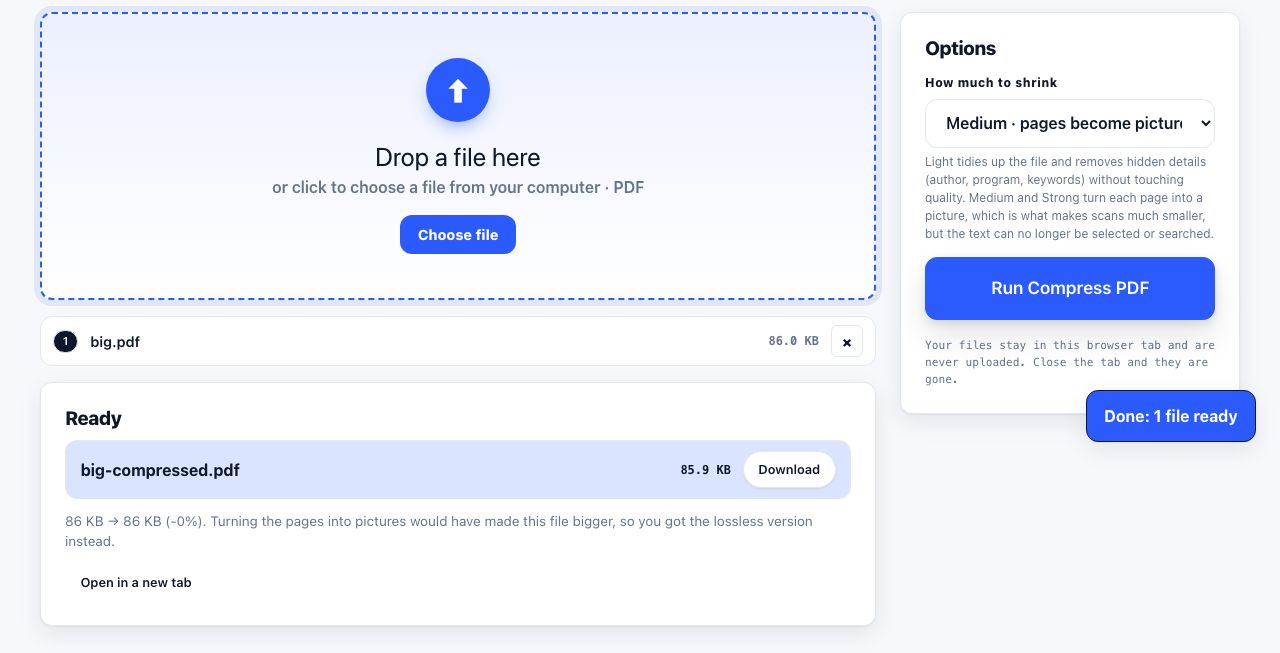
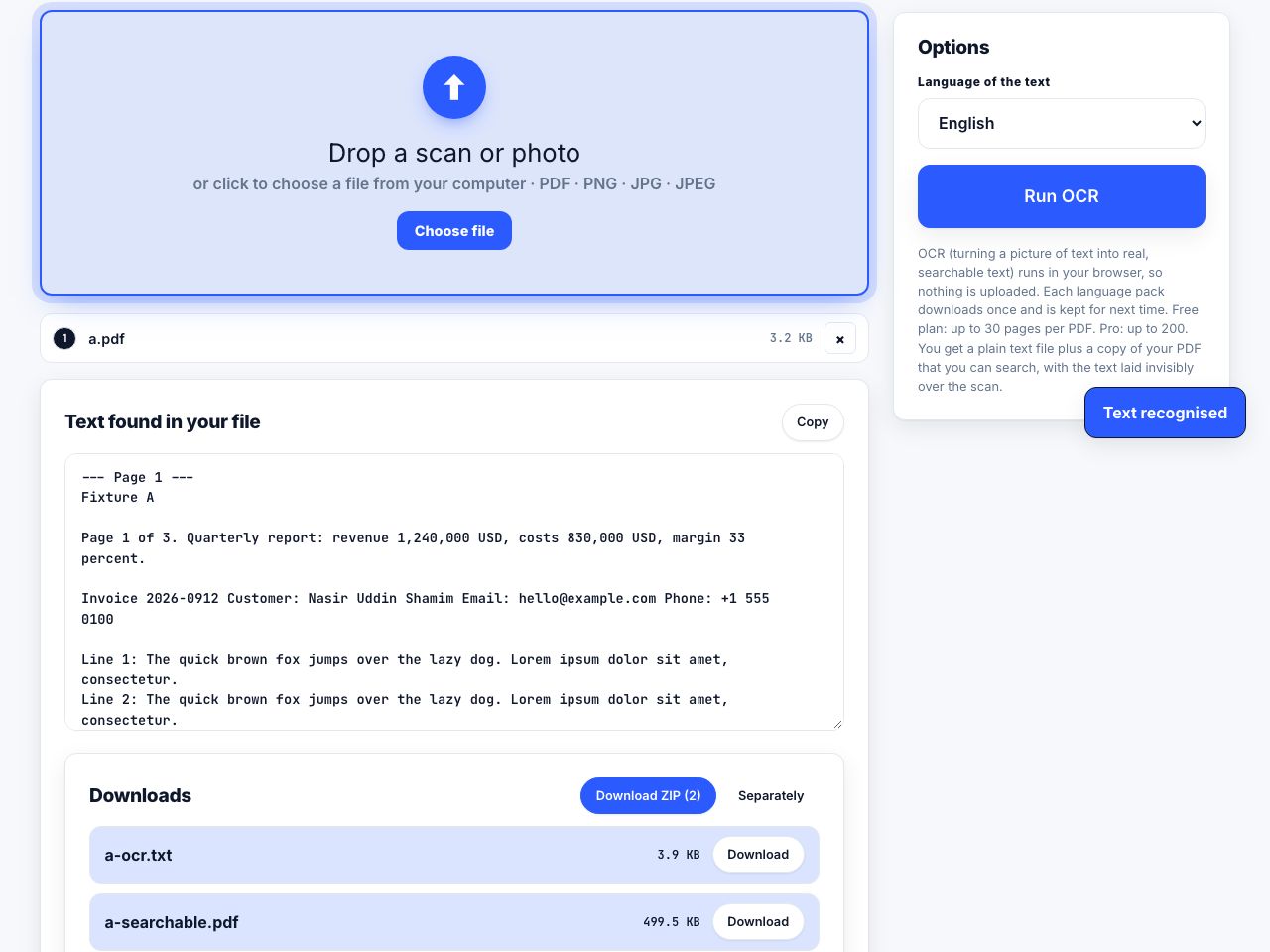
A merge combines pages. It does not make a scan searchable, repair a damaged PDF, remove a password, or make the result smaller. Run OCR PDF when scans need searchable text. Use Compress PDF after the merge only if email size is a problem, and inspect photographs and small text before sharing the compressed version.
A signed PDF can show as changed after it is merged or saved into a new document. Preserve the original signed copy and verify any signature requirement with the recipient before using a merged version as the record.
Why local browser processing matters
A PDF can contain more than its visible pages: names, addresses, account details, comments, and metadata. Processing a routine merge in the browser means the document stays on the machine you are using. That is simpler than uploading a sensitive file to an unknown service, waiting for a download, and hoping its retention policy matches your needs. For information that should not travel at all, browser-local processing is the practical default.
Frequently asked questions
Can I merge PDF files without Adobe Acrobat?
Yes. Add the PDFs to a browser merger, order them, create the new file, and inspect it before sharing. PrintxPDF does this in your browser with no signup or watermark.
Is it safe to merge confidential PDFs online?
Check where the service processes files. PrintxPDF performs standard merges locally in the browser, so the PDFs do not leave your computer for this task.
Will merging PDFs change the originals?
No. The tool creates a separate output file. Keep the originals until you verify page order, readability, and any signature requirements in the merged copy.
Can I rearrange pages after merging?
Yes. Use a page organizer after merging to move individual pages, rotate scans, or remove pages that do not belong in the final packet.