How to merge PDF files on a phone or computer

To merge PDF files on a phone or computer, open a browser-based merger, select the PDFs from your device, arrange them, create the combined copy, and check the download. PrintxPDF works in current browsers on iPhone, Android, Windows, Mac, Linux, and ChromeOS. It is free, needs no signup, adds no watermark, and processes standard merges in your browser.
See the tools in action
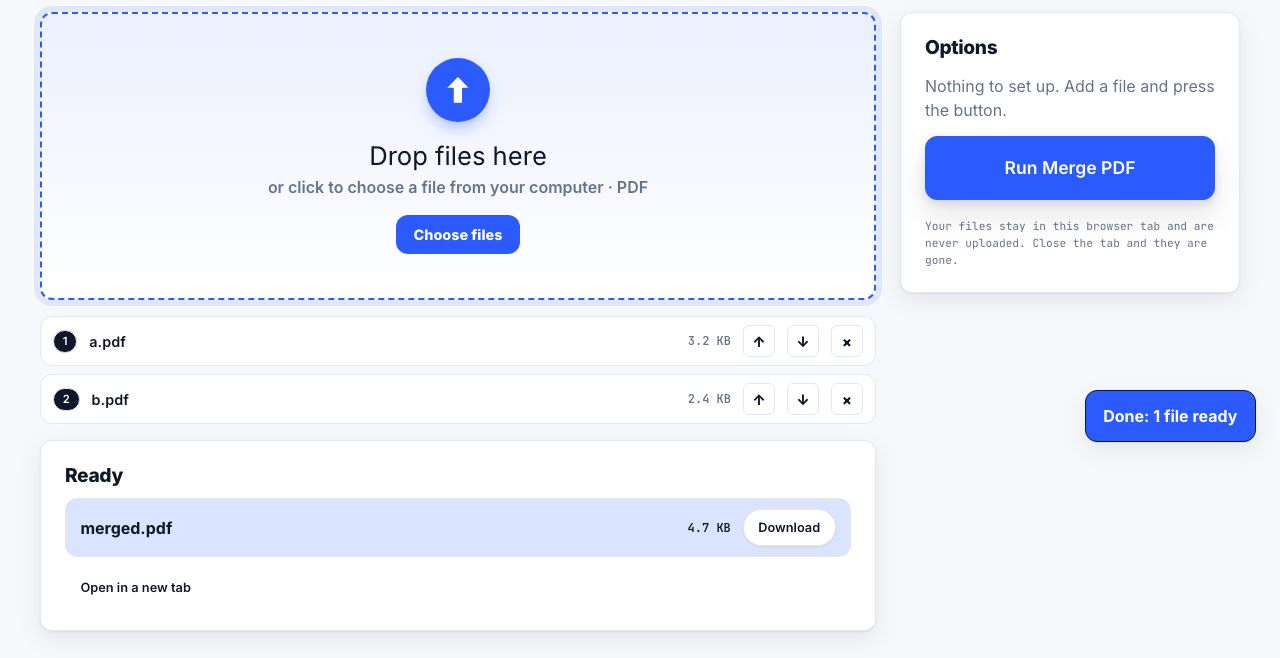
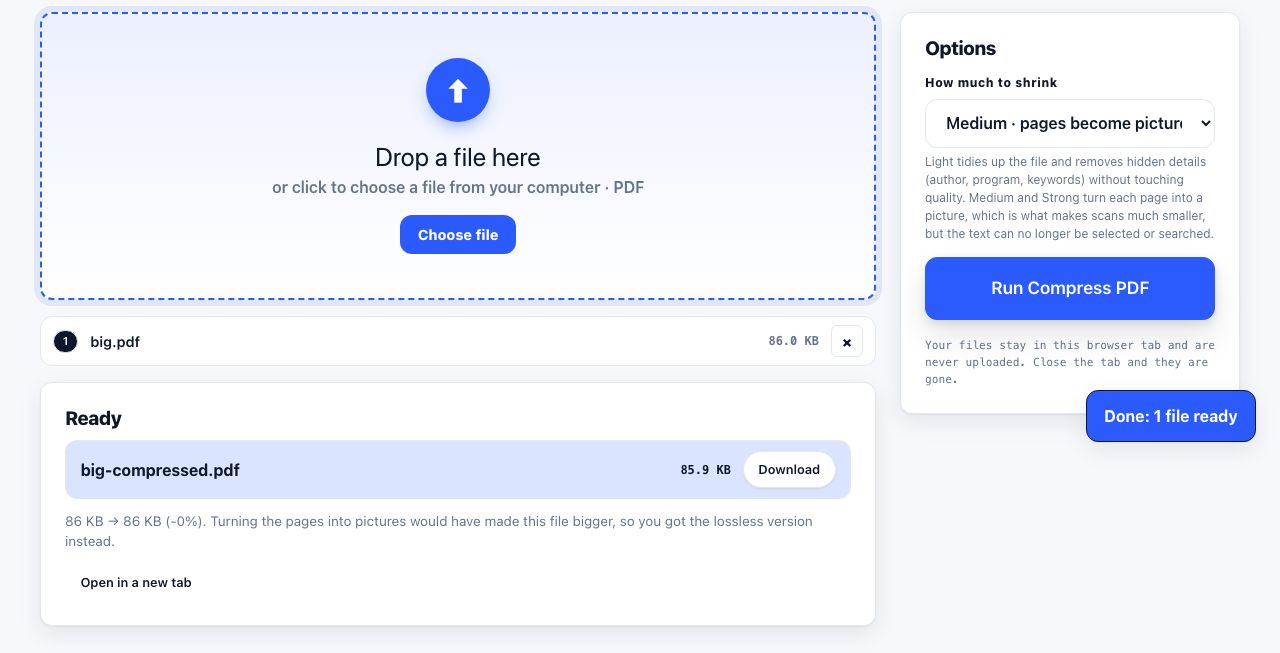
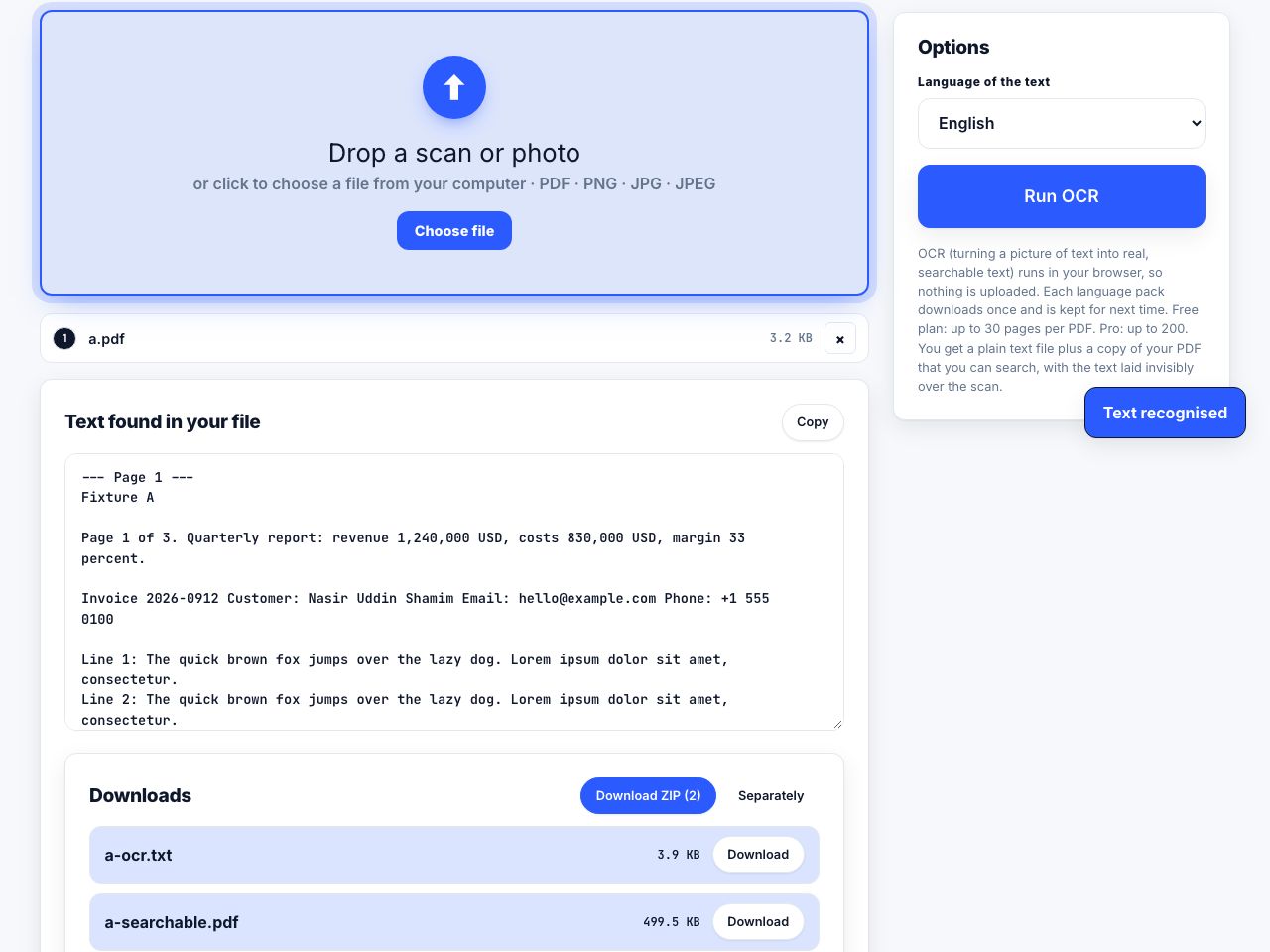
You can merge PDFs from a phone, tablet, laptop, or desktop without installing Adobe. Open PrintxPDF in a current browser, select the PDFs, put them in order, and download the combined copy. Standard merges run in the browser tab, so the files stay on your device. That gives the same straightforward workflow on iPhone, Android, Windows, macOS, Linux, and ChromeOS.
How to merge PDFs on any device
- Open PrintxPDF in your browserUse Safari on iPhone or iPad, Chrome on Android or Windows, Edge on Windows, or your preferred current browser on Mac, Linux, or ChromeOS.
- Choose the PDF filesOpen Merge PDF and select files from Files, Downloads, Finder, or your device picker. Add every document that belongs in the packet.
- Set the orderArrange files before merging. On a small screen, work slowly and confirm each filename so an attachment is not placed before the main document.
- Merge and saveCreate the combined PDF, then save or share the new download. Open it once before sending it to confirm page order and orientation.
Merge PDFs free from your browser. No app install, signup, or watermark.
Merge PDF →Phone and desktop PDF merging compared
| Device | Where you pick files | Practical tip |
|---|---|---|
| iPhone or iPad | Files picker | Keep source PDFs in one folder before starting. |
| Android phone or tablet | System file picker | Check Download and Drive locations carefully. |
| Windows or Mac | File Explorer or Finder | Rename working copies with simple order numbers. |
| Linux or ChromeOS | Browser file picker | Keep the tab open until the download finishes. |
Avoid common phone merge mistakes
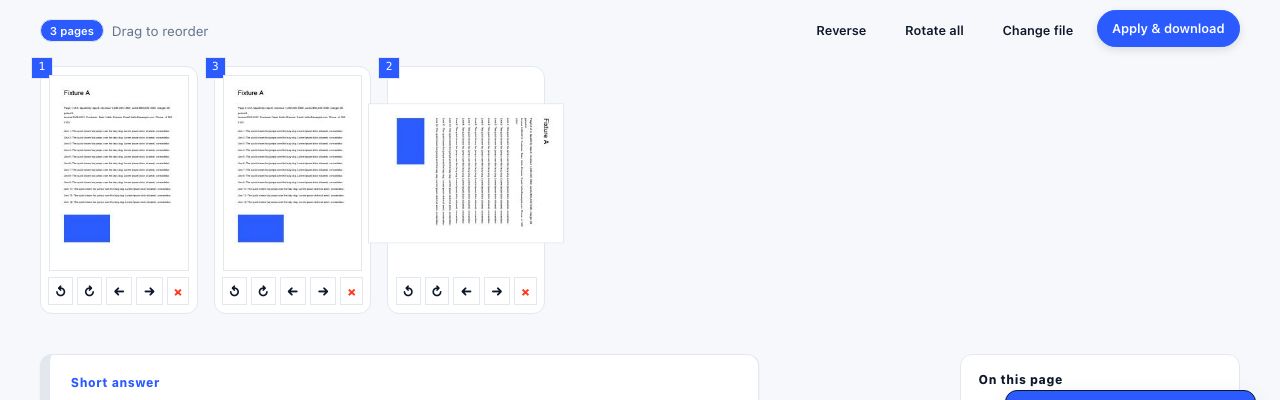
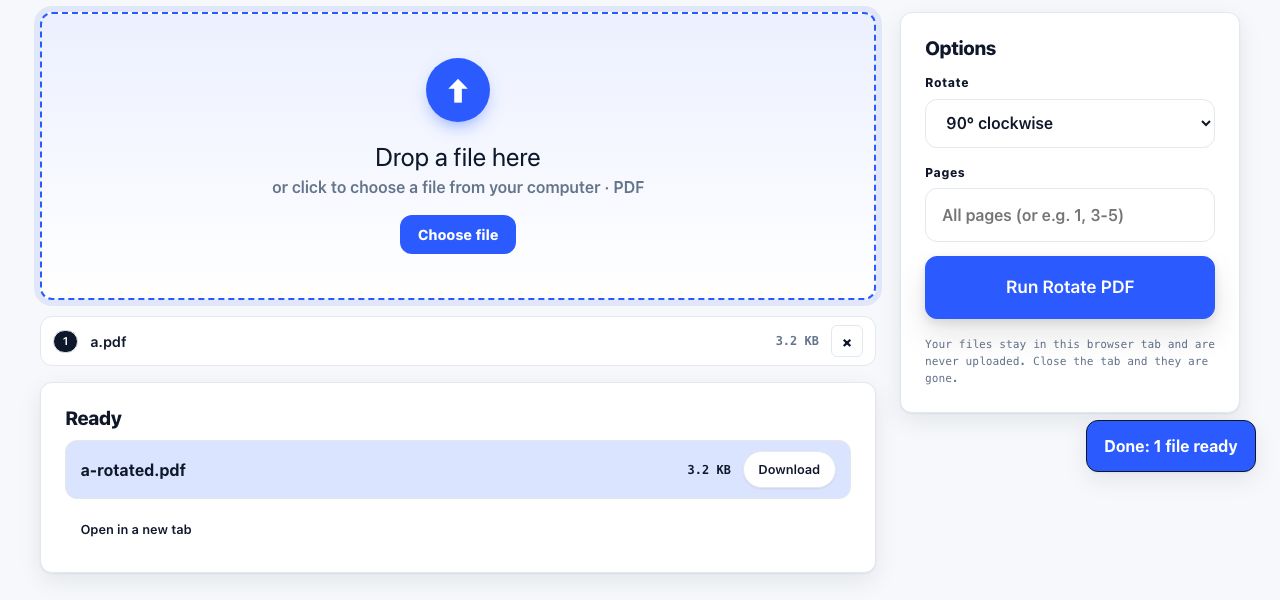
A phone makes it easy to select an old download with a similar name. Open each source first when the packet matters. Check that scans are upright and that no page is duplicated. Use Organize Pages after merging if one page needs moving. Use Rotate PDF for sideways scans rather than re-photographing the document.
Keep the sharing copy separate from the original
Merging creates a new PDF; it does not replace the sources. That is useful on a phone because you can retain the original receipt, form, or signed page while sending only the assembled copy. If the output is too large for email, use Compress PDF after checking readability. If scans need search, run OCR PDF and verify important text.
Why browser-local processing helps on mobile
Phone documents are often personal: identity papers, bills, appointment forms, and photos of records. Processing a standard merge inside the browser avoids an extra upload to a processing service. Keep the browser updated, use your own device where possible, and lock the phone before handing it to someone else. Local processing is useful, but it does not replace sensible device security or a careful final human review of what you share.
Frequently asked questions
Can I merge PDFs on an iPhone without an app?
Yes. Open a browser-based merger, choose files through the iPhone file picker, arrange them, and save the combined download. PrintxPDF does not require an account or app installation.
Can I merge PDFs on Android?
Yes. Use a current browser, select PDFs from the Android file picker, set the order, merge them, and check the download before sharing.
Does merging PDFs on a phone upload the files?
PrintxPDF processes standard merges in the browser tab, so the files stay on the device for that workflow. Tools requiring a server are labeled separately.
Can I fix a sideways scanned page after merging?
Yes. Open the combined copy in a page organizer or rotation tool, rotate the affected page, save a new copy, and inspect it before sharing.