How to merge PDF files in a specific order

To merge PDF files in a specific order, put the files in the order you want before combining them, create the new PDF, then inspect every transition between documents. PrintxPDF lets you arrange the inputs and merge them locally in your browser, free with no signup or watermark. Use a page organizer afterward if individual pages need moving.
See the tools in action
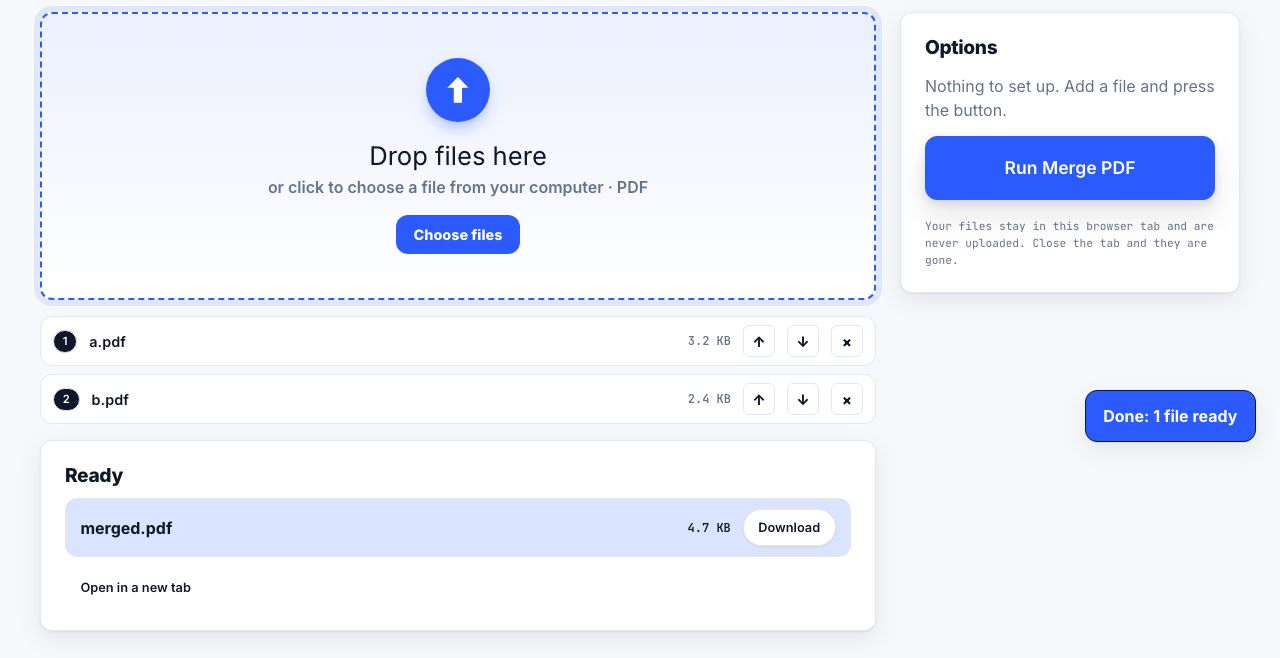
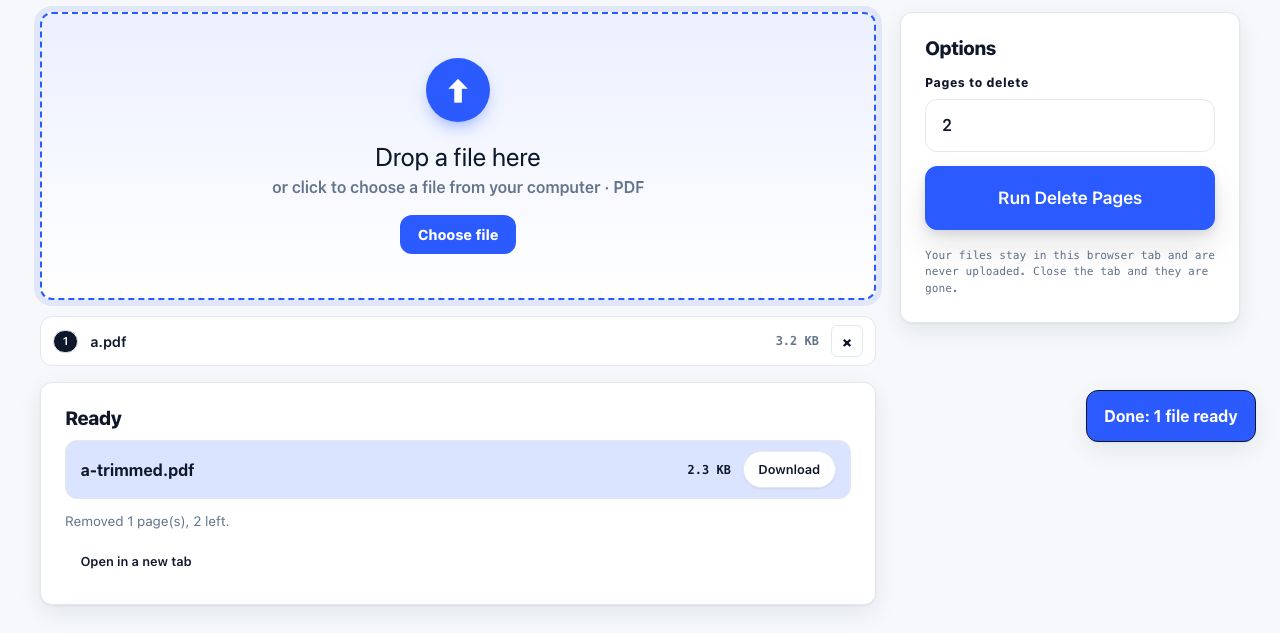
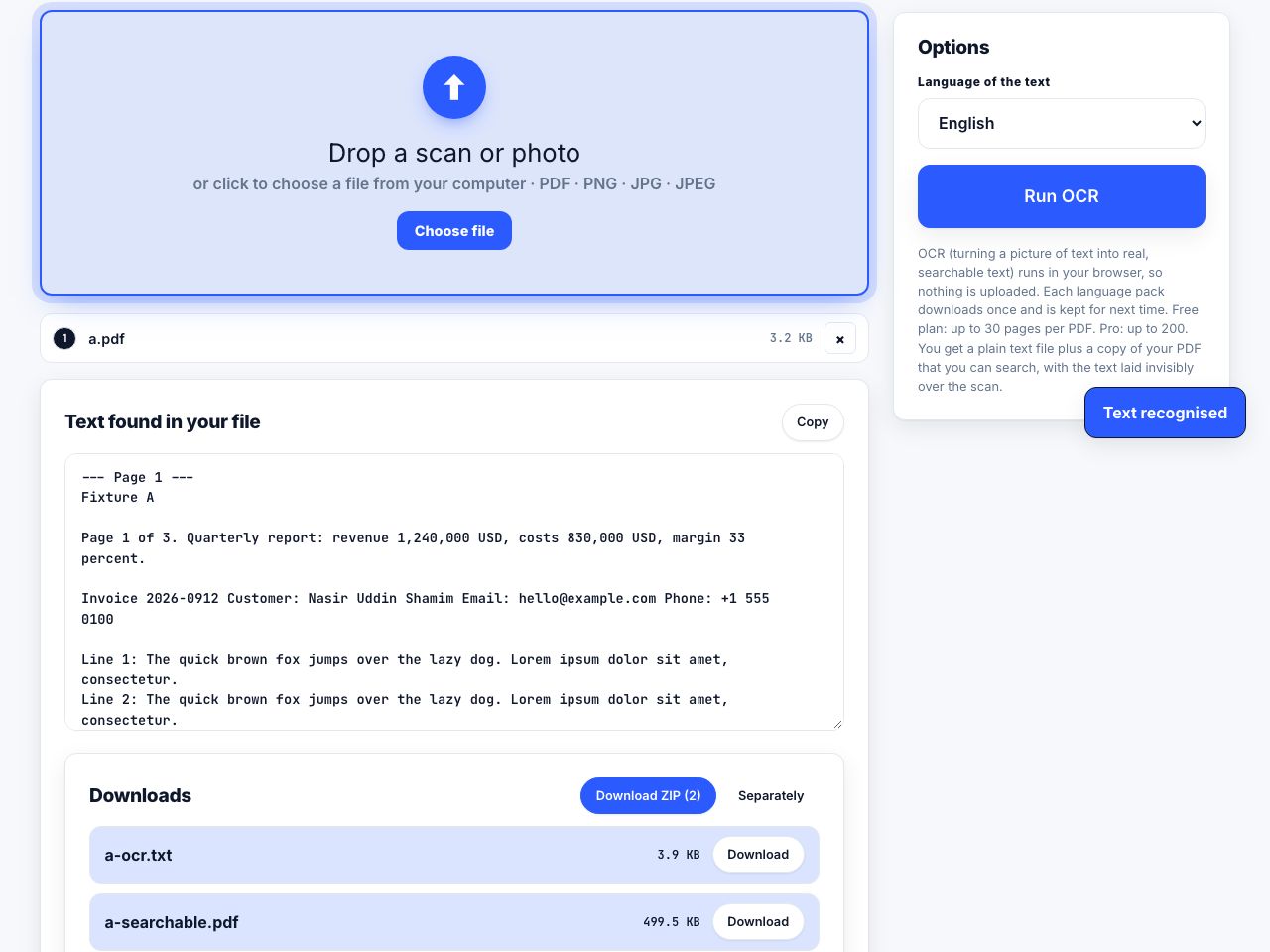
The correct order is the job when you are building a contract packet, application, court filing, or set of receipts. Start by arranging whole files before merging. Then inspect the completed PDF page by page. PrintxPDF performs the merge in your browser tab, so ordinary document merges stay on your computer. There is no account, card, watermark, or trial to manage.
How to combine PDF files in the right order
- Name or review each sourceOpen the files and identify their role: cover, main document, appendix, signed page, or receipt. A simple 01, 02, 03 prefix helps avoid selecting the wrong copy.
- Add files to Merge PDFOpen Merge PDF and add every source. Place them in the intended sequence before you merge.
- Create the combined fileRun the merge. The output follows the input-file order, and the originals remain unchanged on your device.
- Inspect every boundaryOpen the new PDF. Check the last page of each source and the first page of the next one for duplicates, missing pages, sideways scans, and incorrect attachments.
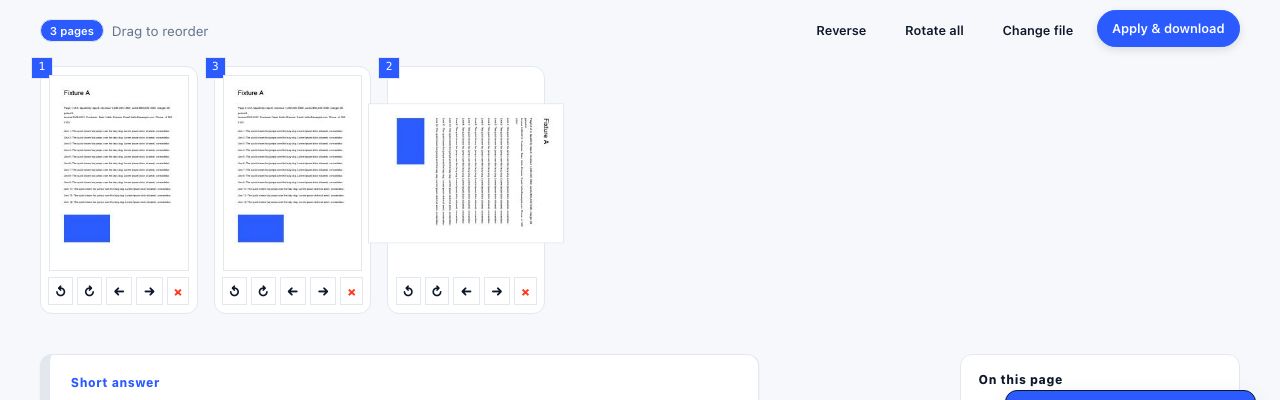
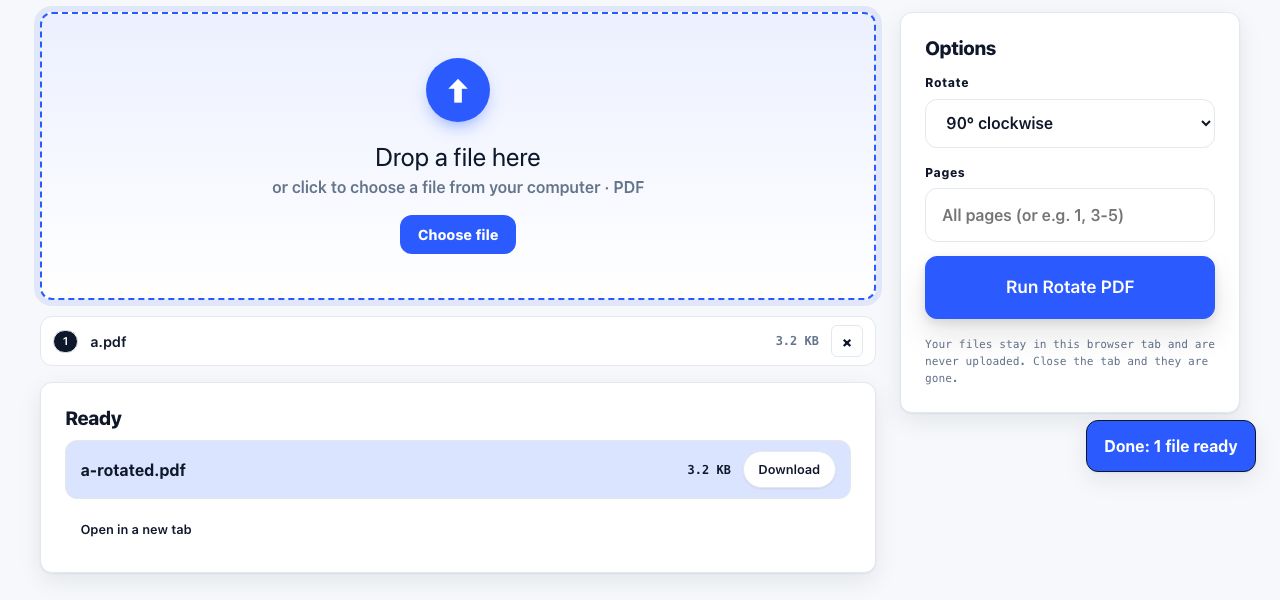
- Fix individual pages if neededUse Organize Pages to move a page, Rotate PDF for a scan, or Delete Pages for an unwanted blank.
Arrange and merge PDF files free in your browser. No signup, no watermark, and nothing uploaded.
Merge PDF →File order versus page order
| Situation | Best tool | Why |
|---|---|---|
| Whole documents belong one after another | Merge PDF | Keeps every file as a block in the order you set. |
| One page belongs between two files | Organize Pages | Moves individual pages after the merge. |
| A page is upside down | Rotate PDF | Changes orientation without rebuilding the packet. |
| A blank or duplicate page slipped in | Delete Pages | Creates a clean output without that page. |
Check the order before a recipient finds the mistake
A PDF can be technically valid and still be the wrong packet. Count pages, compare section breaks with your checklist, and inspect page numbers where sources use their own numbering. For scanned records, inspect dates, signatures, and totals at 100 percent zoom. If the combined document must be searchable, run OCR PDF on a working copy and verify important names and figures against the page image.
Keep sensitive documents local while you assemble them
Order problems often involve the most sensitive files: identification documents, invoices, reports, and signed forms. Browser-local processing means the files do not need to sit on a third-party upload service just to be assembled. Keep the originals, build a separate distribution copy, and remove document metadata when policy requires it. A merge does not automatically remove hidden author fields, comments, or embedded information.
Do not treat deleting a page as redaction. If private information appears elsewhere in the document, use a verified redaction workflow. Keep the original and check the final copy before you send it.
For the next step, see how to merge PDF files, reorder PDF pages, and extract PDF pages. The reliable workflow is simple: order, merge, inspect, then share.
Frequently asked questions
Can I choose the order before merging PDFs?
Yes. Arrange the input files in the required sequence before running the merge. The output follows that file order, so review it before creating the final copy.
Can I move one page after merging PDFs?
Yes. Merge the documents first, then use a page organizer to move one page, rotate a scan, or remove a duplicate without rebuilding every source file.
Do I need an account to merge PDFs in order?
No. PrintxPDF’s browser-local Merge PDF tool is free, has no signup requirement, and does not place a watermark on the result.
Will merging change the original files?
No. The merge produces a new PDF. Keep source documents until you have checked the final packet and no longer need the originals.