How to crop scanned PDF pages

To crop scanned PDF pages, use a consistent boundary for the scanner edge, check pages with skew or shifted paper, and download a separate copy. Cropping improves presentation but does not improve scan readability or erase information outside the visible area.
See the tools in action

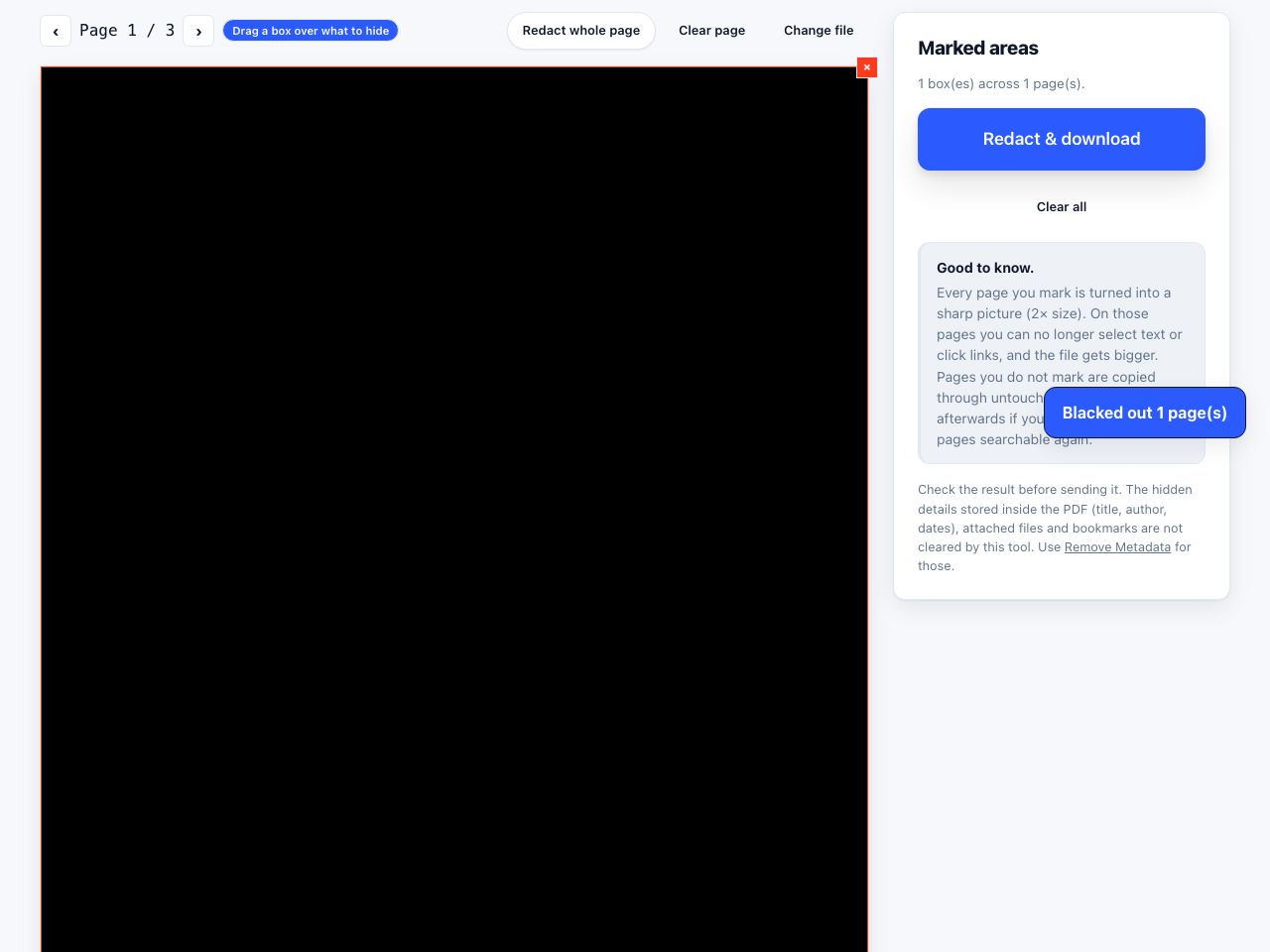
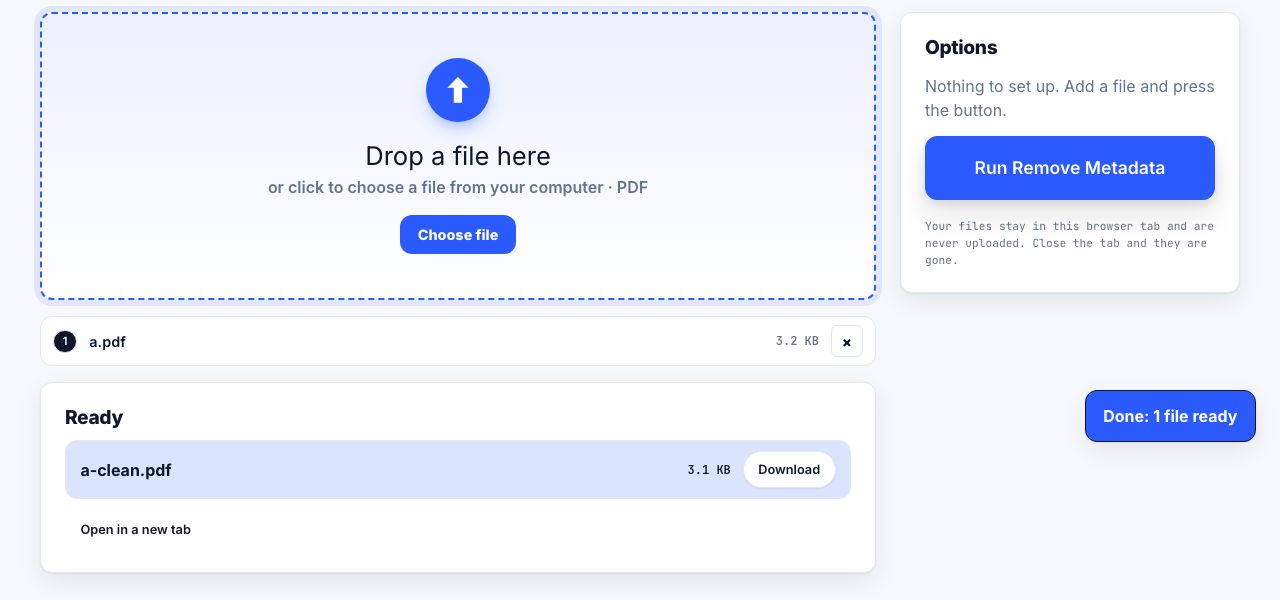
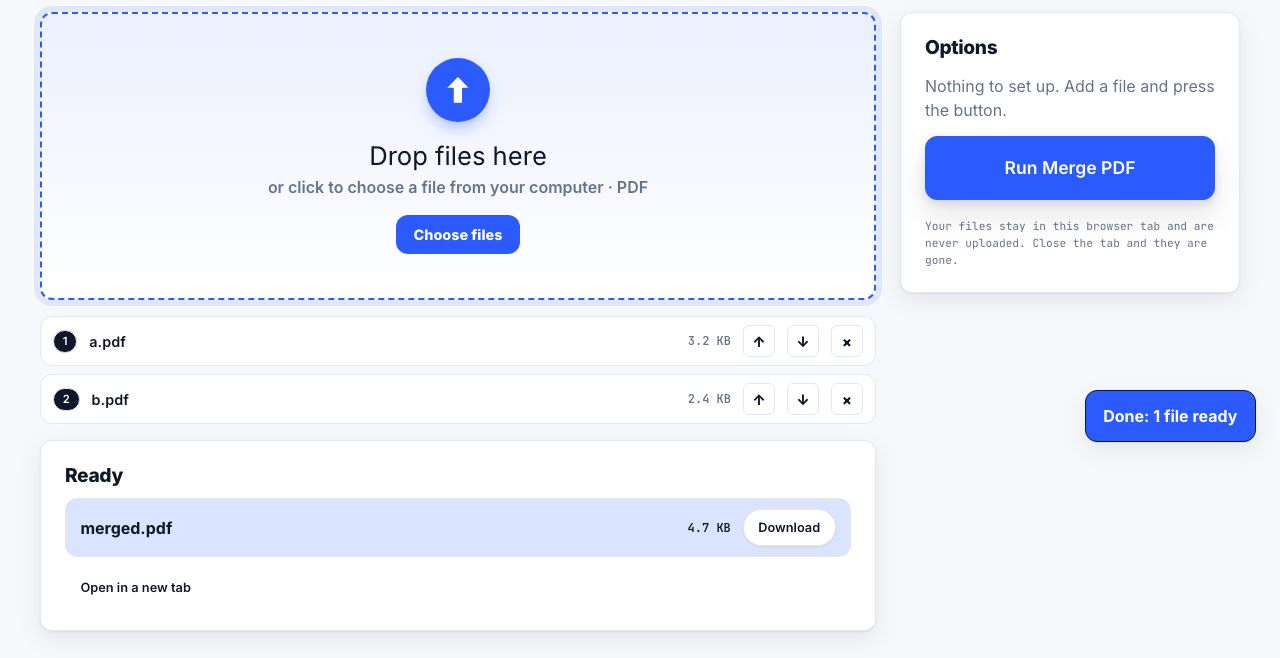
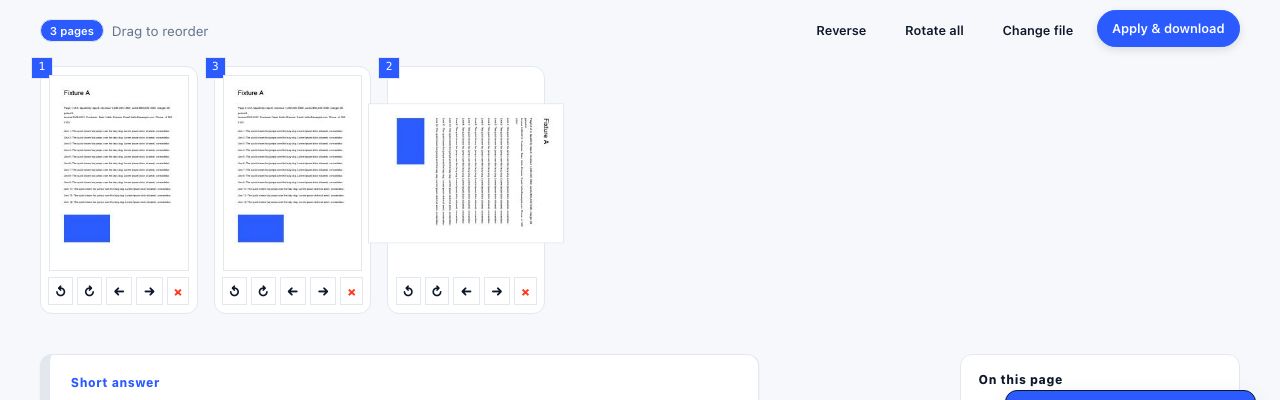
Scanned PDFs often show dark scanner borders, uneven margins, or a little extra paper around each page. Cropping a PDF adjusts the visible page area; it is useful for trimming white margins, scanner edges, or an unwanted border. PrintxPDF performs this standard task in the browser tab with no signup, card, or watermark. Keep the original file because cropping is a presentation change, not a way to remove sensitive content.
How to crop PDF pages in your browser
- Keep the source copyDuplicate or retain the original PDF before changing page appearance.
- Open Crop PDFAdd the file to Crop PDF from your browser.
- Set the crop areaDrag the boundary or enter the required margins. Use a consistent setting for pages that should match.
- Apply and downloadCreate the cropped copy and save it with a clear name.
- Inspect the outputOpen several pages at normal zoom to confirm that no headings, page numbers, signatures, or tables were cut off.
Trim PDF pages in your tab. Free, no signup, no watermark.
Crop PDF →Cropping versus other PDF changes
| Goal | Best tool | Result |
|---|---|---|
| Trim visible margins | Crop PDF | A new viewable page area. |
| Remove a page entirely | Delete Pages | A copy without the selected page. |
| Hide confidential text | Redact PDF | A deliberate redaction workflow. |
| Change page order | Organize PDF | The same pages in a new sequence. |
Cropping does not erase hidden content
Cropping changes the page boundary that a reader displays. It is not a security feature and must not be treated as redaction. Content outside the visible crop can remain in the file and may be recoverable or exposed by another viewer. When information must not be disclosed, use Redact PDF and verify the redacted output. For document properties, use Remove Metadata when policy requires it.
Keep pages consistent for printing
A crop that looks fine on one page can cut into a footer or signature block on another. Check a page from the beginning, middle, and end of the document. For scans, page edges can shift from sheet to sheet. Make a small test output first if a document has uneven margins, charts close to the edge, or mixed page sizes.
Why process private documents locally
Forms, invoices, applications, and records may contain more information than the recipient needs. Browser-local crop processing avoids adding a routine file transfer to this simple preparation step. You still control where the downloaded result goes, so review file names and page content before emailing, printing, or uploading it.
Finish with a review copy
Open the new PDF before sharing it. Check page count, orientation, and text near each trimmed edge. If the cropped file becomes part of a larger packet, use Merge PDF only after you confirm each component. Keep the untouched source until the job is accepted.
Frequently asked questions
Can I crop a PDF for free?
Yes. Add the PDF, set the visible page area, download the copy, and inspect it. PrintxPDF’s core crop workflow does not require signup.
Does cropping remove text from a PDF?
No. Cropping changes the visible area and should not be used to hide sensitive content. Use proper redaction for information that must not be recoverable.
Can I crop every page of a PDF?
Yes. Apply a consistent crop when pages share the same margins, then inspect pages throughout the file for shifted content.
Will cropping change the original PDF?
No. Save the output as a separate file and retain the original until you have checked the cropped result.