How to edit a PDF before sending it to a client

Before sending an edited PDF to a client, retain the original, make the smallest needed change, inspect the full result, and send only the approved version. PrintxPDF lets you make standard PDF edits in your browser without signup or a watermark, then download and inspect a separate copy. PDF editing works best for targeted changes; use the original source document for major reflow or layout work.
See the tools in action

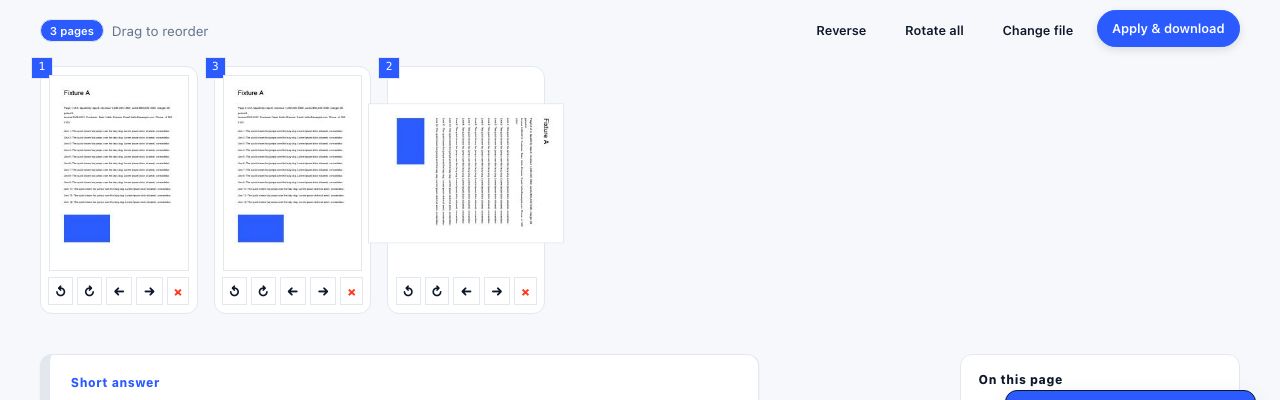
Before sending an edited PDF to a client, retain the original, make the smallest needed change, inspect the full result, and send only the approved version. A PDF stores positioned text and graphics rather than flexible word-processing paragraphs, so targeted corrections are practical while large rewrites can be difficult. PrintxPDF’s Edit PDF tool runs the standard editing workflow locally in your browser. There is no account, card, watermark, or routine file upload. Keep the original file so you can compare the output and return to the source if a complex change needs the original document.
How to make a focused PDF edit
- Keep the original fileSave an untouched copy before editing, especially if the PDF is a contract, record, or approved proof.
- Open Edit PDFAdd the document to Edit PDF in your browser tab.
- Make the smallest necessary changeCorrect the target text, add an annotation, or adjust a simple element while watching nearby alignment.
- Download a separate copyUse a clear version name so the new file is not confused with the original.
- Review the final pagesCheck the changed page and nearby pages at normal zoom before sharing or printing.
Make a focused PDF edit in your tab. Free, no signup, no watermark.
Edit PDF →Edit a PDF or return to the source document?
| Need | Best approach | Reason |
|---|---|---|
| Correct a short typo | Edit PDF | A targeted change may preserve the existing page. |
| Rewrite a long paragraph | Edit the source DOCX or design file | PDF text does not reflow like a word processor. |
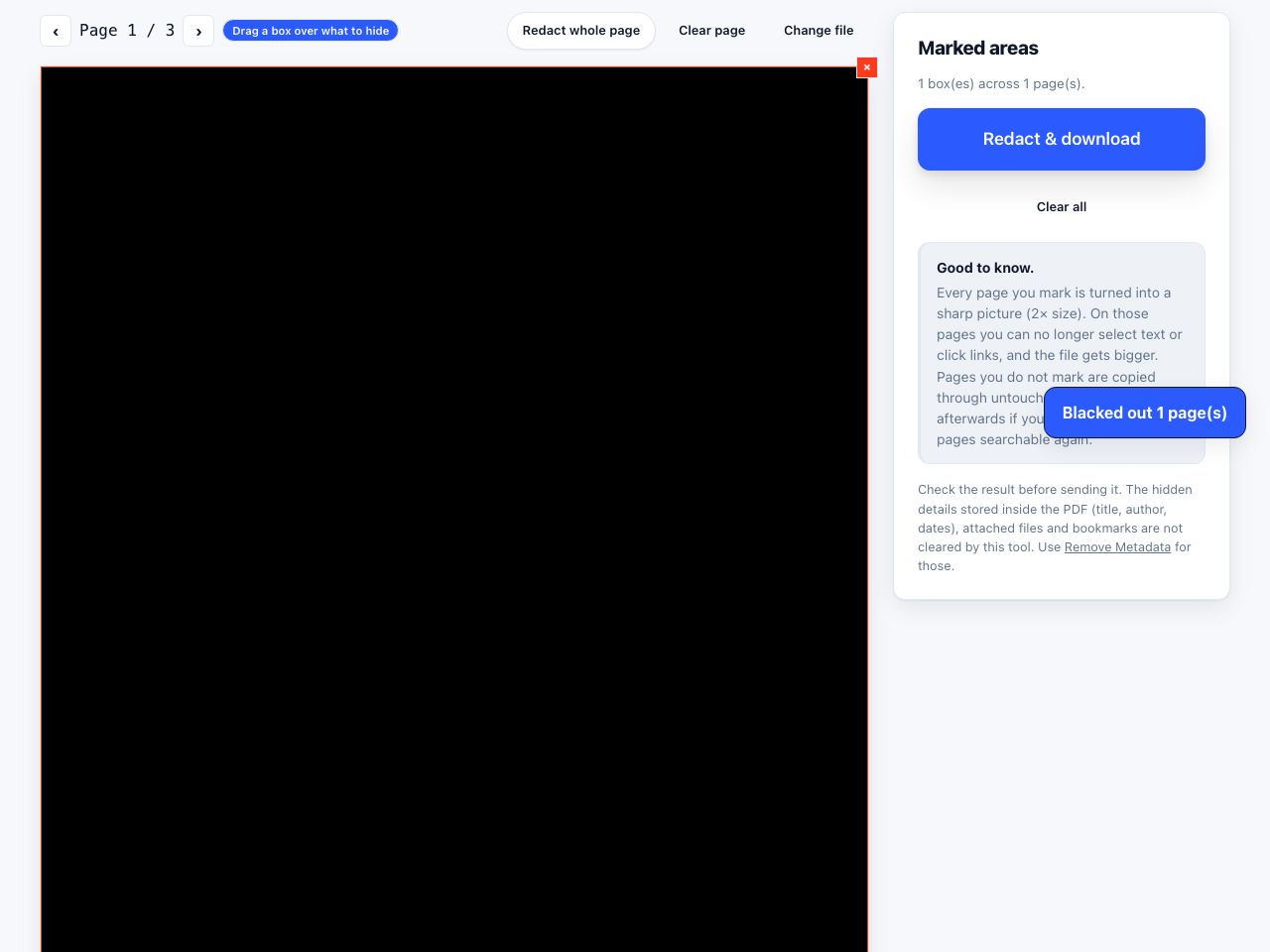
| Hide confidential information | Redact PDF | A visual cover-up is not secure redaction. |
| Change page sequence | Organize PDF | Page organization is a separate task. |
Why large PDF edits can change layout
A PDF uses exact coordinates, fonts, and drawing instructions. Replacing one short word may work cleanly, but a longer sentence can collide with nearby text or leave an obvious gap. Custom fonts, embedded images, columns, forms, and scanned pages add further limits. If the edit affects legal wording, pricing, calculations, or sign-off, review it against the authoritative source before relying on the edited PDF.
Editing is not redaction
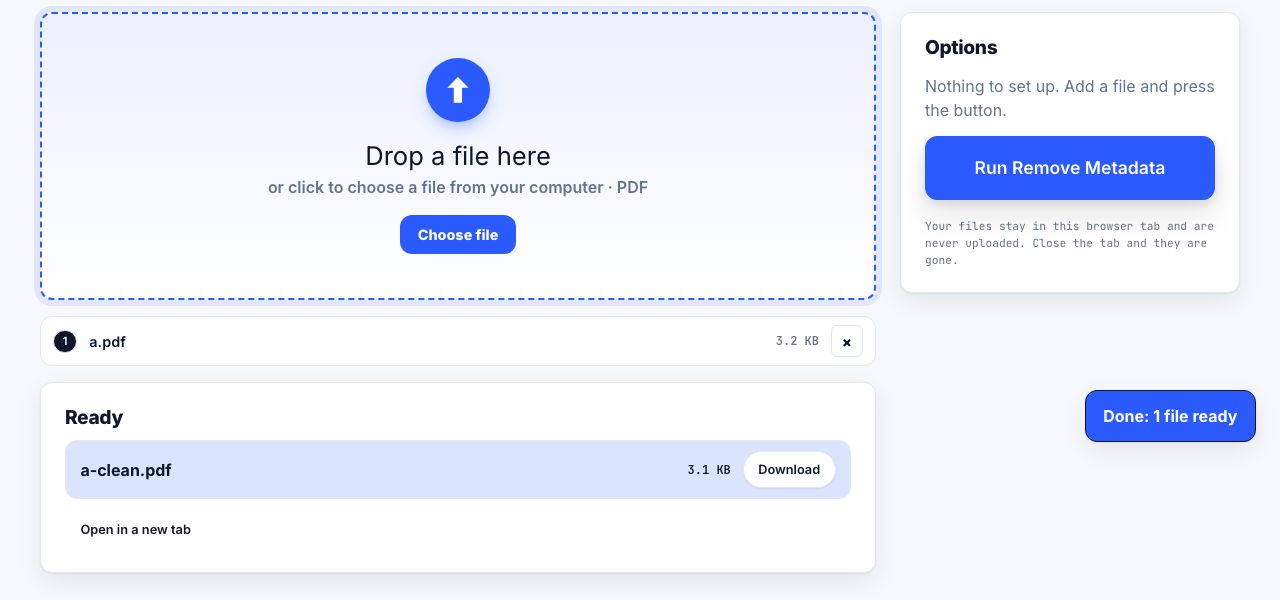
Deleting or covering visible text is not a safe way to remove confidential information. The underlying content can remain in the file or be revealed in another viewer. Use Redact PDF for information that must no longer be readable, then inspect the final copy. Use Remove Metadata separately when document properties should not accompany a shared version.
Local editing for sensitive documents
Drafts, resumes, statements, and client documents may carry sensitive details. Browser-local editing avoids a routine transfer to an editing server for this common workflow. You still need to choose a safe storage location and delivery method. Check that the downloaded file has the intended name, contains the right version, and goes only to an authorized recipient.
Finish with a final review
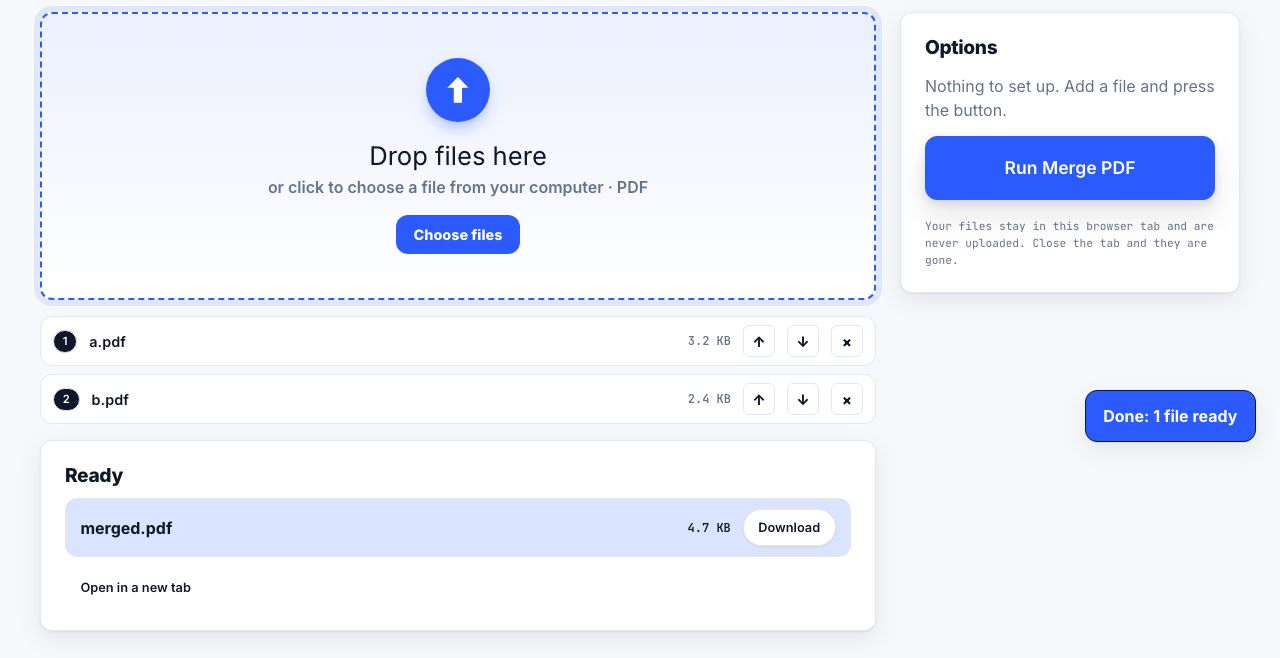
Open the output before it leaves your device. Check page count, fonts, tables, signatures, and the page surrounding every edit. If it must join other documents, use Merge PDF after you confirm each component. Keep the original and any source document until the recipient accepts the revised file.
Frequently asked questions
Can I edit a PDF for free?
Yes. PrintxPDF supports standard focused PDF edits in the browser with no signup or watermark. Keep the original and review the output.
Can I edit PDF text like a Word document?
Not completely. PDFs use positioned text rather than flowing paragraphs, so small corrections work better than large rewrites.
Does editing a PDF remove hidden data?
No. Editing visible content is separate from metadata removal and redaction. Use the appropriate privacy step for the data involved.
Will editing change my original PDF?
No. Save the downloaded result as a separate version and retain the original until you verify the change.