How to convert AZW3 to PDF free

To convert a DRM-free AZW3 file to PDF, upload the supported book to a labelled server converter, download the fixed-page PDF, and check the layout. PrintxPDF deletes the upload after conversion and does not add a watermark.
See the tools in action

AZW3 is a Kindle ebook format with richer layout features than older MOBI files.
How to convert a supported Kindle ebook to PDF
- Confirm the file is supportedUse a DRM-free MOBI, PRC, AZW, or AZW3 file you are allowed to convert. KFX and copy-protected books cannot be converted.
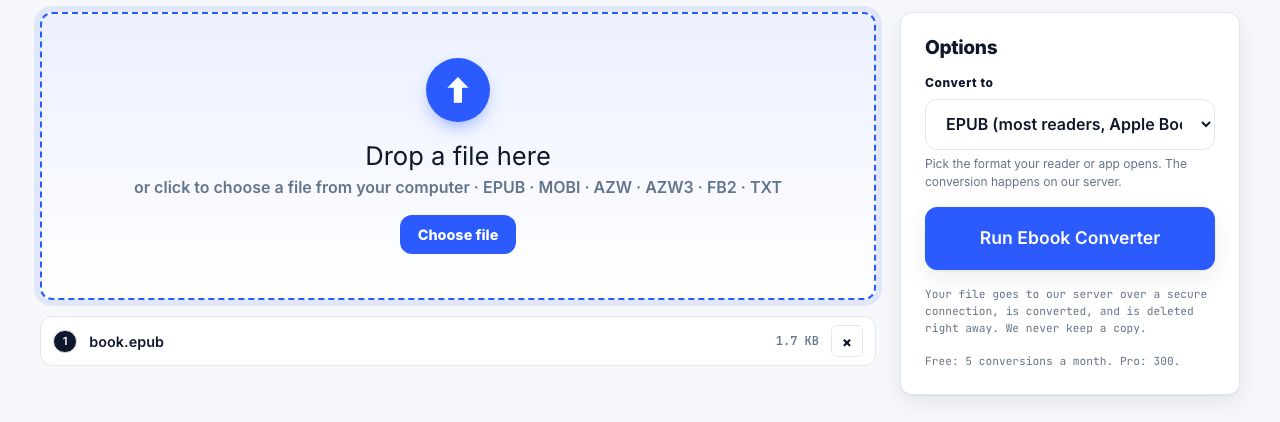
- Open MOBI to PDFAdd the ebook to MOBI to PDF. This conversion runs on PrintxPDF’s server and is clearly labelled.
- Run the conversionThe converter lays out the ebook as A4 PDF pages with margins and page numbers.
- Download the resultSave the returned PDF and open it to check chapters, images, and page flow.
- Keep a safe originalRetain the source ebook and follow the applicable license and copyright terms.
Convert a supported DRM-free ebook to PDF. Clear server processing, free core access, no watermark.
MOBI to PDF →MOBI, AZW3, and PDF compared
| Format | Best use | Key limit |
|---|---|---|
| MOBI | Older Kindle-compatible ebooks | Less capable layout than newer formats. |
| AZW3 | Modern DRM-free Kindle files | May contain richer formatting. |
| Fixed-page reading and printing | Text does not reflow when readers change font size. | |
| KFX or DRM-protected ebook | Store-controlled reading | Not supported by this converter. |
Copyright and DRM come first
Only convert material you are authorized to use. Buying an ebook does not automatically grant a right to remove copy protection or redistribute a new format. PrintxPDF does not convert copy-protected books; it detects protection and returns an error rather than making a file. For personal DRM-free books, self-published files, or material you own, a PDF can be useful for fixed-page reading and printing.
Why the conversion is server processed
Ebook layout needs a conversion engine that is not practical to run inside a normal browser tab. PrintxPDF labels this exception before use: the file is sent over a secure connection, converted, then deleted immediately after the PDF is returned. Do not upload confidential or restricted books unless that processing is approved for your situation.
Check layout before you rely on page references
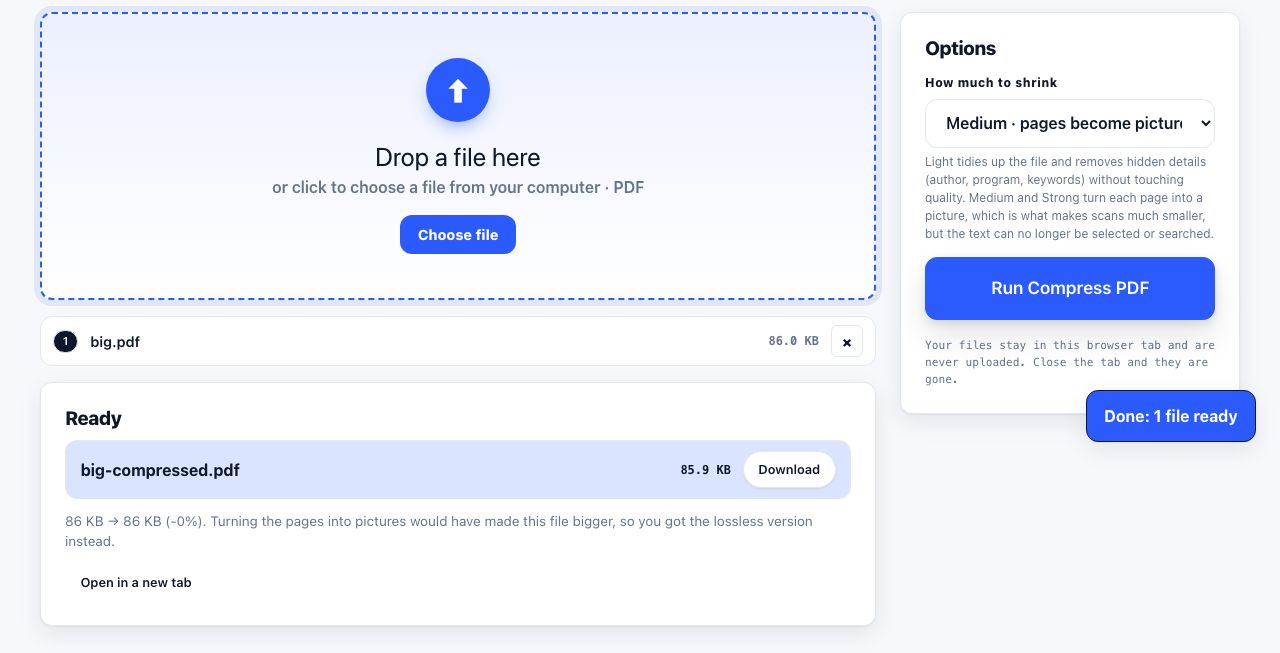
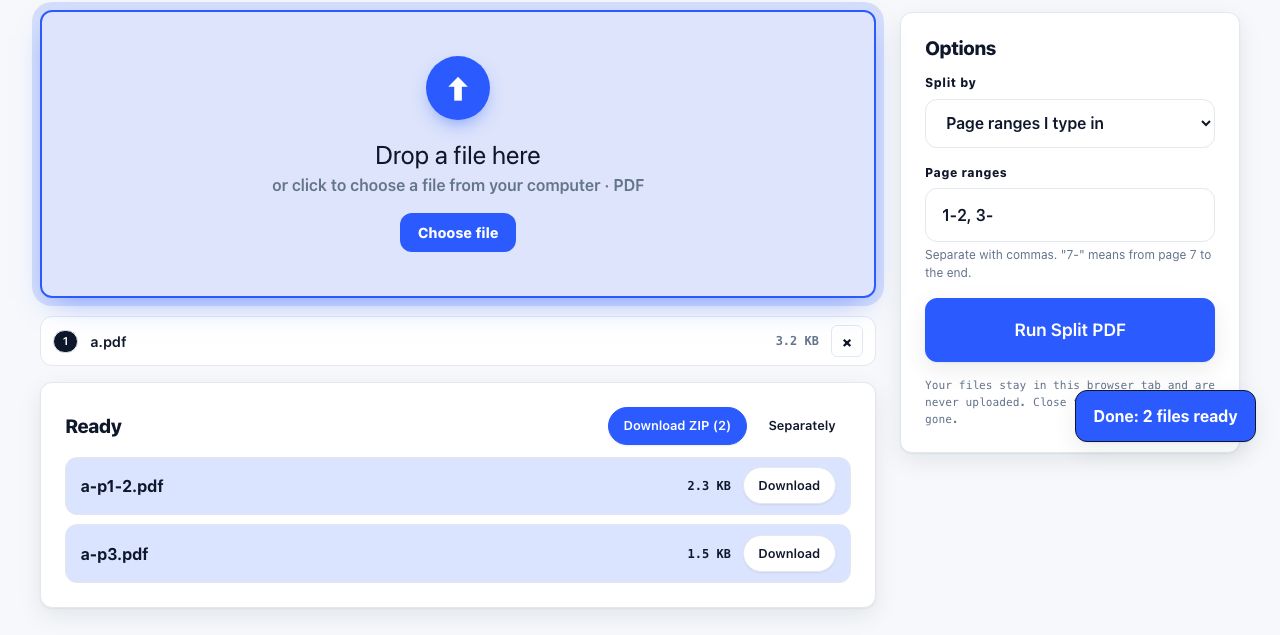
An ebook reflows around a screen, while a PDF has fixed pages. Check chapter starts, illustrations, tables, footnotes, and the final pages after conversion. If the PDF is too large for sharing, use Compress PDF on a copy. If it is long and needs separate reading sections, Split PDF can create smaller files.
Keep source and delivery copies separate
Store the original ebook separately from the PDF conversion. The source preserves its original structure, while the PDF is a reading or printing copy. Use descriptive filenames and do not send a converted book to someone unless the applicable rights allow it. This separation also makes it easier to repeat the conversion if a later edition or better source becomes available. Review the final page count before printing or filing the result.
Frequently asked questions
Can I convert a Kindle Store book to PDF?
Only if it is DRM-free and you have the rights to convert it. Most Kindle Store purchases are protected and cannot be opened by this converter.
Which ebook files can MOBI to PDF convert?
The tool supports DRM-free MOBI, PRC, AZW, and AZW3. It does not support KFX or copy-protected ebooks.
Does MOBI to PDF upload the file?
Yes. This conversion is server processed, clearly labelled before use, and the uploaded book is deleted after the PDF is returned.
Will the PDF look exactly like a Kindle screen?
No. The converter creates fixed A4 pages. Review chapters, images, and tables after conversion because ebook content can reflow differently.