How to split PDF pages without Adobe for free

To split a PDF without Adobe, open a browser-based splitter, choose the page ranges or individual pages you need, create the separate files, and check the downloads. PrintxPDF runs standard splitting in your browser, so the PDF stays on your computer. It is free, needs no signup, and adds no watermark.
See the tools in action
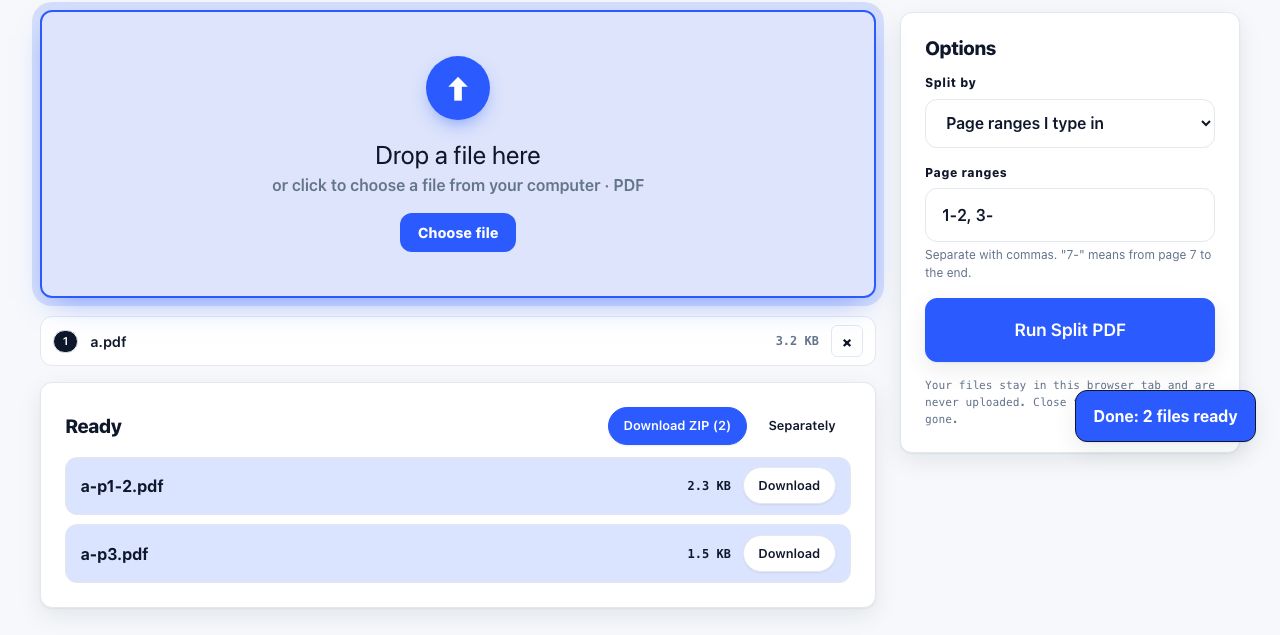
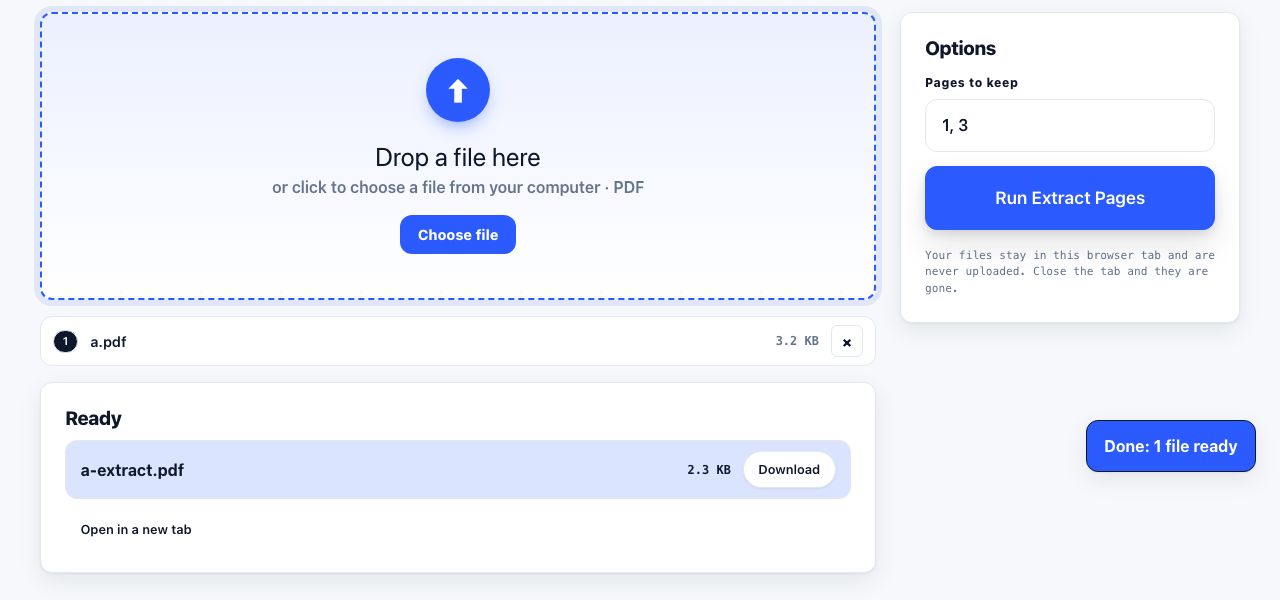
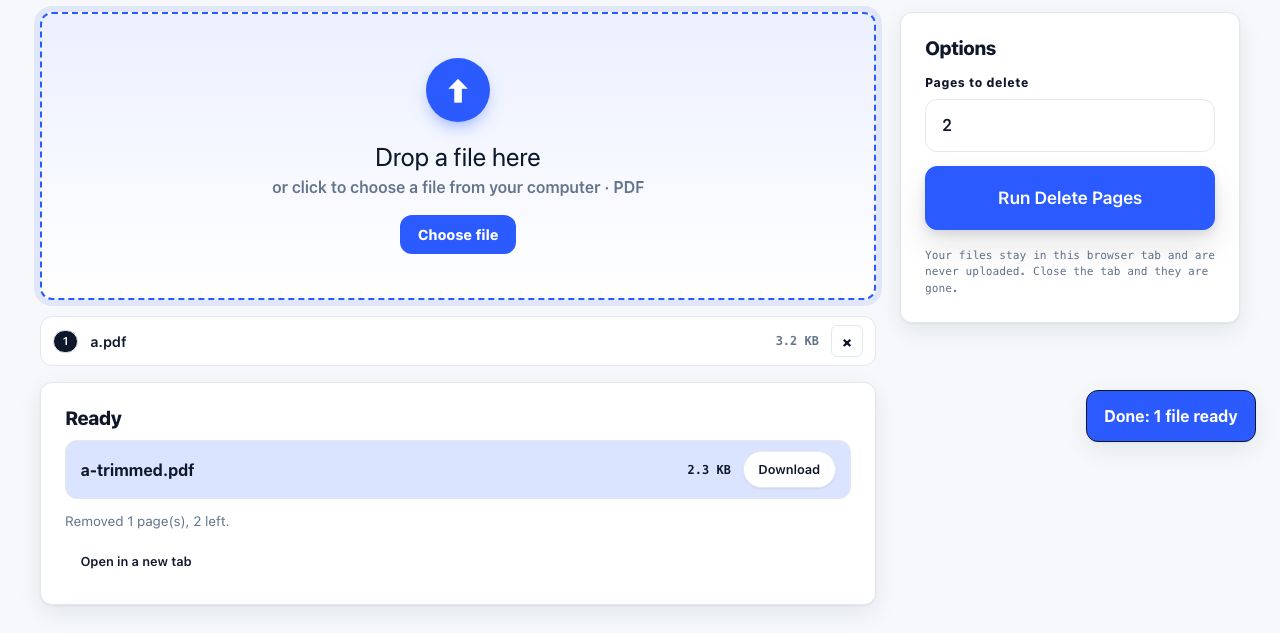
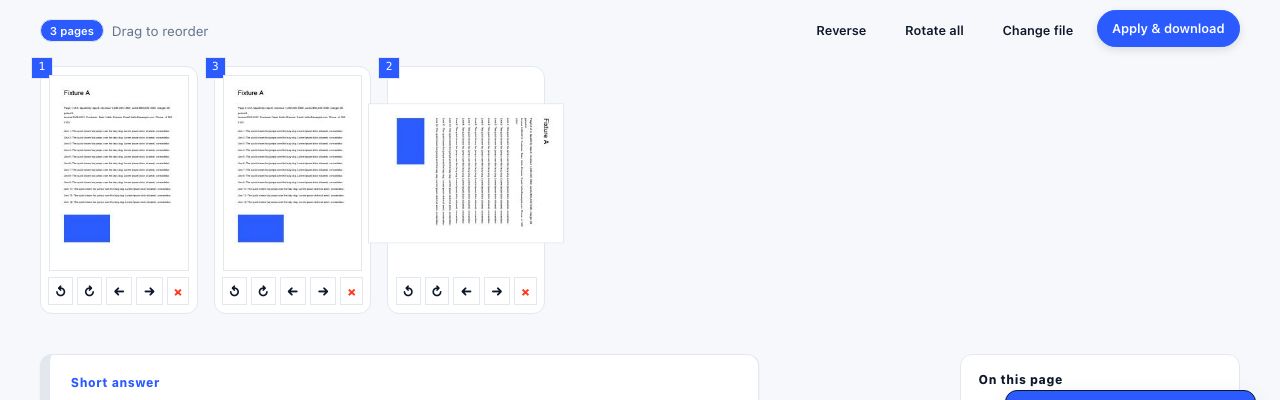
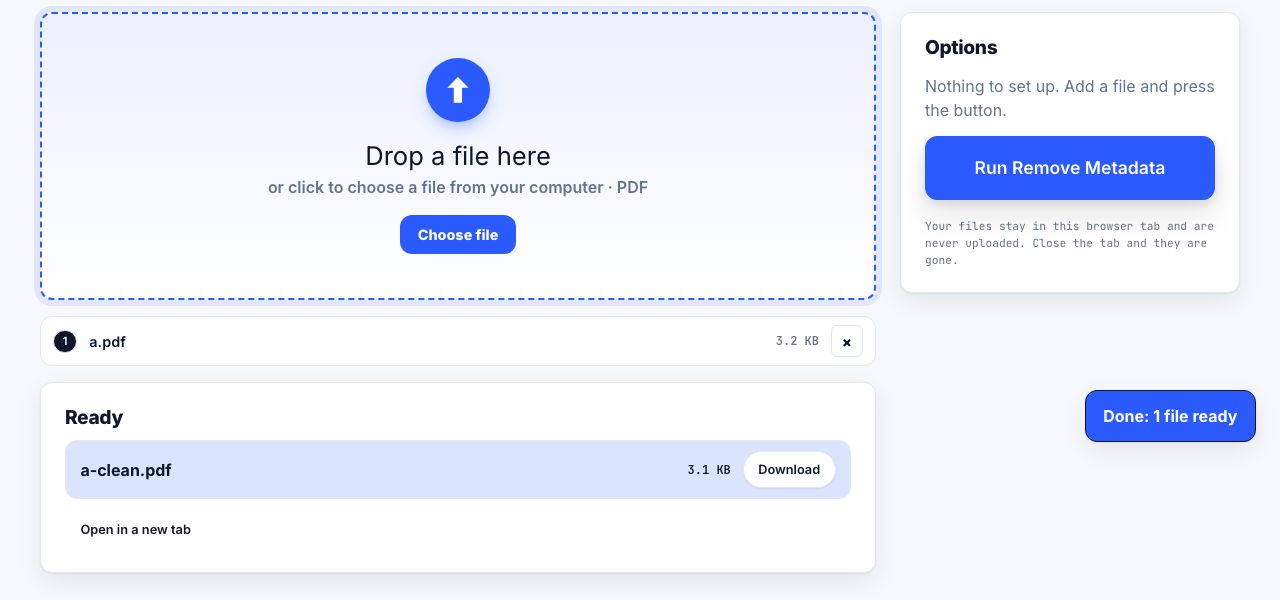
You do not need Adobe Acrobat to separate a PDF into smaller files. Choose the pages or ranges you need, create the outputs, and keep the original untouched. PrintxPDF processes standard splits in your browser tab, which is useful for contracts, statements, forms, and scans that should not be sent to a processing server. There is no account, card, watermark, or trial timer.
How to split a PDF without Adobe
- Open Split PDFGo to Split PDF and add the document from your computer. Keep the original as your reference copy.
- Choose the pages or rangesEnter a range such as 1-3, select single pages, or use a repeated split size depending on the output you need.
- Create the separate filesRun the split. The tool makes new PDFs from the selected pages while leaving your source document unchanged.
- Open every outputCheck the first and last page of each file, especially where a range ends. Confirm no page was skipped, duplicated, or rotated incorrectly.
Split PDFs free in your browser. No signup, no watermark, and your files stay in your tab.
Split PDF →Split, extract, delete, or organize pages?
| Need | Tool | Result |
|---|---|---|
| Make several files from one PDF | Split PDF | Separate outputs by range or split rule. |
| Keep just selected pages | Extract Pages | One new PDF containing only the pages you choose. |
| Remove pages from a working copy | Delete Pages | A new PDF without those pages. |
| Move pages into a different order | Organize Pages | The same document in a new sequence. |
Use the right page range before you split
Page labels printed on a document do not always match the PDF viewer’s page count. A cover sheet, blank page, or appendix can make printed page 1 appear as PDF page 2. Check thumbnails before entering a range. If the document is a scan, look for a page number in the image rather than relying only on the viewer counter.
Keep private information out of the wrong output
Splitting is useful when someone needs only a portion of a packet, but it does not redact information on pages you keep. Comments, document properties, attachments, and visible content need separate handling. Use Remove Metadata for standard document properties when appropriate, and use a real redaction workflow for information that must be removed from the file.
Why browser-local splitting matters
A PDF can contain pay records, client data, application materials, or health information. Browser-local processing means a routine page split happens on the device in front of you rather than through a third-party upload queue. Still inspect each output before sharing. If the PDFs are image-heavy and too large for email, use Compress PDF on a copy, then check that small text and signatures remain readable.
A digital signature can be affected when a file is changed or saved as a new output. Preserve signed originals and verify recipient requirements before relying on a split copy as the signed record.
Frequently asked questions
Can I split a PDF without Adobe Acrobat?
Yes. Choose the pages or ranges in a browser splitter, create the separate files, and check the downloads. PrintxPDF does this free with no signup or watermark.
Will splitting change my original PDF?
No. The tool creates new outputs from the selected pages. Keep the original until you confirm every new file has the correct pages.
Can I split a PDF into single pages?
Yes. Select the option or ranges that create one output per page, then download the resulting files individually or as a group.
Does splitting a PDF remove metadata?
No. Splitting changes page grouping, not every hidden document field. Use a dedicated metadata-removal step when your sharing policy requires it.