How to split a PDF on phone or computer

You can split a PDF on a phone or computer by opening a browser-based splitter, choosing page ranges, creating the copies, and checking the downloads. PrintxPDF works in a modern browser with no signup or watermark for standard jobs, so the same steps work across devices.
See the tools in action
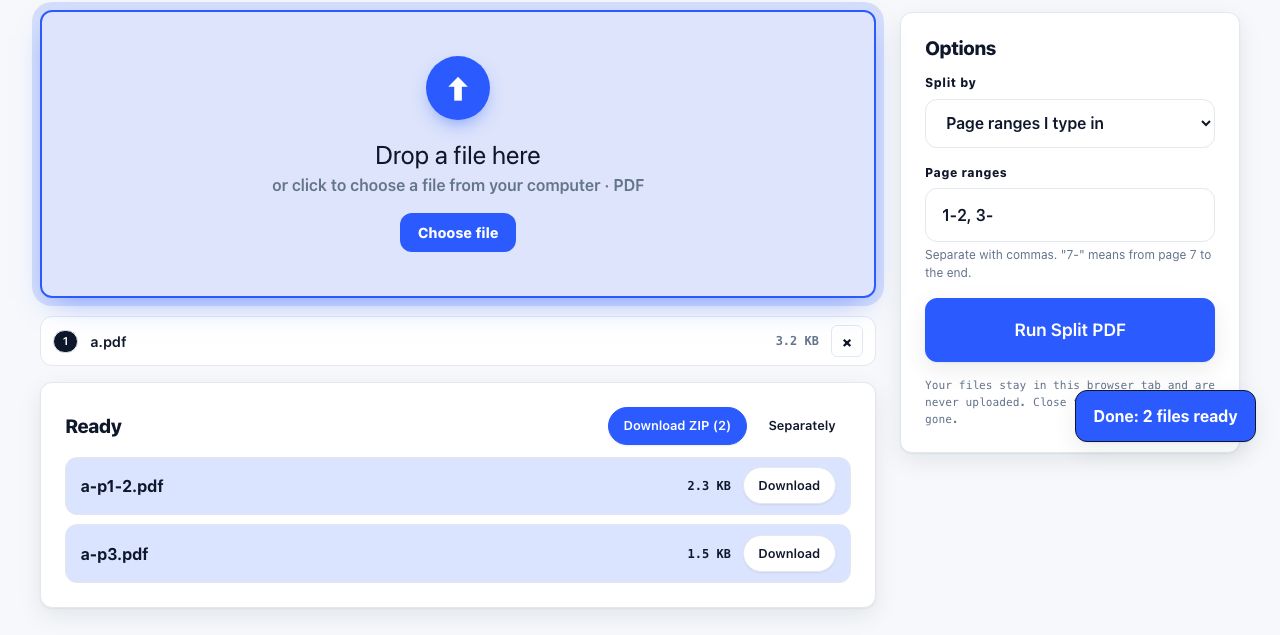
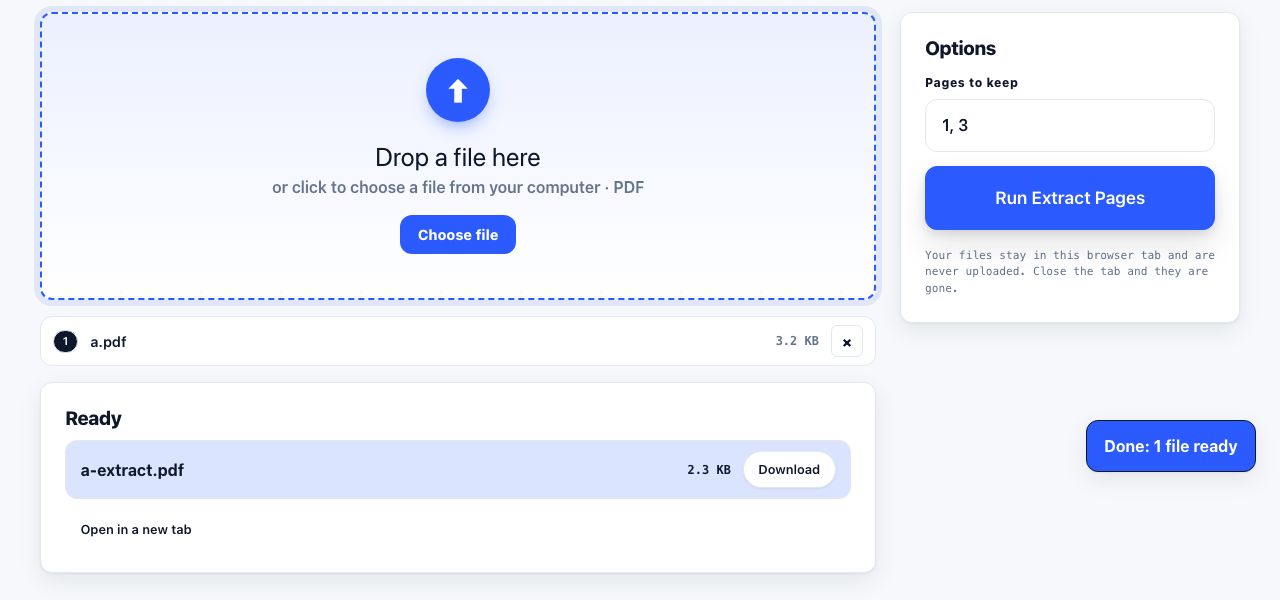
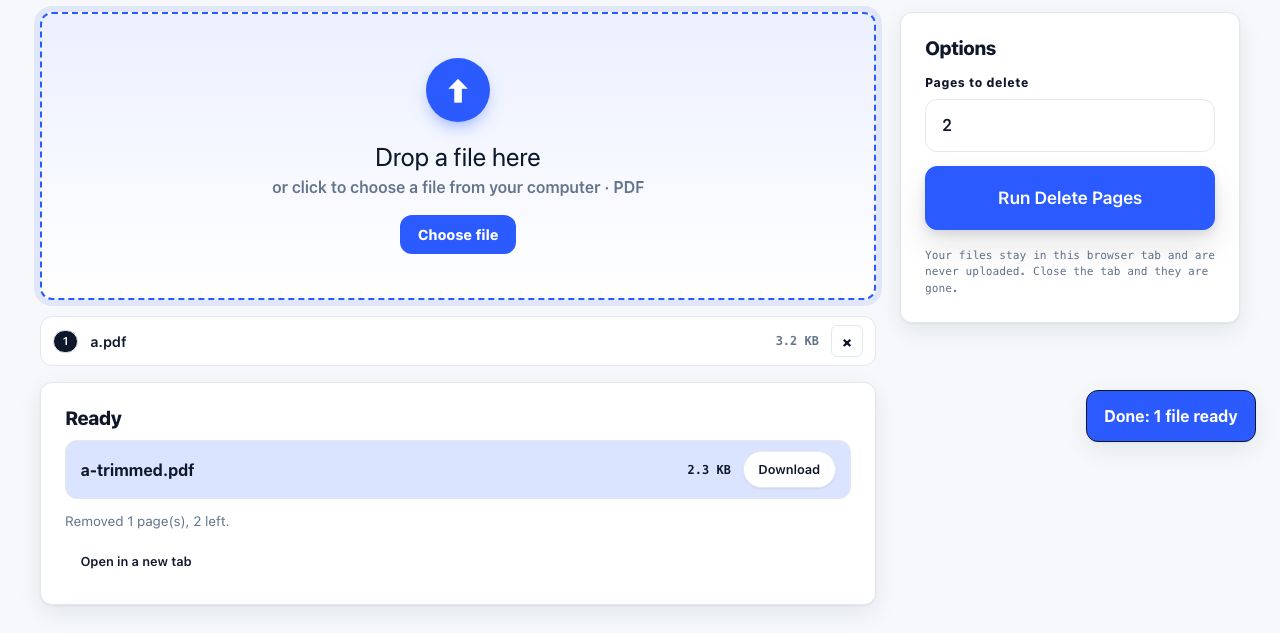
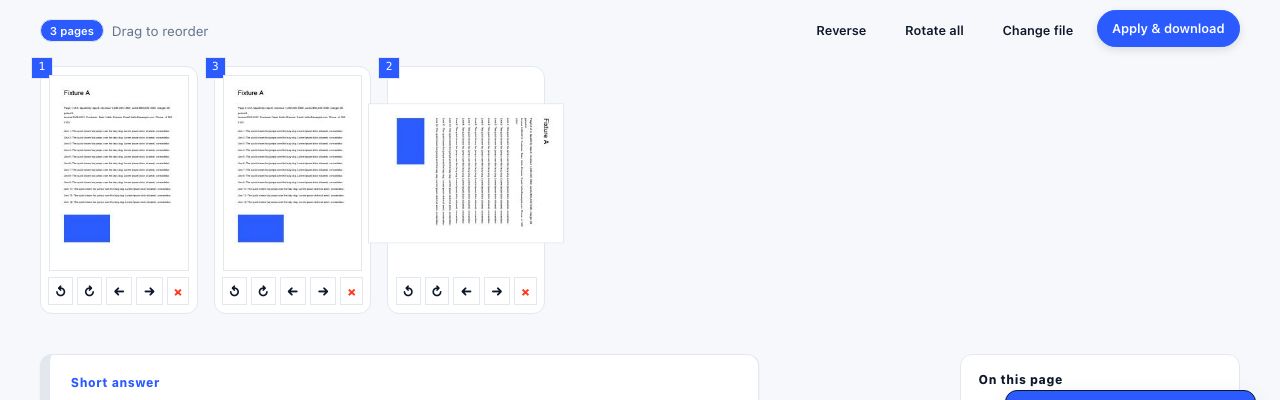
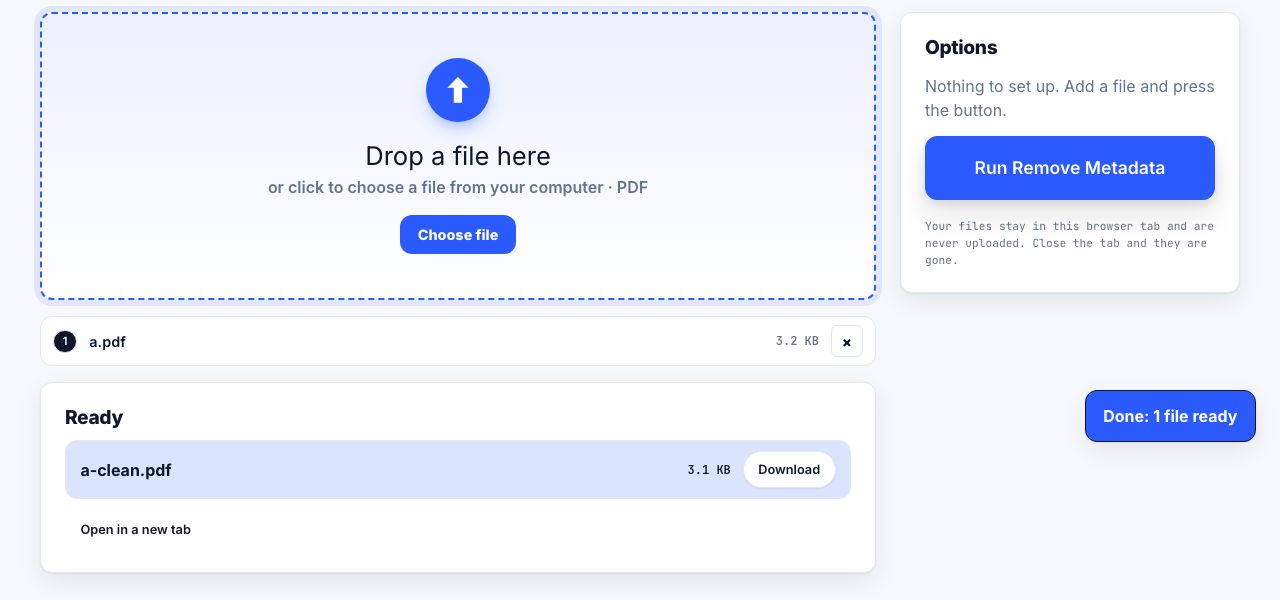
You do not need separate instructions for every device just to divide a PDF. On a phone, tablet, Windows PC, or Mac, the reliable pattern is the same: use a modern browser, choose the pages, create the outputs, and inspect them before sharing. PrintxPDF keeps standard PDF splitting in your browser tab. That offers a straightforward way to handle everyday documents without an account, a credit card, a watermark, or a routine upload to a file-processing service.
How to split a PDF on any device
- Open the PDF splitter in your browserGo to Split PDF using the browser already on your phone or computer. Close other memory-heavy tabs if the file is large.
- Choose the file from your deviceSelect the PDF from Downloads, Files, iCloud Drive, Google Drive, or another location available through the device picker.
- Set the split ruleChoose individual pages, ranges, or a repeat interval. Confirm the page numbering with thumbnails before continuing.
- Create and download the partsGenerate the copies and save them somewhere you can find later. On a phone, watch for the browser download notification.
- Open the resultsCheck page order, orientation, and file names before attaching the PDFs to a message or uploading them elsewhere.
Split PDF pages from your current browser. Free, private in-browser, no signup, no watermark.
Split PDF →What changes between phone and computer?
| Device | What to watch | Helpful habit |
|---|---|---|
| iPhone or iPad | Downloads may save in Files rather than Photos | Use a clear file name before sharing. |
| Android phone or tablet | The file picker can show multiple storage locations | Confirm the selected PDF before processing. |
| Windows computer | Several downloads can accumulate in one folder | Create a dated folder for the output parts. |
| Mac | Files can open from Finder, iCloud Drive, or Downloads | Preview each part with Quick Look before sending. |
Use smaller ranges on a phone when needed
A long scanned PDF can use more memory than a phone has available. If the browser becomes slow, divide the task into smaller ranges rather than retrying the whole document. Keep the source file on the device, name the outputs in order, and confirm the final page of one part meets the first page of the next. This is especially helpful for course packs, scanned records, and image-heavy reports.
Choose the right PDF action before you start
Split PDF is for making several files. If you only need to retain a few pages, Extract Pages is more direct. If unwanted pages should disappear from a working copy, use Delete Pages. If page order is the real problem, Organize PDF is the better fit. Picking the right task avoids extra downloads and accidental omissions.
Review privacy and sharing on mobile devices
Phone sharing menus make it easy to send the wrong file to the wrong app. Open the output first, verify the pages, then choose the destination. Splitting does not erase metadata or confidential content inside the pages. For documents that leave your control, consider Remove Metadata, and use an approved encrypted channel when required. Browser-local processing reduces unnecessary transfers during the split, but safe sharing still depends on the destination you choose.
Frequently asked questions
Can I split a PDF on an iPhone?
Yes. Open a browser-based splitter, choose the PDF from Files or another location, set page ranges, and save the output files through the download prompt.
Can I split a PDF on Android?
Yes. Use a modern browser, select the PDF through the Android file picker, choose your page ranges, then download and inspect each part.
Does splitting a PDF work on Mac and Windows?
Yes. The same browser workflow works on both platforms. Check the output folder and open each PDF once before sharing.
Do I need an app to split a PDF on my phone?
No. A browser-based tool can handle standard splitting without installing an app, as long as your browser and device have enough available storage and memory.