How to extract specific pages from a PDF for free

To extract specific pages from a PDF, identify the page numbers you need, select those pages or ranges, create a new PDF, and check the download. PrintxPDF lets you do this in your browser without signup or a watermark. The original remains unchanged, while the new PDF contains only the pages you chose.
See the tools in action
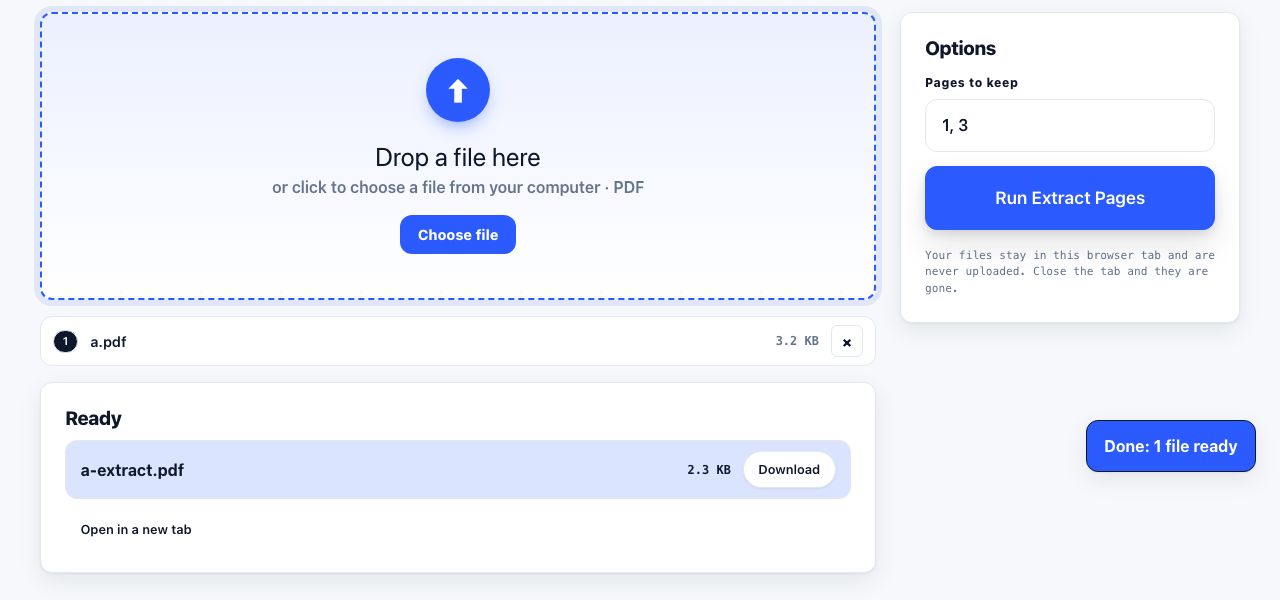
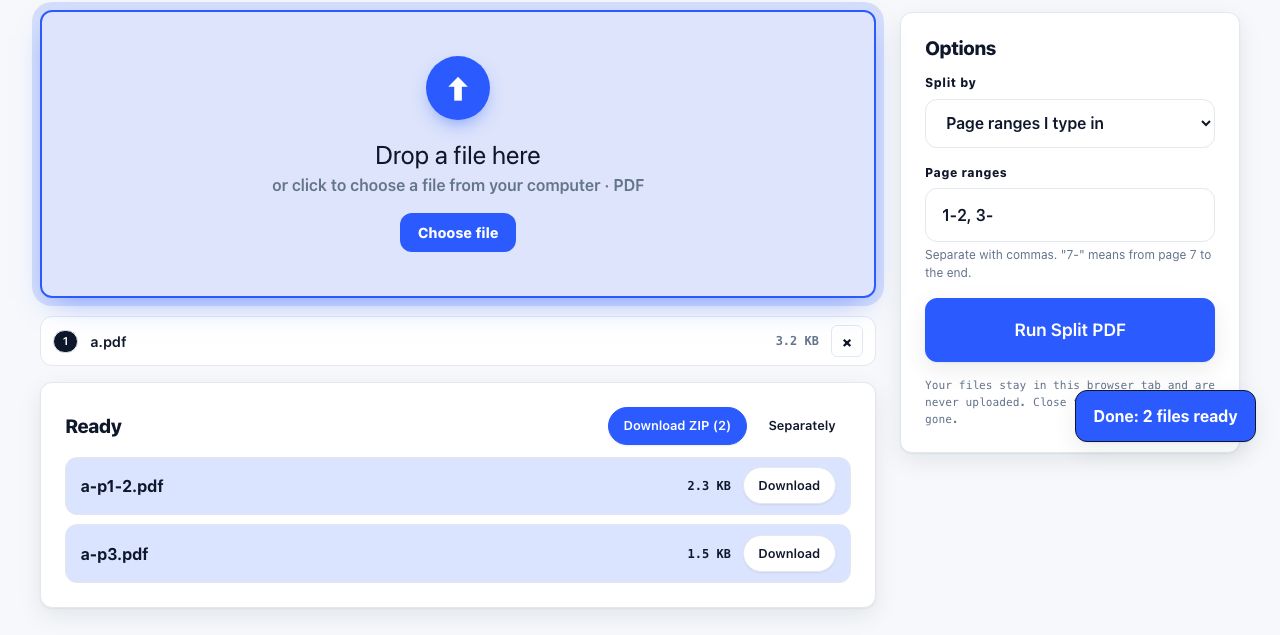
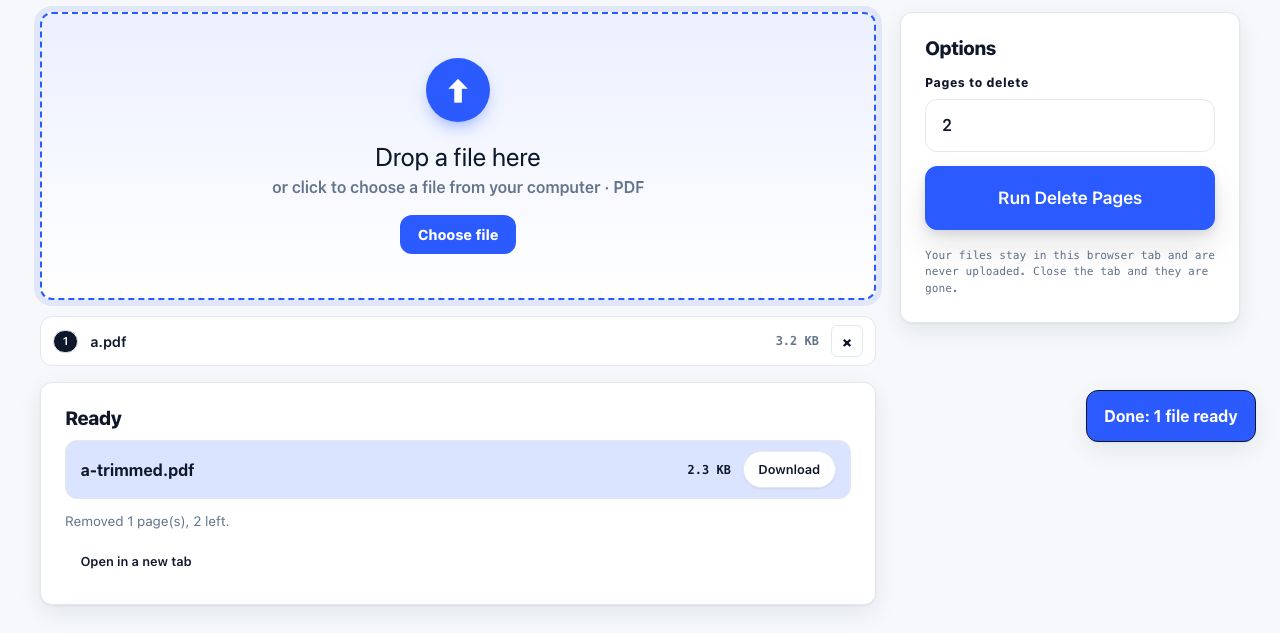
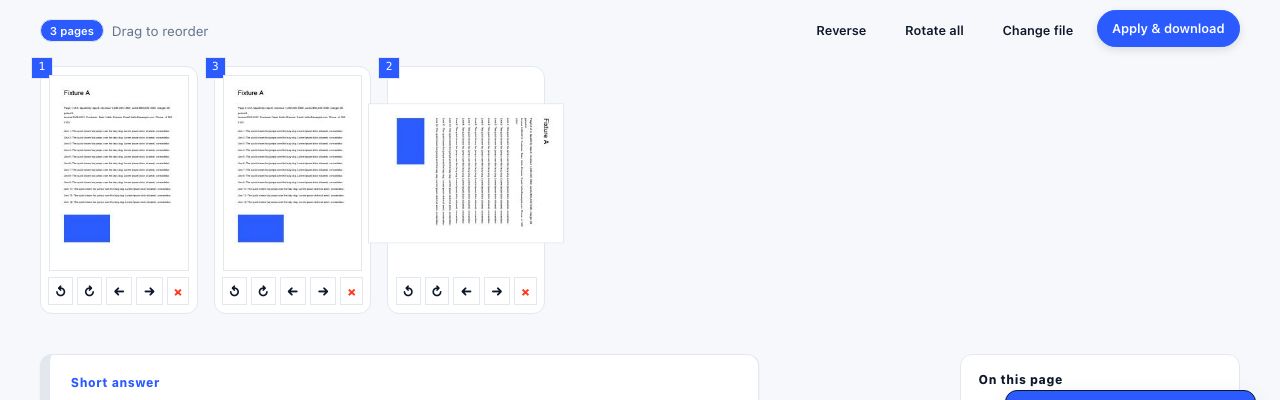
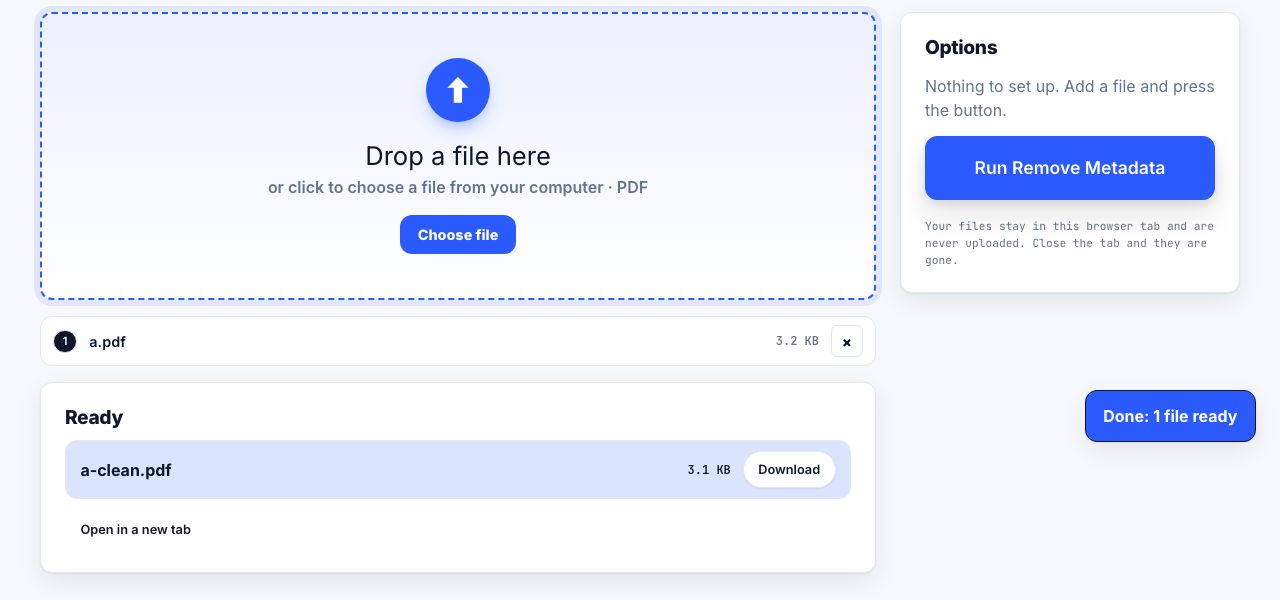
Extracting pages is the clean way to make a smaller PDF from a larger packet. Keep the cover and relevant appendix, save only the invoice pages, or send a few pages from a report without forwarding the whole document. PrintxPDF creates the selected-page copy in your browser tab. No account, card, watermark, or standard-file upload is needed.
How to extract selected pages from a PDF
- Find the pages you needOpen the PDF and note the viewer page numbers. Check whether a cover or blank page makes them differ from printed numbering.
- Open Extract PagesAdd the file to Extract Pages. Keep the original open or nearby while selecting ranges.
- Enter the page rangeChoose individual pages, a continuous range, or several groups where the tool supports it. Review the selection before you create the copy.
- Create the new PDFGenerate the output and download it. The source file is not overwritten.
- Inspect the outputCheck the first and last page, page orientation, and whether the selected pages include every attachment or signature the recipient needs.
Keep only the PDF pages you need. Free, private in-browser processing, no signup, no watermark.
Extract Pages →Extract pages, split a file, or delete pages?
| Task | Best tool | Result |
|---|---|---|
| Keep selected pages in one new file | Extract Pages | A compact PDF containing the chosen pages. |
| Create several separate outputs | Split PDF | Multiple files divided by range or rule. |
| Remove pages from a working copy | Delete Pages | A new version without the pages. |
| Change page order | Organize Pages | The same pages in a different sequence. |
Check page numbers before sharing
A recipient may ask for pages 10 through 14, but the PDF viewer can count a title page and a blank page that the printed document does not. Inspect thumbnails and visible labels before extracting. For scanned documents, verify the number printed in the image. A one-page error can omit the signature page, an attachment, or the final total. Save the original until the recipient confirms the shorter file is complete.
Extraction is not redaction
An extracted copy includes everything carried by the pages you keep. It does not erase private text, comments, document properties, or embedded attachments within those pages. Use Remove Metadata when your policy requires clean document properties. Use a verified redaction workflow when content must no longer be recoverable. Do not rely on cropping or a black shape to remove sensitive material.
Keep sensitive files local and review the result
Extracting pages often happens with applications, statements, client records, or contracts. Browser-local processing avoids an unnecessary third-party file transfer for this routine job. Still review the new PDF before sending it. If it is too large for email, use Compress PDF on a copy and check that images, signatures, and small text remain readable at normal zoom.
Frequently asked questions
Can I extract only a few pages from a PDF?
Yes. Select individual pages or a range, create a new PDF, and download the copy. The original document remains unchanged.
Can I extract non-consecutive PDF pages?
Use the tool’s page-selection syntax or make separate extracts for each group. Check the output to confirm every required page is included.
Does extracting pages remove metadata?
No. It creates a new page selection but does not promise to remove document properties or other hidden data. Use a separate metadata-removal step if needed.
Can I extract pages without uploading my PDF?
PrintxPDF processes standard extraction in the browser tab, so the file remains on your device for this workflow.