How to split one PDF into separate files

To split one PDF into separate files, choose the page ranges that belong together, create a new output for each range, and check every download. PrintxPDF splits standard PDFs in your browser, so the document stays on your computer. It is free, requires no signup, and does not add a watermark.
See the tools in action
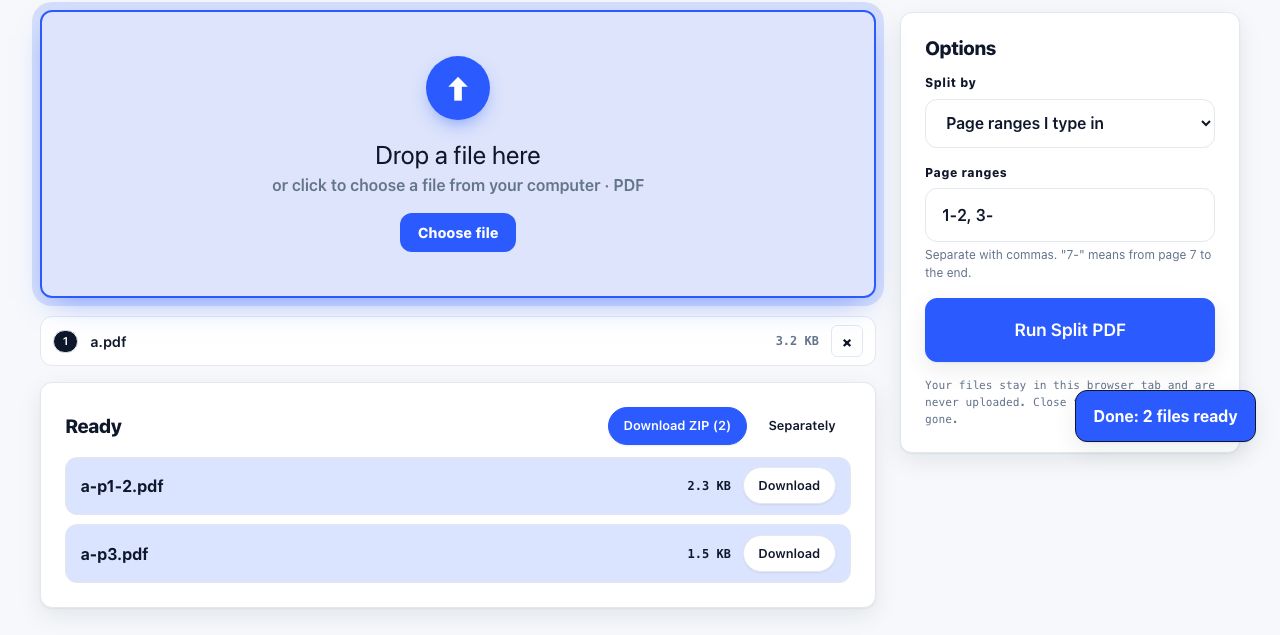
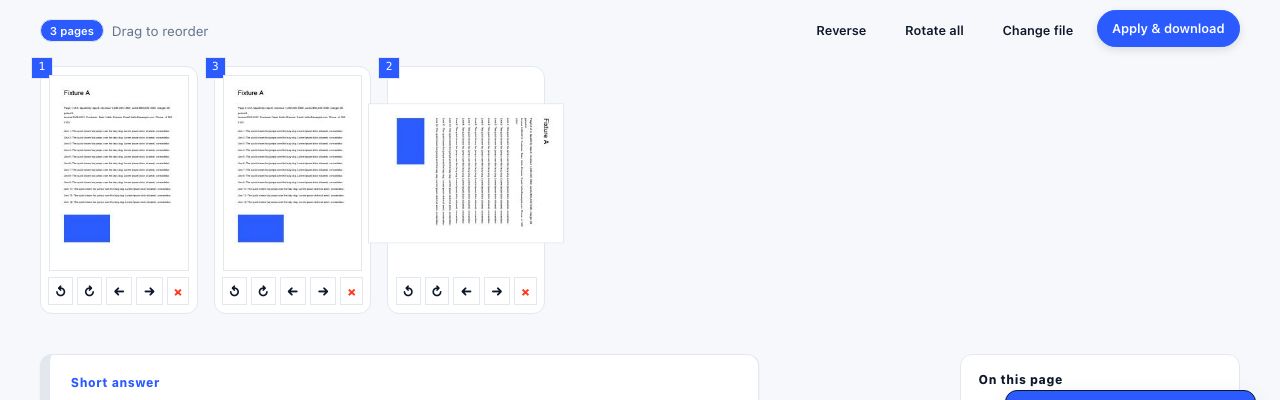
One large PDF often needs to become several smaller files: one invoice per customer, one chapter per student, or one attachment per form. Pick the ranges before you begin, create the separate outputs, and check them before sharing. PrintxPDF does this in your browser tab, so routine splitting does not require an upload, an account, a card, or a watermark.
How to split one PDF into multiple files
- Mark the ranges you needWrite down the groups before you change the document. For example, pages 1-4, 5-8, and 9-12 can become three separate files.
- Open Split PDFAdd the file to Split PDF. The original stays unchanged while you make new copies.
- Set the split pointsChoose page ranges or a repeated page count. Check thumbnail pages if printed numbering does not match the PDF viewer count.
- Create the outputsRun the split and save the separate downloads. Give each file a clear name before emailing or filing it.
- Check each resultOpen the first and last page of every output. Confirm the range starts and ends at the intended place.
Split one PDF into separate files free in your browser. No signup and no watermark.
Split PDF →Choose ranges that match the job
| Goal | Example range | Result |
|---|---|---|
| Separate chapters | 1-12, 13-27 | One PDF per chapter. |
| Send only an appendix | 41-56 | A smaller supporting document. |
| Make one file per form | 1, 2, 3 | One output for each page. |
| Break up a large packet | Every 10 pages | Several easier-to-send files. |
Split files safely before you share them
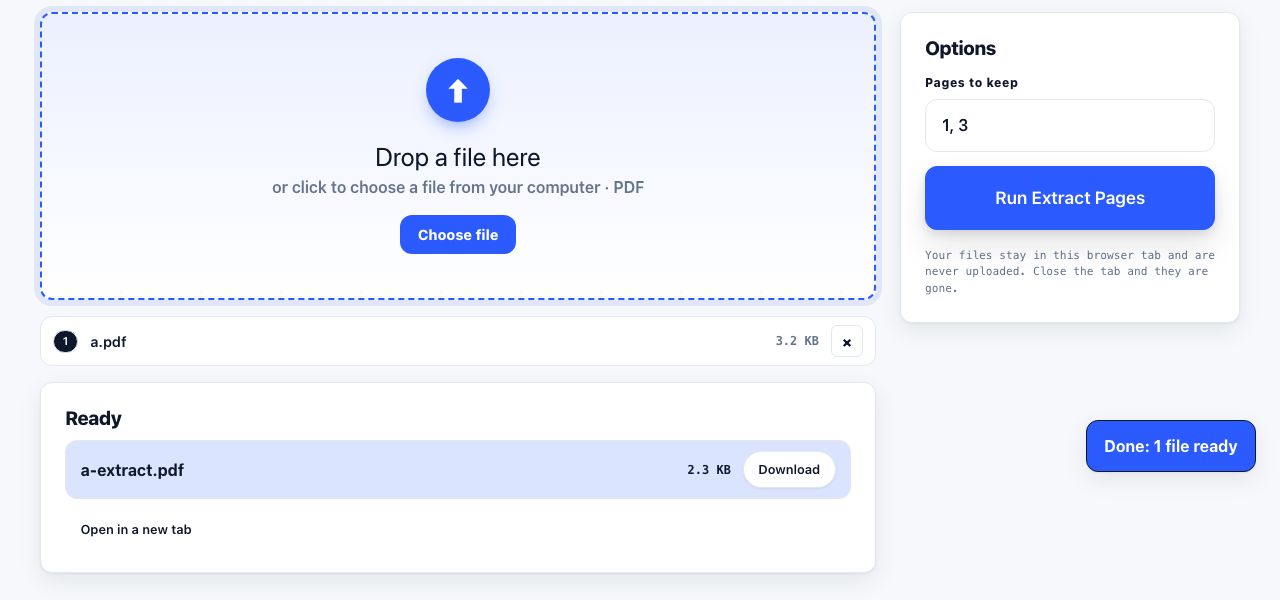
Use clear filenames such as application-main.pdf and application-appendix.pdf. That avoids a common mistake: the correct pages are split, but the wrong file gets attached to an email. Keep the source PDF until the recipient confirms the right material arrived. If you only need selected pages in one smaller file, Extract Pages may be simpler than creating several outputs.
What splitting does not remove
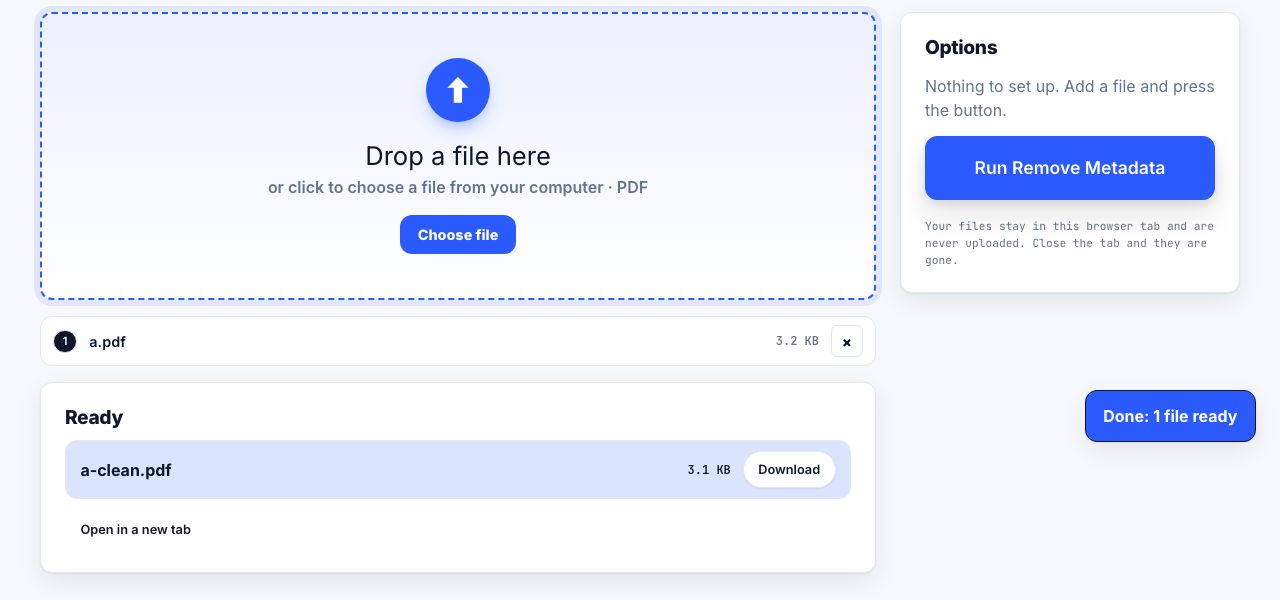
A page split changes which pages are grouped together. It does not remove metadata, comments, attached files, or private text still visible on pages you keep. Use Remove Metadata for standard document properties when appropriate. Use true redaction, not a black shape or crop, when information must no longer be recoverable from a distribution copy.
Keep confidential PDFs local
Splitting is common for financial statements, client files, student records, and scanned forms. Browser-local processing keeps the routine page operation on the device you are using. Still inspect the output, especially where sensitive information may cross a page boundary. Confirm filenames, page counts, visual quality, and the intended recipient before sending any document externally. If a separate PDF is too large for email, use Compress PDF on a working copy and check that text and images remain readable.
Frequently asked questions
Can I split one PDF into many files?
Yes. Set the page ranges or individual pages you need, then create separate outputs. Check each result before sharing it.
Will splitting a PDF change the original?
No. The splitter creates new files. Keep the source until you have verified page order and that every output contains the intended pages.
Can I split a PDF by every few pages?
Yes. Choose a repeated split size when each output should have the same number of pages, then inspect the final group if the total is not evenly divisible.
Does splitting remove private metadata?
No. Splitting changes page groups, not all hidden document data. Use a dedicated metadata-removal step when your sharing requirements call for it.