Convert PowerPoint and PDF for editing or sharing

Use PowerPoint to PDF when you need fixed slides for sharing or printing. Use PDF to PowerPoint when you need an editable starting point, then review every slide because PDF layout does not contain the original slide structure. PrintxPDF offers both workflows with clear limits.
See the tools in action


PDF and PowerPoint solve different presentation problems. Export PowerPoint to PDF when the recipient needs stable pages that will look the same on another device. Convert PDF to PowerPoint when you need an editable starting point, but do not expect a perfect reconstruction of the original slides. A PDF stores a final page layout, not the editable objects, animations, or presenter notes that created it. Review every converted slide before reuse.
How to choose the right presentation conversion
- Decide whether the goal is sharing or editingChoose PDF for fixed delivery and PowerPoint for ongoing slide editing.
- Use the source file when possibleEdit the original PPTX instead of rebuilding from a PDF whenever you have it.
- Convert with the appropriate toolUse PPT to PDF for a fixed PDF or PDF to PPT for an editable starting point.
- Review each slideCheck text, images, charts, alignment, and reading order before presenting or distributing.
- Keep the original versionSave source and converted copies with clear filenames so teams know which one is authoritative.
Create a shareable presentation PDF in your tab. Free, no signup, no watermark.
PowerPoint to PDF →PowerPoint to PDF versus PDF to PowerPoint
| Direction | Best for | Main limitation |
|---|---|---|
| PowerPoint to PDF | Stable sharing and printing | Slides are no longer normally editable. |
| PDF to PowerPoint | Creating an editable starting point | Original objects and layout may not reconstruct exactly. |
| Original PPTX | Revisions and animations | Needs compatible presentation software. |
| PDF images | Visual reference only | Text and objects may not be editable. |
Why a PDF cannot perfectly recreate slides
A slide deck stores editable text boxes, images, themes, transitions, charts, and notes. A PDF stores the final visual page. When a PDF is converted back to PowerPoint, the converter must infer a practical slide structure from fixed positions. It can be useful for revision, but it may not restore animations, master-slide logic, grouped objects, speaker notes, or every font and spacing choice.
Review presentations before sharing
Open the final PDF or PPTX and inspect title slides, dense charts, wide tables, and slides with small text. Print a sample if the deck will be handed out. If the deck contains confidential material, use an approved delivery channel. Browser-local standard workflows avoid routine uploads, but you still control where the final file is saved and who receives it.
Keep version control simple
Name copies according to their purpose, such as deck-editable.pptx and deck-approved.pdf. Do not edit the PDF delivery copy when the PPTX source should change; revise the source and create a new PDF. This makes it easier to confirm which version was approved and avoids a presentation drifting across several inconsistent formats.
Use related tools only after review
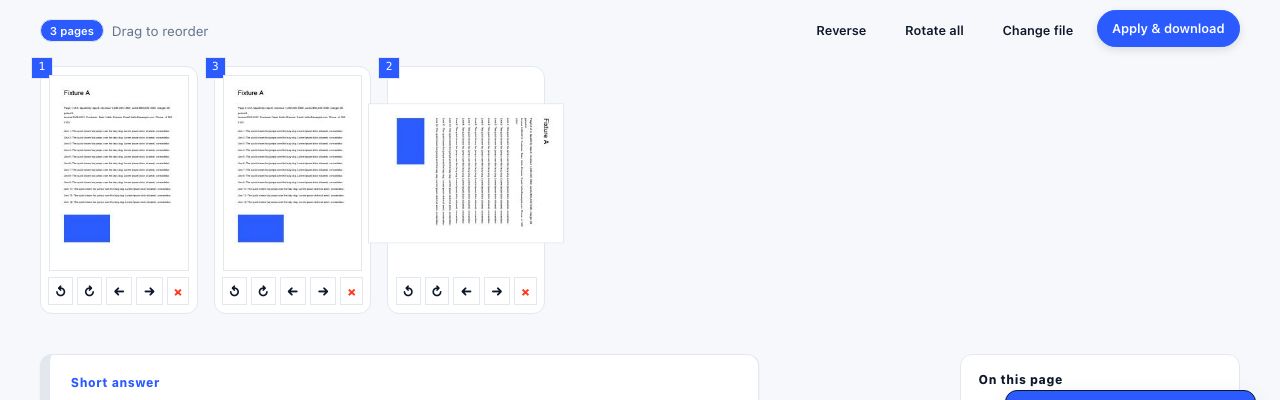
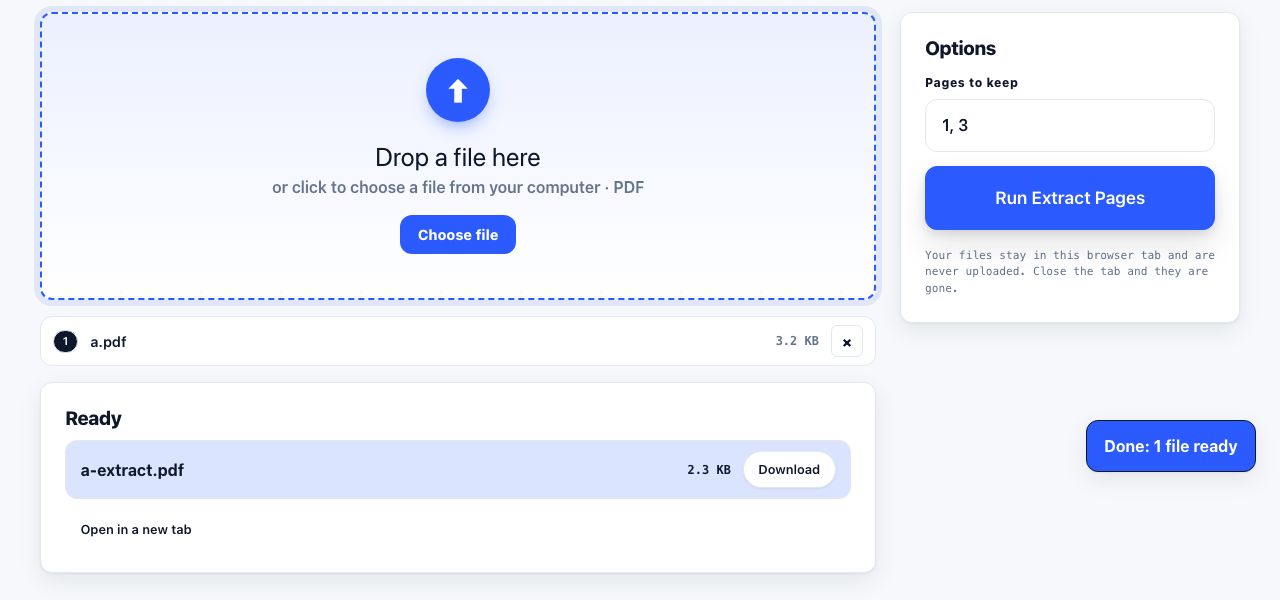
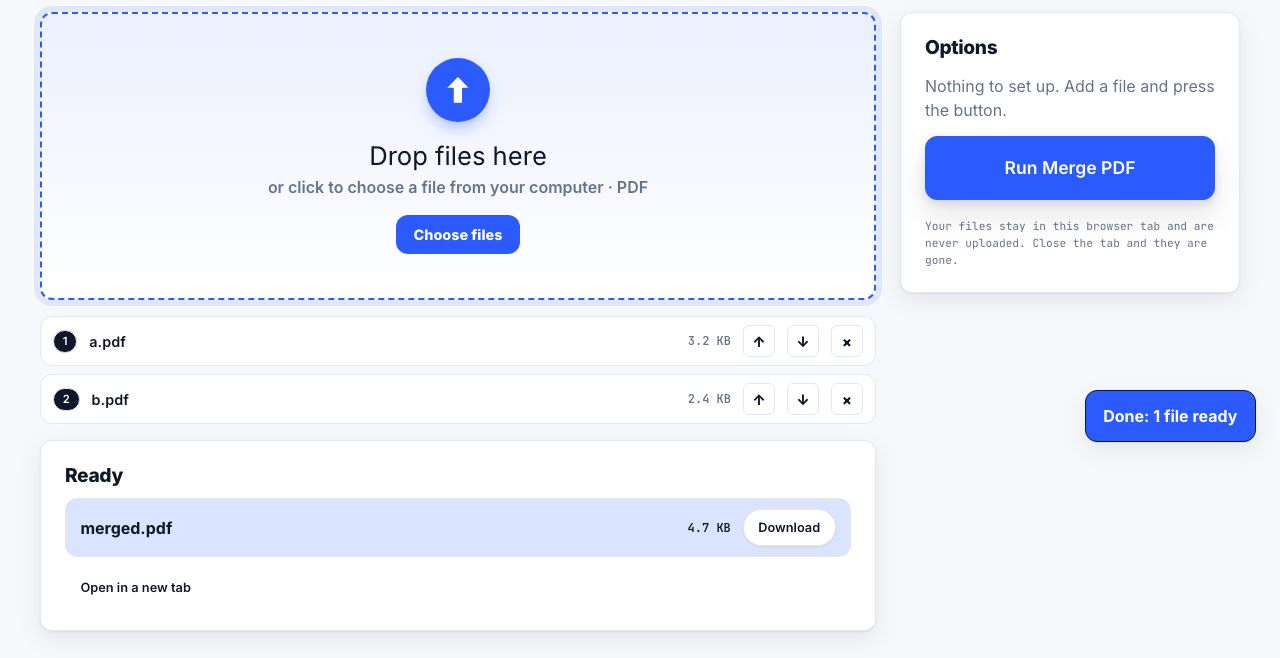
If PDF slides need a different order or selected pages, use Organize PDF or Extract Pages after checking the presentation. If you need a single handout packet, Merge PDF can combine reviewed PDFs. These steps organize delivery copies; they do not restore editable PowerPoint content.
Frequently asked questions
Should I share slides as PDF or PowerPoint?
Share PDF when recipients need a stable version to view or print. Share PowerPoint only when they need to edit the deck and you intend to provide an editable source.
Can PDF to PowerPoint restore animations?
No. A PDF records final page appearance, not original animations, notes, or slide master structure. Review the converted deck before presenting.
Will PowerPoint to PDF preserve my slide layout?
It aims to create a fixed visual slide copy, but inspect fonts, charts, and page breaks before delivery or printing.
Are these presentation conversions private?
Standard workflows run in the browser where stated. Check the tool notice and use an approved process for restricted material.