Should you flatten a filled PDF form before sending?

Flatten a filled PDF form when the recipient needs answers locked into the page and you have retained an editable copy. Do not flatten a draft you expect to revise, and always inspect the final PDF before sending it.
See the tools in action

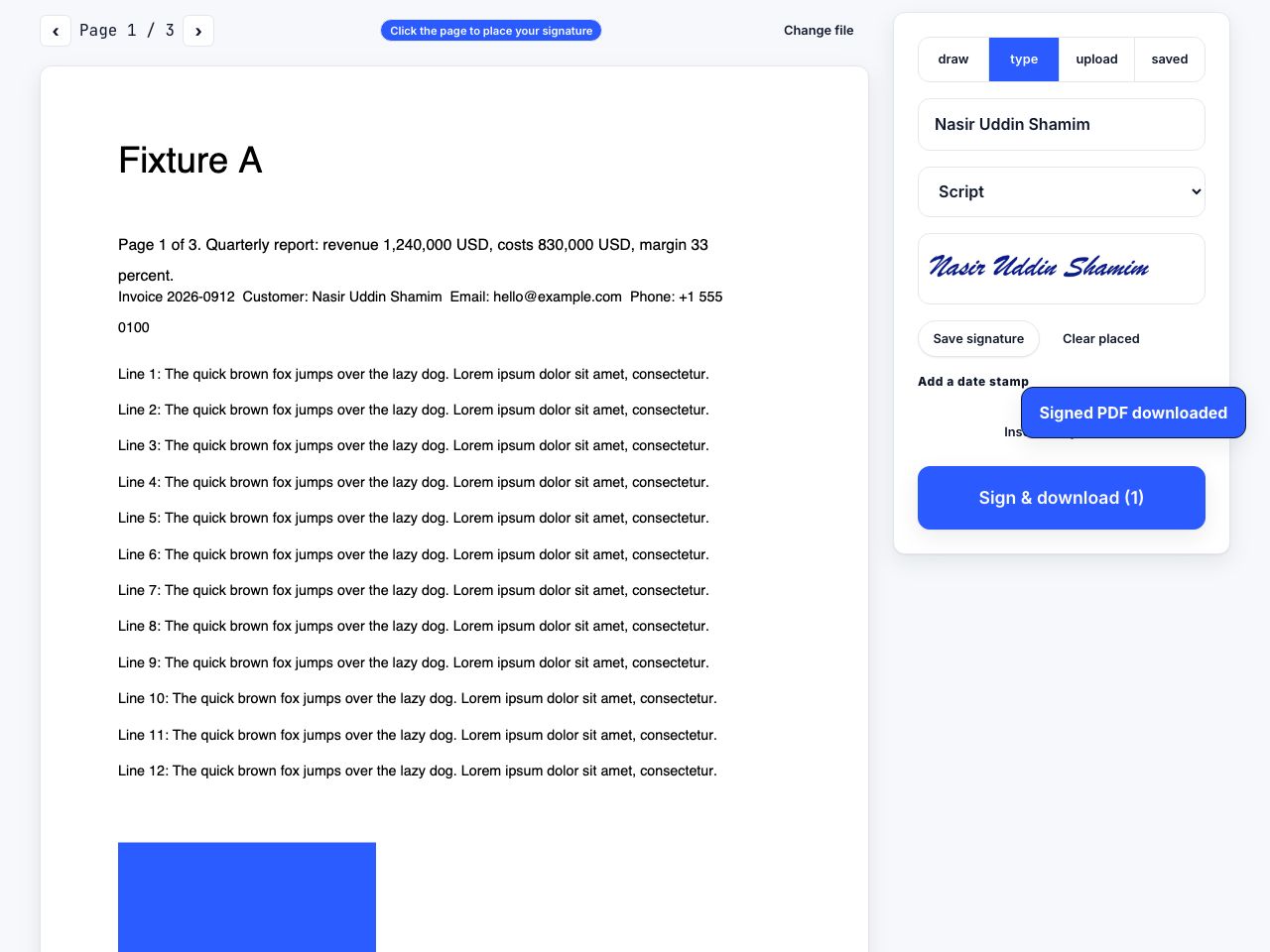
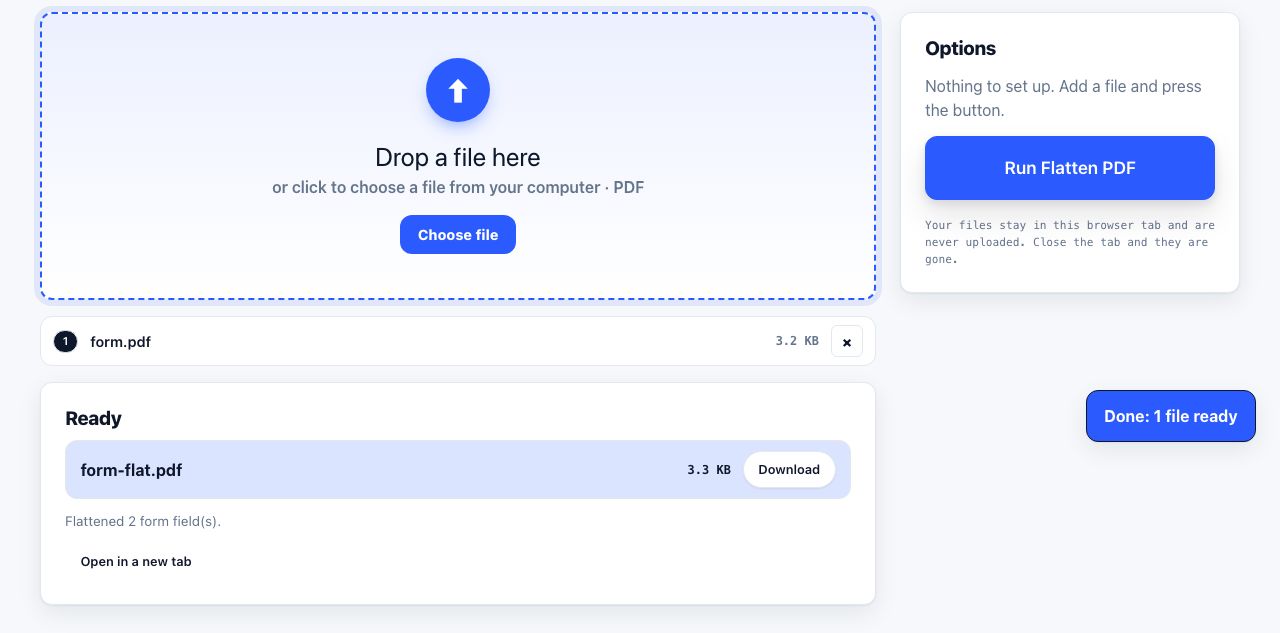
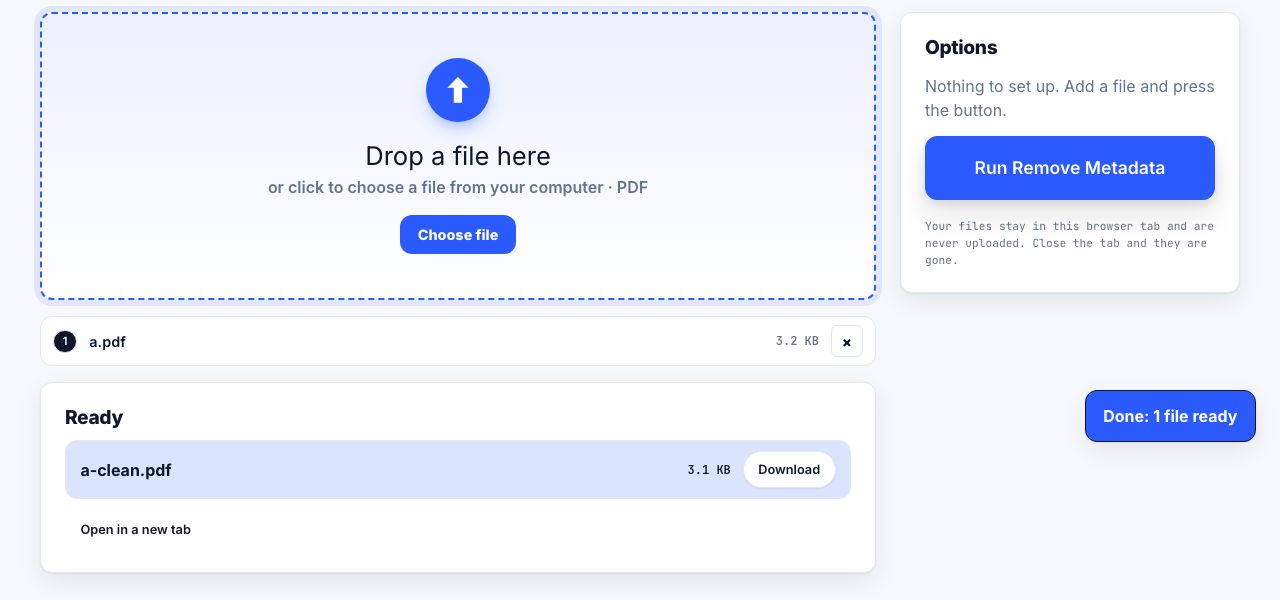
Whether to flatten a completed PDF form depends on who needs to edit it next.
How to fill a standard PDF form in your browser
- Open the original formKeep an untouched copy, especially for tax, medical, banking, or employment forms.
- Add it to Fill PDF FormsOpen Fill PDF Forms and select the PDF.
- Complete each visible fieldType carefully, choose options, and check dates, numbers, and required checkboxes.
- Choose editable or flattened outputSave filled when you may revise the answers. Save flattened when the recipient needs fixed page content.
- Review the downloaded PDFOpen the result and confirm every field displays correctly before signing or sending.
Fill standard PDF form fields in your tab. Free, no signup, no watermark.
Fill PDF Forms →Editable form versus flattened form
| Output | What remains | Best for |
|---|---|---|
| Filled PDF | Interactive fields remain editable | Drafts and recurring forms. |
| Flattened PDF | Answers become fixed page content | Final copies for sharing or filing. |
| Signed PDF | Signature added to a document | Approval or acknowledgement after review. |
| Printed scan | Page image of a form | Only when a standard PDF form is unavailable. |
Flattening is useful but irreversible
Flattening turns the visible answers into page content and removes the normal editable fields. It can prevent accidental changes after delivery, but it also makes corrections harder. Keep an editable filled version in a safe place before flattening. A flattened file is not the same as legal authentication or encryption; it simply fixes what is shown on the page.
Not every PDF-looking form is fillable
A scanned form is a picture and may have no interactive fields. Some older government and banking forms use nonstandard field systems that browser tools cannot read. If no usable fields appear, look for a standard PDF version, complete the form in the issuer’s supported app, or use a permitted annotation process. Do not assume drawing text over a form creates valid form data.
Protect sensitive form answers
Forms can include addresses, ID numbers, account details, health information, or employment history. PrintxPDF processes standard form filling locally in your browser, which avoids a routine upload. Still review the finished file, store it in an approved location, and use the recipient’s required secure delivery path. Metadata removal and access controls are separate decisions from filling fields.
Check the final PDF before signing
After filling a form, review all pages at normal zoom. Check whether text fits inside fields, whether checkboxes show, and whether the visible answers match the values you entered. Only then use Sign PDF when a signature is appropriate. If the form must be locked for delivery, keep the editable copy and send the flattened one. Keep a dated source copy until the recipient accepts the form. Check page count, signatures, and delivery instructions.
Frequently asked questions
Can I fill a PDF form for free?
Yes. Add a standard fillable PDF, enter answers, choose filled or flattened output, and download the result without signup.
What is the difference between filled and flattened PDF forms?
A filled PDF keeps interactive fields editable. A flattened PDF turns visible answers into fixed page content and removes normal field editing.
Why does my PDF show no fillable fields?
It may be a scan, a plain page layout, or a nonstandard legacy form. Use the issuer’s supported form or find a standard fillable PDF version.
Are filled PDF forms private?
The standard field-filling workflow runs in the browser tab, so the form is not routinely uploaded for processing.