How to scan multiple pages to one PDF on a phone

To scan multiple pages into one PDF on a phone, capture or choose clear page photos, put them in order, create the PDF, and inspect every page before sharing. PrintxPDF handles standard scanning locally in the browser.
See the tools in action

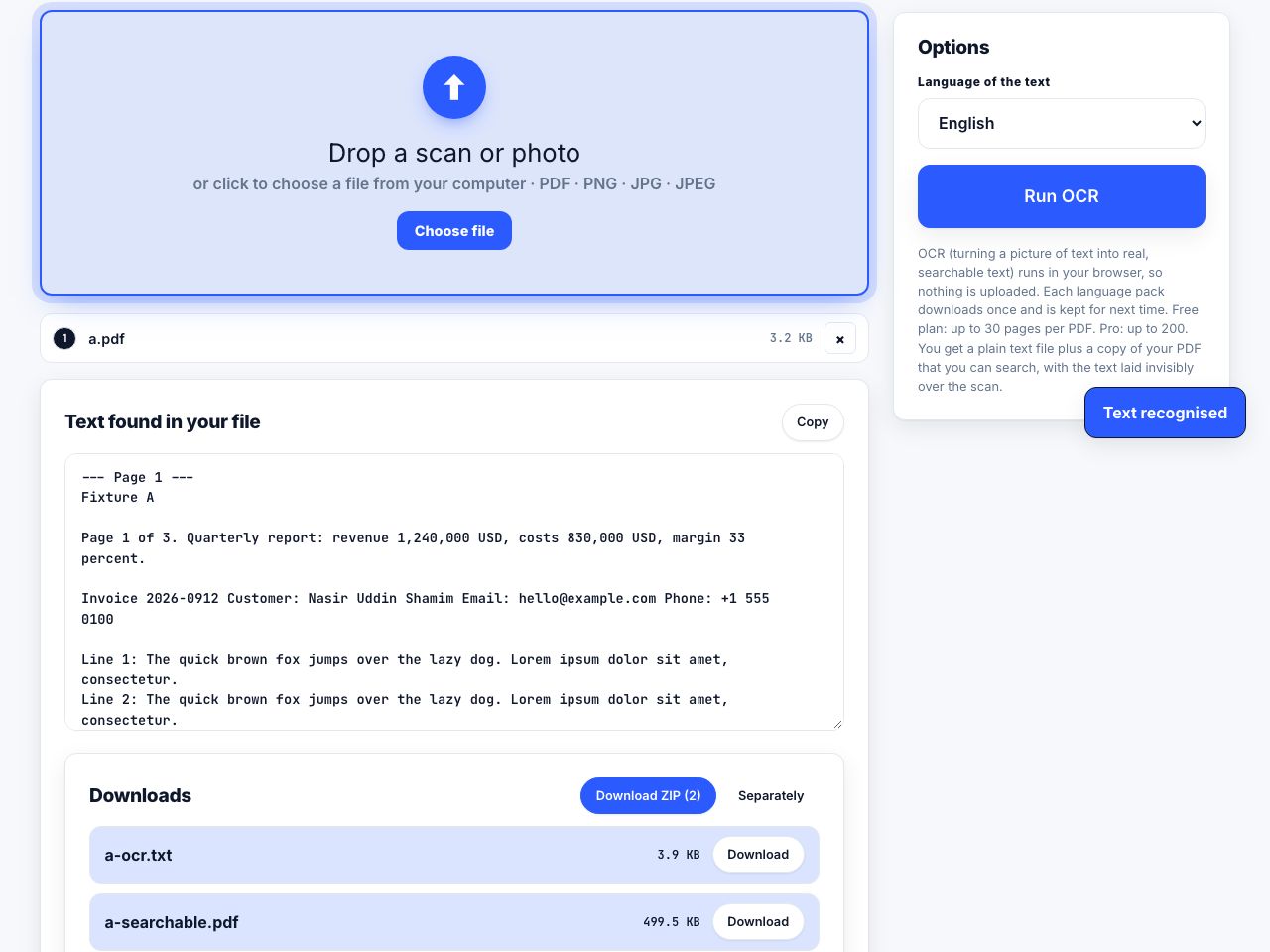
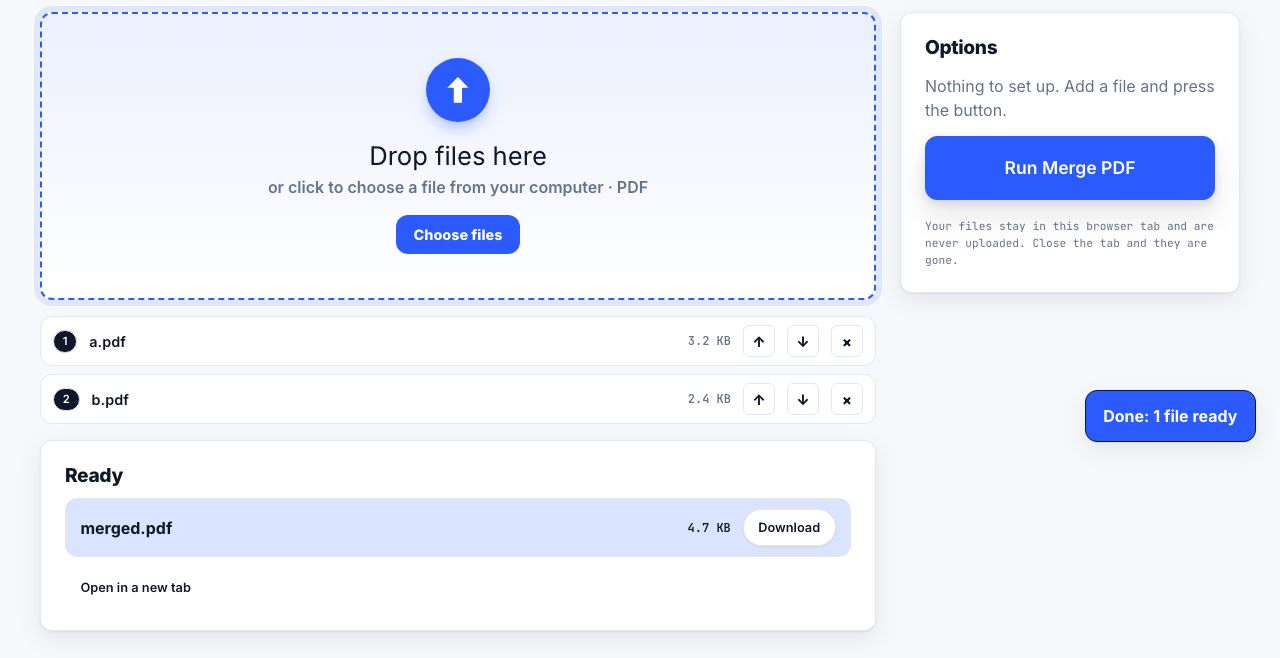
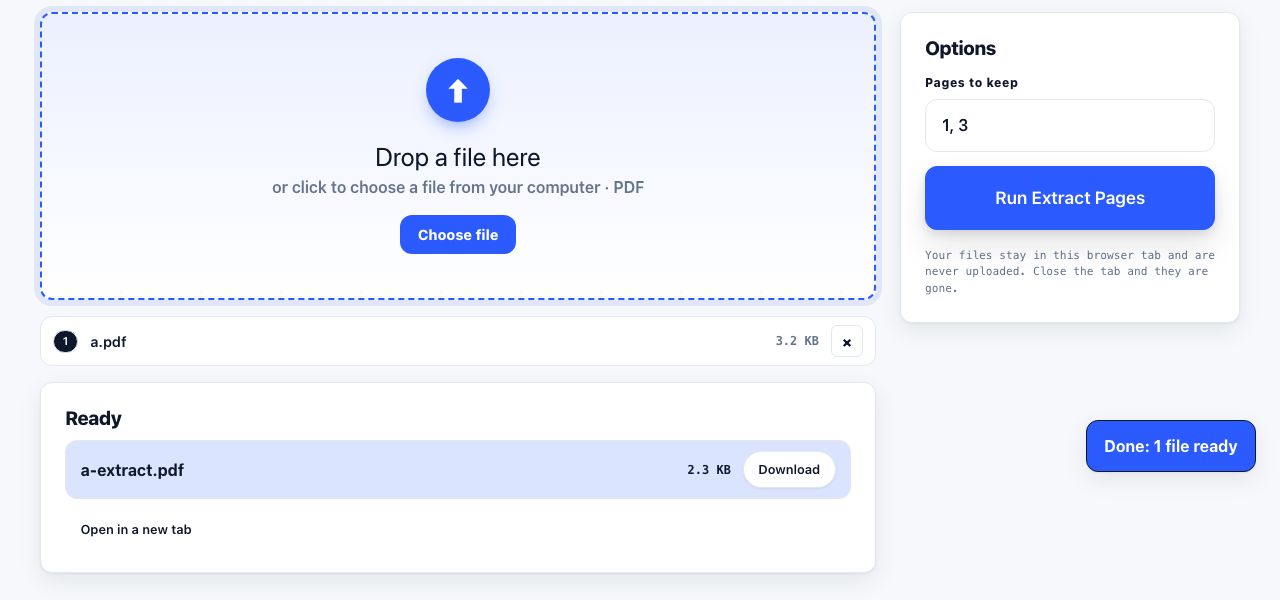
A phone can make a practical multi-page document scan when each page is captured carefully and checked before delivery.
How to scan pages into one PDF
- Prepare the page and lightPlace the document flat, use even light, and avoid shadows or glare.
- Open Scan to PDFUse Scan to PDF in your phone or computer browser.
- Capture or add each pageTake a new photo or choose clear existing images, then place pages in the correct order.
- Choose the page settingSelect A4, Letter, or fit-to-image and use greyscale or contrast settings only when they improve readability.
- Create and check the PDFDownload the PDF, open it, and inspect page order, edges, and small text before sharing.
Turn document photos into a PDF in your tab. Free, no signup, no watermark.
Scan to PDF →Phone scan versus ordinary photo
| Method | Best for | Check before sharing |
|---|---|---|
| Scan to PDF | Multiple pages in one document | Order, crop, orientation, and page size. |
| Single camera photo | One quick visual reference | Glare, blur, and background clutter. |
| Flatbed scanner | High-fidelity records | Resolution and page alignment. |
| OCR after scanning | Searchable text copy | Recognition of names, numbers, and handwriting. |
Capture quality determines the result
A PDF cannot restore letters that were blurred, cropped, or hidden by glare in the photo. Hold the camera parallel to the page, include all edges, and retake a page that looks soft at normal zoom. Receipts and small print benefit from good contrast. If the scan will be used as a record, keep the original photo or source document until the PDF has been checked and accepted.
Scanning is not OCR
A scanned PDF usually contains page images, not selectable text. It can look correct and still be impossible to search or copy from. Use OCR PDF on a working copy when readers need a text layer. Check names, dates, amounts, and other high-risk details because recognition can make mistakes, particularly with handwriting, blur, or unusual layouts.
Local browser processing for sensitive pages
Forms, receipts, IDs, and signed documents can be private. Scan to PDF runs in the browser, so ordinary capture and assembly do not require routine uploads. You still decide where to save the downloaded file and who receives it. Use an approved secure delivery path if the content is sensitive, and review every page before attaching it to a message.
Make the final PDF easy to use
Give the document a clear filename and check page count and orientation. If a packet needs additional PDF pages, use Merge PDF after reviewing each part. If only selected pages should be shared, Extract Pages can make a smaller copy. Keep the original source until the final PDF is confirmed complete. Retake any unclear source image before you finalize the PDF.
Frequently asked questions
Can I scan to PDF for free?
Yes. Capture or add document photos, arrange pages, create the PDF, and download it without signup or a watermark.
Can I scan multiple pages into one PDF?
Yes. Add each page, put them in order, choose the page setting, then create a single PDF.
Will a scanned PDF be searchable?
Not by default. A scan is an image-based PDF. Run OCR on a copy if you need selectable and searchable text.
Is Scan to PDF private?
The standard scan workflow runs in the browser, so pages are not routinely uploaded for capture or assembly.