How to merge scanned PDFs into one searchable file

To merge scanned PDFs into one searchable file, combine the scans in the correct order, then run OCR on the merged copy and verify important text. PrintxPDF lets you merge PDFs in your browser, then make the combined scan searchable without signup or a watermark. Keep the original scans until the text result has been checked.
See the tools in action
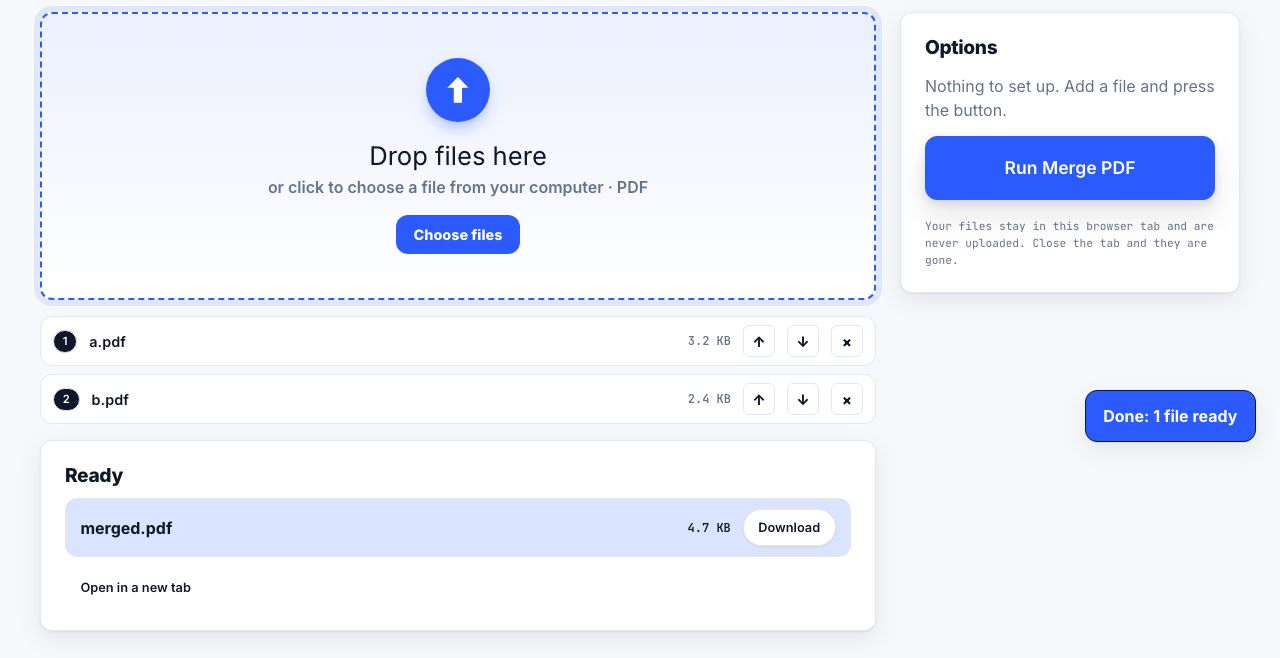
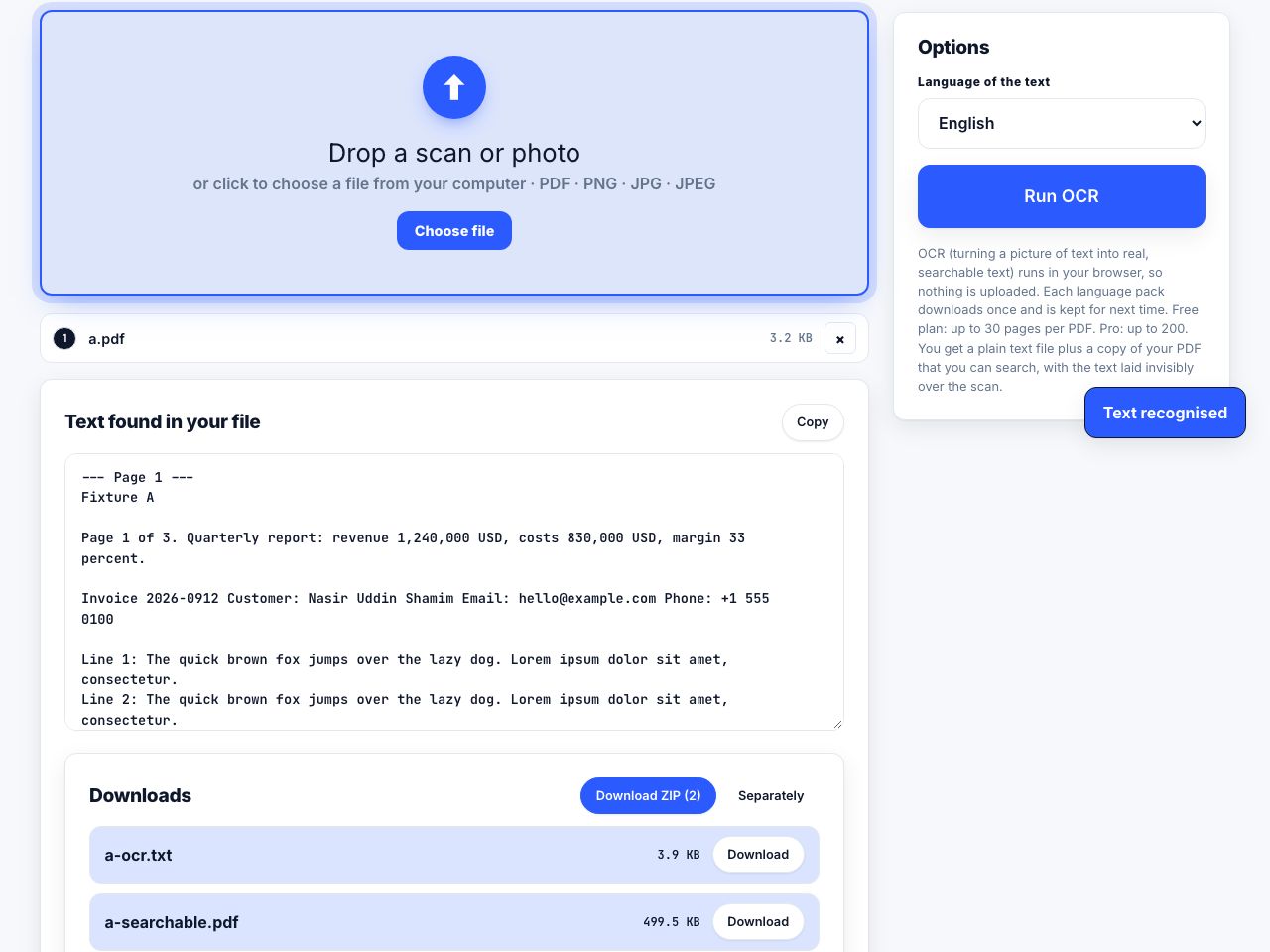
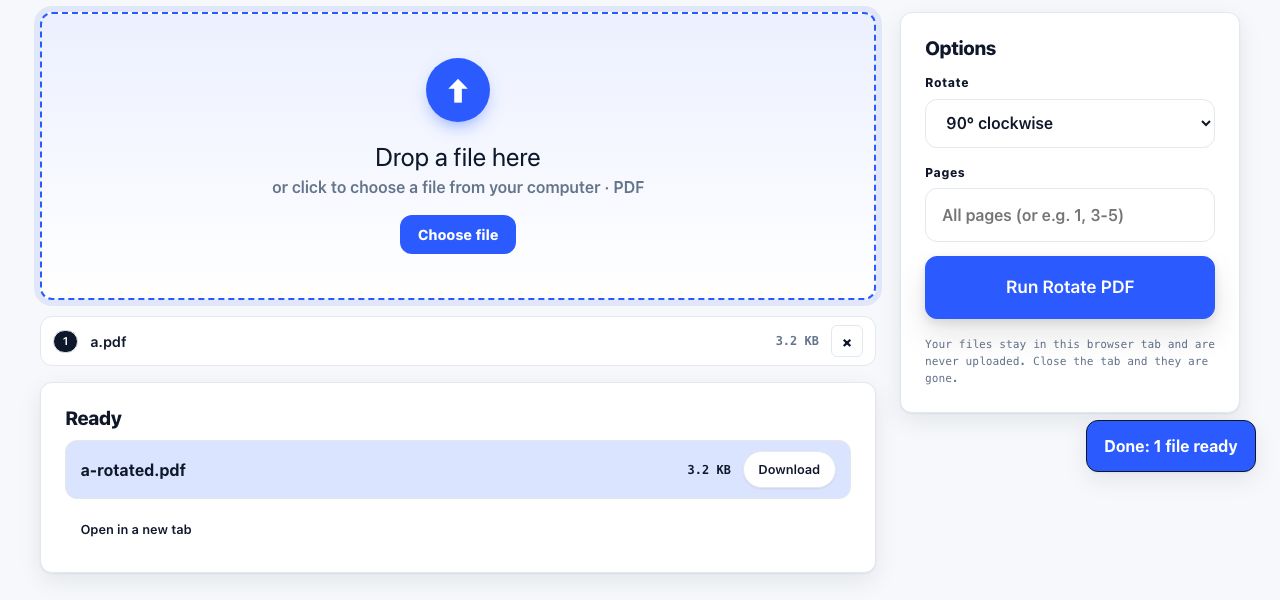
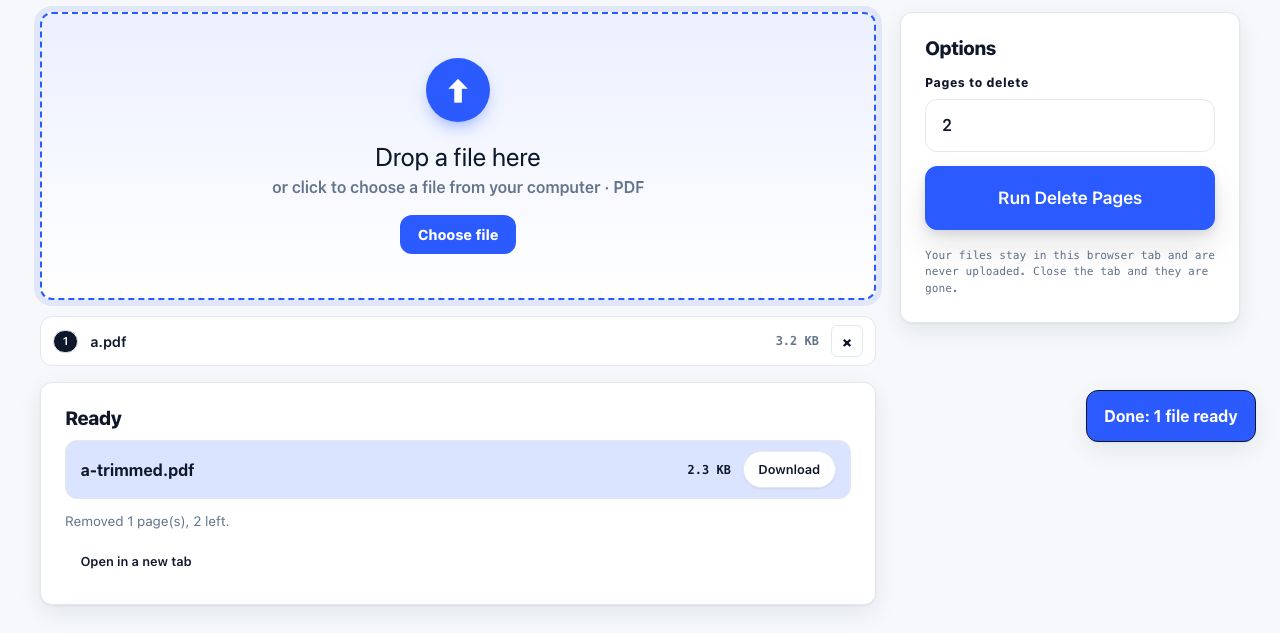
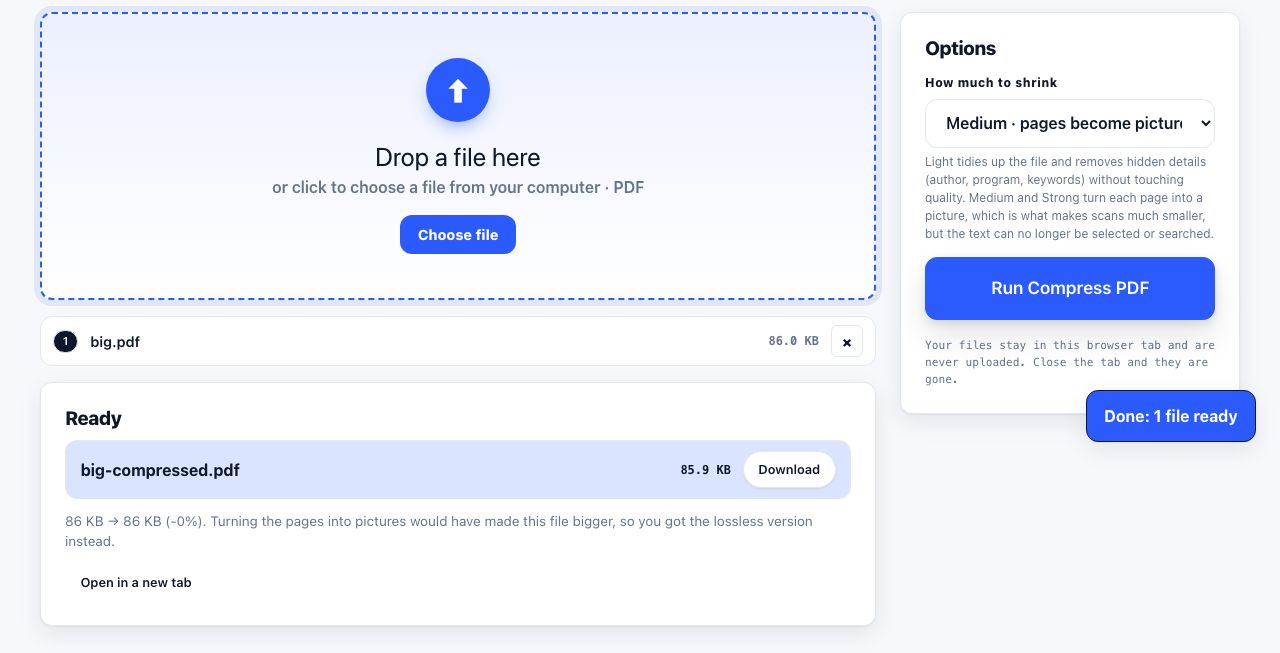
A scanned PDF usually contains pictures of pages, not text you can search or copy. First combine the scans into one correctly ordered document. Then run OCR, which reads the page images and adds a searchable text layer. PrintxPDF keeps these browser-based steps in your tab for standard files, so private scans do not need to be uploaded for routine merging and text recognition.
How to merge scans and make the PDF searchable
- Check each scan before combiningOpen the source PDFs and check page orientation, legibility, and order. Re-scan very dark, blurry, or cropped pages before building the final packet.
- Merge the scanned PDFsUse Merge PDF to add the files in sequence. Create a new combined copy and confirm no pages are missing or duplicated.
- Run OCR on the merged copyOpen OCR PDF, add the combined scan, and create searchable text. OCR reads what it can see; it does not repair a poor scan.
- Verify high-risk textSearch for a distinctive name, date, amount, or reference number. Compare the extracted text against the page image before relying on it for records or search.
- Save an intentional final copyKeep the original image-based scan as a reference. Use the searchable version for finding and reading, and compress a separate copy only when email size requires it.
Combine scanned PDFs free in your browser, then make the final copy searchable with OCR.
Merge PDF →Merge first or OCR first?
| Workflow | Best when | Trade-off |
|---|---|---|
| Merge, then OCR | All scans use similar language and quality | One OCR job and one searchable output. |
| OCR each scan, then merge | Separate files need individual checking | More review work, but errors are easier to isolate. |
| Merge only | You only need a visual packet | Text remains unsearchable and cannot be copied reliably. |
Improve OCR before you run it
OCR accuracy depends on the scan, not on a magic setting. Straight pages, even lighting, dark text, and enough resolution give the reader a better chance. A phone photo taken at an angle can turn 8 into 3, O into 0, and a signature into noise. Correct the page orientation with Rotate PDF, remove accidental blanks with Delete Pages, and inspect every page that contains a name, number, or date that matters.
What a searchable scan does and does not prove
A searchable layer makes a document easier to find, copy, and review. It does not make the OCR output an authoritative transcription. For legal, financial, medical, or archival decisions, compare the relevant information with the image of the original page. Keep source scans and name files clearly so the searchable delivery copy is never confused with the source record.
Privacy and file-size checks after OCR
The merged file may contain sensitive records. Browser-local processing reduces unnecessary file transfer, but you should still check what the output contains before sharing. OCR can increase file size because it adds a text layer. Use Compress PDF only after you confirm search works and pages remain readable. Remove document metadata separately when your privacy policy calls for it; OCR and merging do not automatically clear those fields.
Frequently asked questions
Can I merge scanned PDFs and make them searchable?
Yes. Merge the files in the correct order, then run OCR on the combined copy. Check important words and numbers against the scan before relying on the searchable text.
Should I OCR before or after merging scans?
Merging first is usually simpler when files have similar quality and language. OCR each scan first when you need to review or troubleshoot results separately.
Does OCR change the original scanned PDF?
No. Use a working copy. OCR creates a separate searchable result, while the original image-based scan remains available for comparison.
Why does OCR get names or numbers wrong?
Skewed pages, blur, low resolution, handwriting, unusual fonts, and poor contrast can cause recognition errors. Re-scan or manually verify high-risk information.