How to check if two PDFs are the same

To check whether two PDFs are the same, compare the exact files and review any reported text, layout, or image differences. Matching page counts and filenames alone do not prove that documents are identical.
See the tools in action

Comparing two PDFs is the fastest way to verify a revised contract, proof, invoice, or report without reading every page twice. Start with the correct source and revised copies, then review each difference in context. PrintxPDF’s Compare PDF tool handles this standard review in your browser tab, so ordinary files do not need a routine upload, account, card, or watermark.
How to check whether two PDFs are the same with Compare PDF
- Label the two filesUse clear names such as original and revised. Confirm both are the intended final copies before comparison.
- Open Compare PDFAdd the two documents to Compare PDF in your browser.
- Run the comparisonCreate the comparison view, then check the reported differences one at a time rather than assuming every change is an error.
- Review every flagged pageRead surrounding text and inspect layout, numbers, signatures, and images at normal zoom.
- Save your decisionKeep an approved copy and record any accepted changes in the review process your team uses.
Compare PDF versions right in your tab. Free, no signup, no watermark.
Compare PDFs →Compare PDFs versus manual page-by-page review
| Method | Best for | Limitation |
|---|---|---|
| Compare PDF | Finding changes across two versions | You still need human judgment about whether a difference matters. |
| Manual review | Checking context and approval intent | Easy to miss small number or wording changes. |
| Extract text | Comparing simple text-heavy files | May not show layout or image changes clearly. |
| Merge PDF | Creating one review packet | Does not identify differences between versions. |
Check the differences that matter most
Focus first on names, dates, payment amounts, page counts, revision labels, signatures, and changed clauses. A visual difference can be harmless reflow, a substituted font, or a deliberate design adjustment. It can also expose a real error. Compare tools help you locate differences; they do not know the business meaning of a sentence or whether a signer approved a particular version.
Keep private review files local where possible
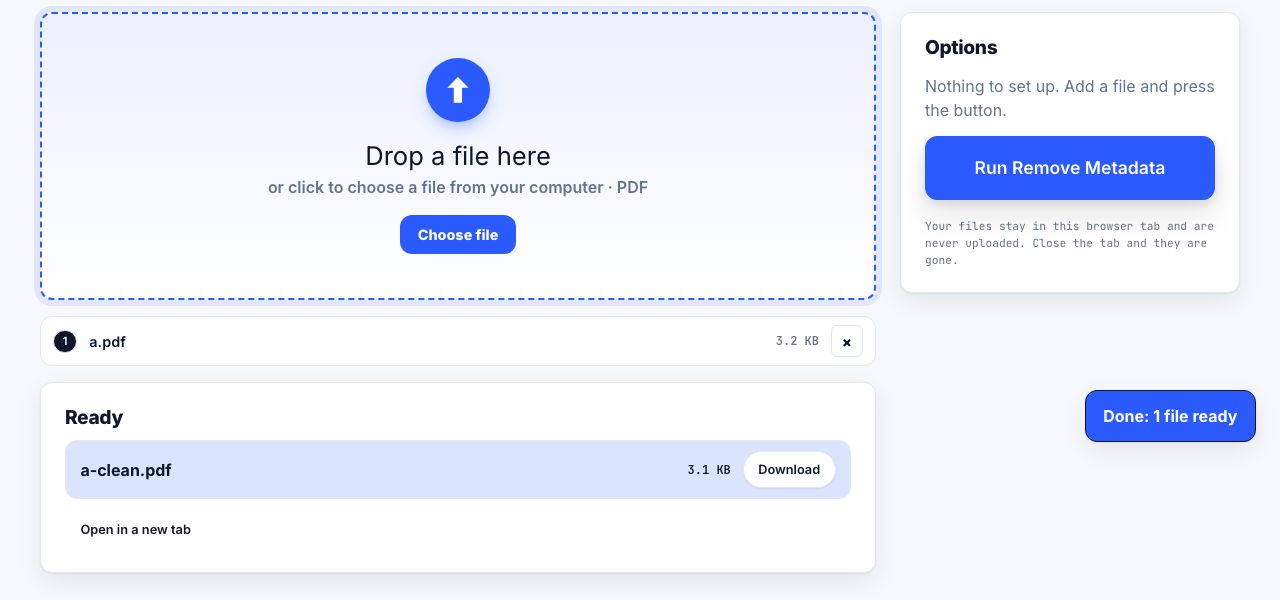
Draft agreements, HR documents, financial reports, and client proofs are often sensitive before they are final. Local browser processing avoids creating an unnecessary third-party file copy for a routine comparison. Still protect access to the device and choose an approved delivery method. If you must send a comparison packet, use Remove Metadata when policy requires it and verify that the visible pages contain only material the recipient may receive.
Handle scanned and image-heavy PDFs carefully
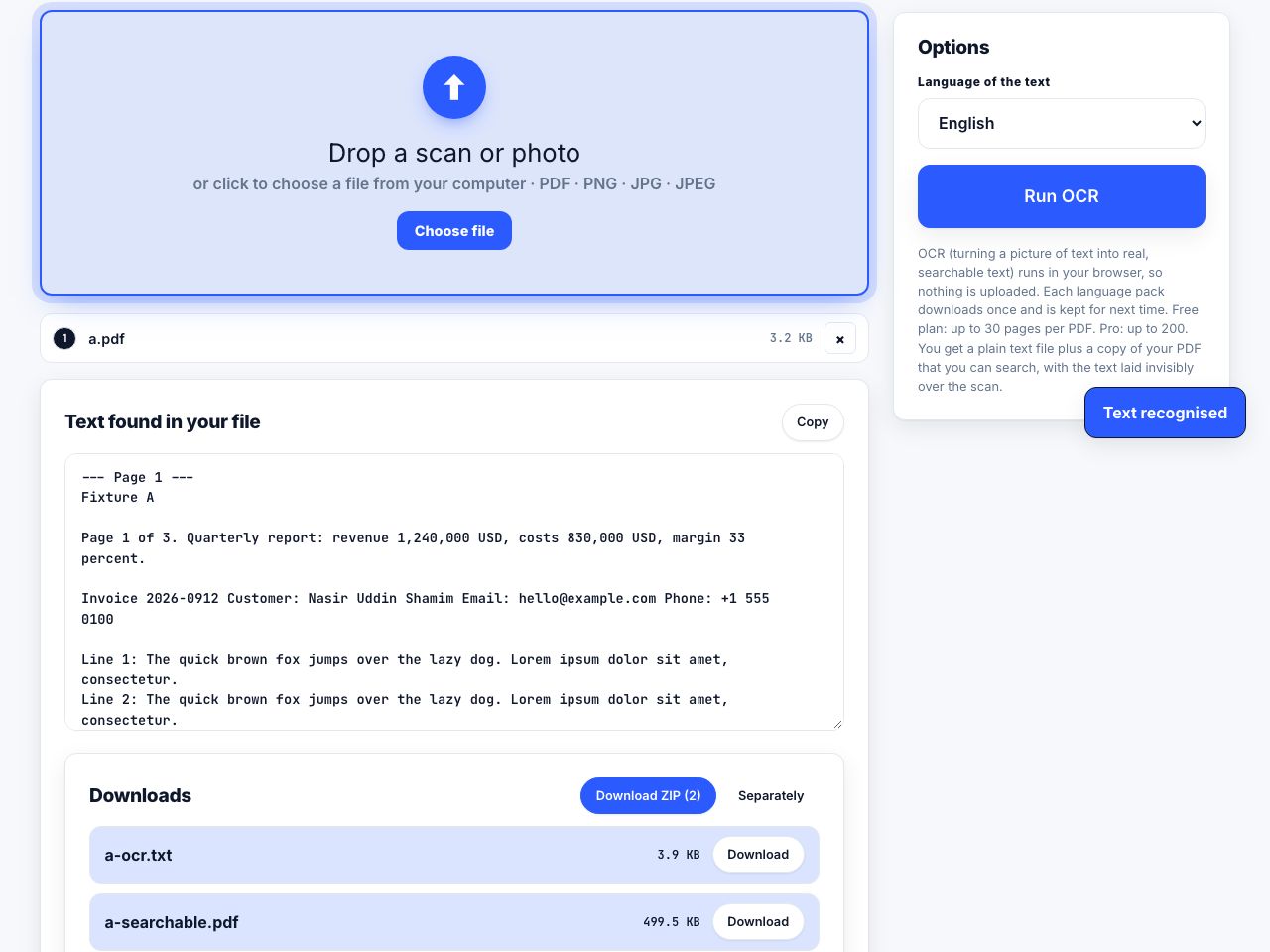
Scanned pages can produce apparent differences from skew, compression, or OCR variation. Look closely at the page image instead of relying on text alone. If a scan is difficult to search, make a working copy with OCR PDF, then compare the source documents again. Keep the originals until review is complete, especially when they are signed records or evidence.
Finish with an approval-ready file
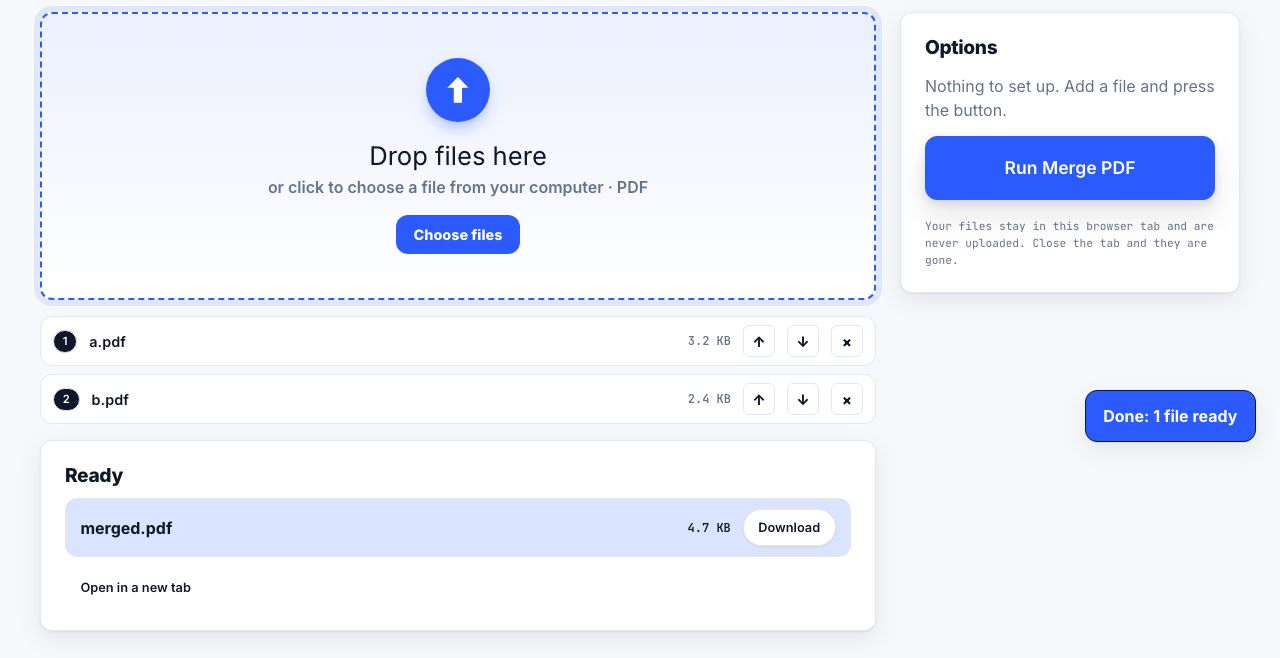
Once you agree on the changes, make the final file easy to identify. Use a descriptive filename, remove obsolete drafts from the outgoing email, and keep a record of who approved the version. If pages must be collected into one packet after review, Merge PDF can create the delivery copy. Open that final output before sending it.
Frequently asked questions
Can I compare two PDFs for free?
Yes. Add the original and revised PDFs to a comparison tool, then review the reported differences. PrintxPDF’s core workflow is free and does not require signup.
Will PDF comparison find changed numbers?
It can help locate visible or textual differences, but you should verify amounts, dates, and surrounding context yourself before approval.
Can I compare scanned PDFs?
Yes, but scan quality, rotation, and compression can produce visual differences. Inspect flagged pages carefully and keep the source copies.
Does comparing PDFs edit the originals?
No. Comparison is a review step. Keep the original and revised files intact, then create a separate approved copy if needed.