How to fix a PDF that will not open

To fix a PDF that will not open, first obtain a fresh copy if possible, then try a best-effort structural repair, and inspect every important page. Repair can rebuild a damaged PDF index but cannot recreate missing page content.
See the tools in action
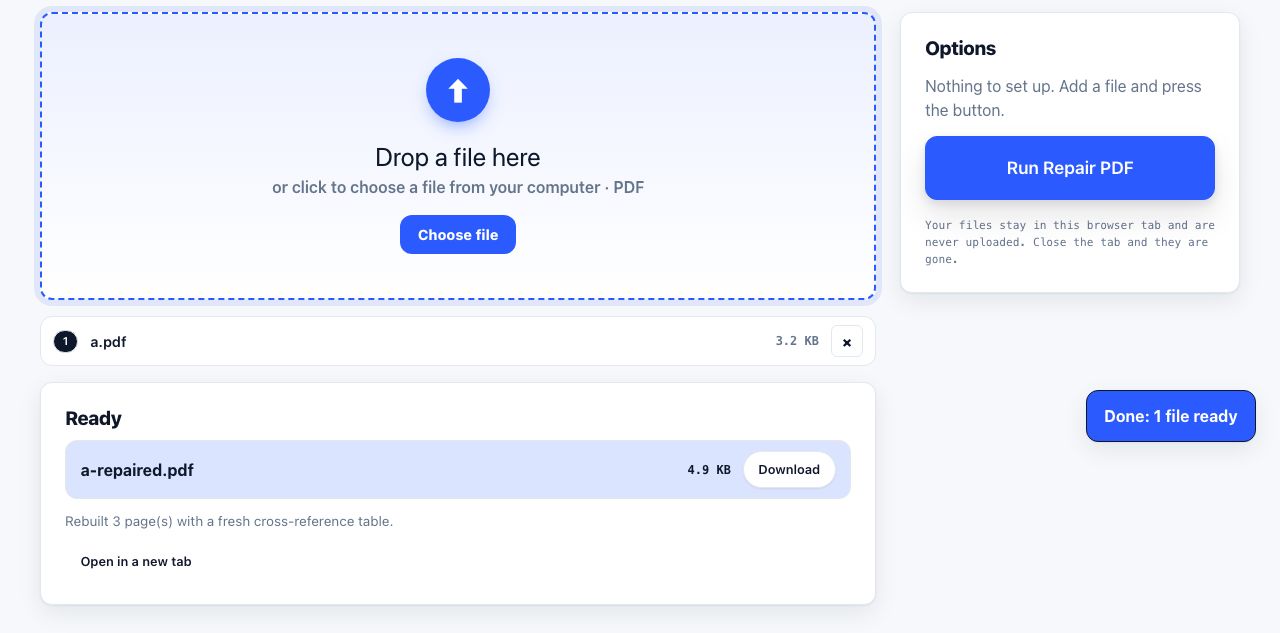
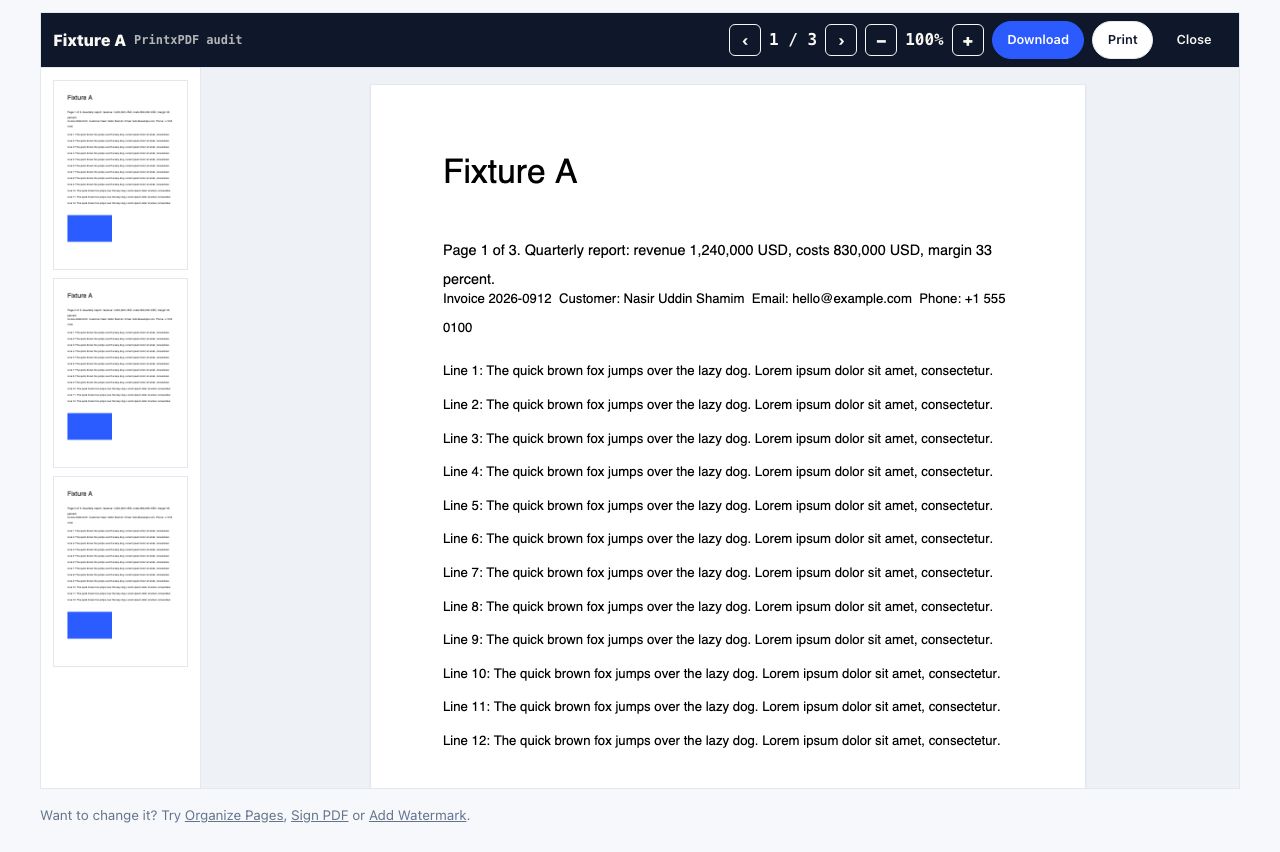
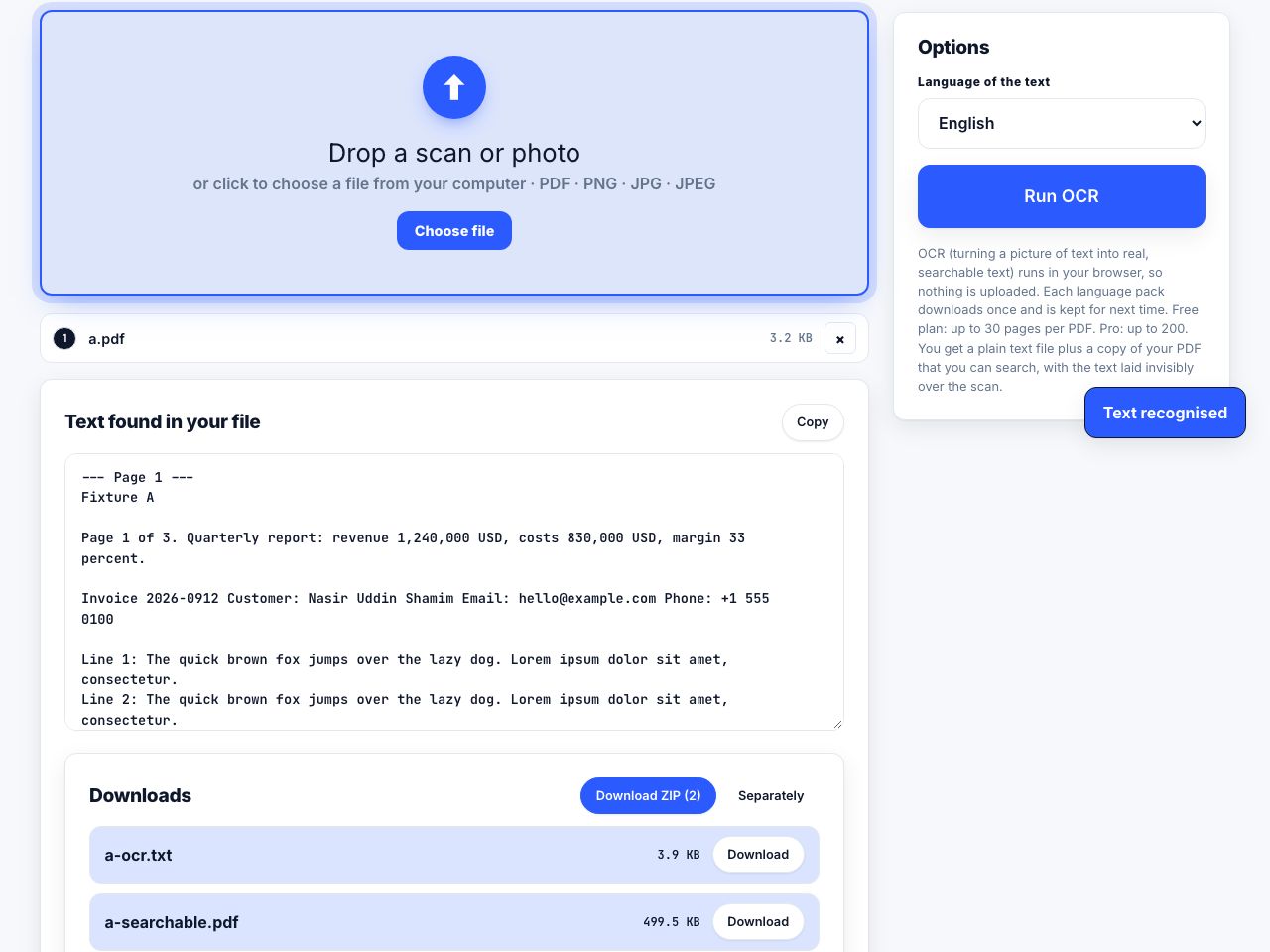
A PDF that refuses to open is not always empty or beyond recovery.
How to repair a PDF that will not open
- Keep the damaged originalSave a copy before attempting any repair. It may be needed for a fresh export, recovery process, or evidence record.
- Open Repair PDFAdd the file to Repair PDF in your browser tab.
- Run the best-effort repairThe tool reads recoverable PDF parts and writes a new file with a rebuilt internal index.
- Read the result noteCheck the reported page count and download the repaired copy only if the result is useful.
- Inspect every important pageOpen it with PDF Reader and check text, images, signatures, and attachments against the original or source.
Try a private, best-effort PDF repair in your tab. Free, no signup, no watermark.
Repair PDF →Repair, re-download, or recreate?
| Problem | Best first action | Why |
|---|---|---|
| Download stopped early | Download a fresh source copy | Missing bytes cannot be reliably invented. |
| PDF opens in one reader only | Repair PDF | A rebuilt index can improve structural compatibility. |
| Page images are blank or corrupt | Export or scan again | Damage may be inside the page content. |
| Password or permission issue | Unlock PDF with authorization | Repair does not bypass access controls. |
What a structural PDF repair can do
A PDF contains page objects and an internal index that tells a reader where those objects live. If that index or footer is malformed, a strict reader may reject a document whose page content is still present. Repair PDF reads what it can, skips unreadable pieces, and writes a fresh structure. This can make a file open again, but it cannot recreate content that was never saved or was destroyed.
Why results must be reviewed
A successful download does not prove a document is complete. A repaired file can have blank pages, missing images, altered bookmarks, or lost interactive features when those components were damaged. Compare the page count and the high-risk pages to a trusted source. For signed, regulated, or evidentiary documents, preserve the source and follow the organization’s formal recovery process instead of treating a repair as proof of authenticity.
Privacy matters even for broken files
A broken contract, statement, or medical record is still sensitive. PrintxPDF performs its standard repair workflow inside your browser, avoiding a routine upload for this best-effort task. Keep downloads in an approved location and do not email the repaired file until you have verified both the visible content and the intended recipient.
Use the right follow-up tool
If the repaired PDF opens but is difficult to search, create a working copy with OCR PDF and verify recognition. If it opens but has unwanted properties, Remove Metadata can prepare a separate sharing copy. Neither action restores missing page content, so keep the original and a source export until you know the new file is complete.
Frequently asked questions
Can Repair PDF recover missing pages?
No. It can rebuild recoverable PDF structure, but it cannot recreate page content or bytes that are missing from the file.
Will repairing a PDF change the original?
No. The tool creates a separate repaired copy. Keep the source file until you have inspected the new output.
Why does a repaired PDF have blank pages?
The index may have been fixed while page drawing instructions, fonts, or images were damaged. Re-export or re-scan the source when possible.
Is Repair PDF private?
The standard repair workflow runs in the browser tab, so the file is not routinely uploaded for processing.