How to watermark a PDF confidential without Adobe


To add a CONFIDENTIAL watermark without Adobe, keep the clean original, add clear text across the required pages, download a separate copy, and inspect it before sharing. PrintxPDF applies standard text watermarks locally in your browser with no signup or hidden upload.
See the tools in action
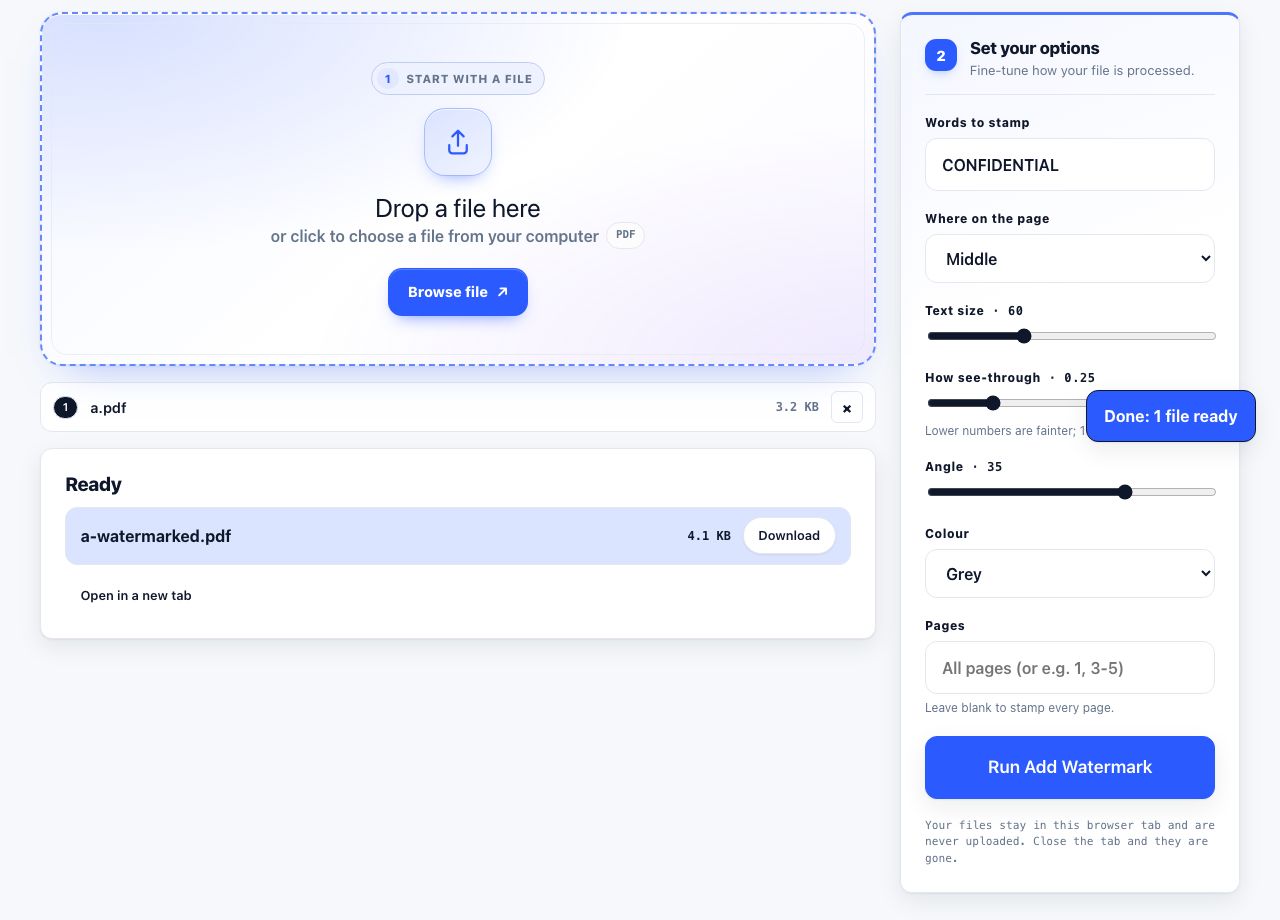
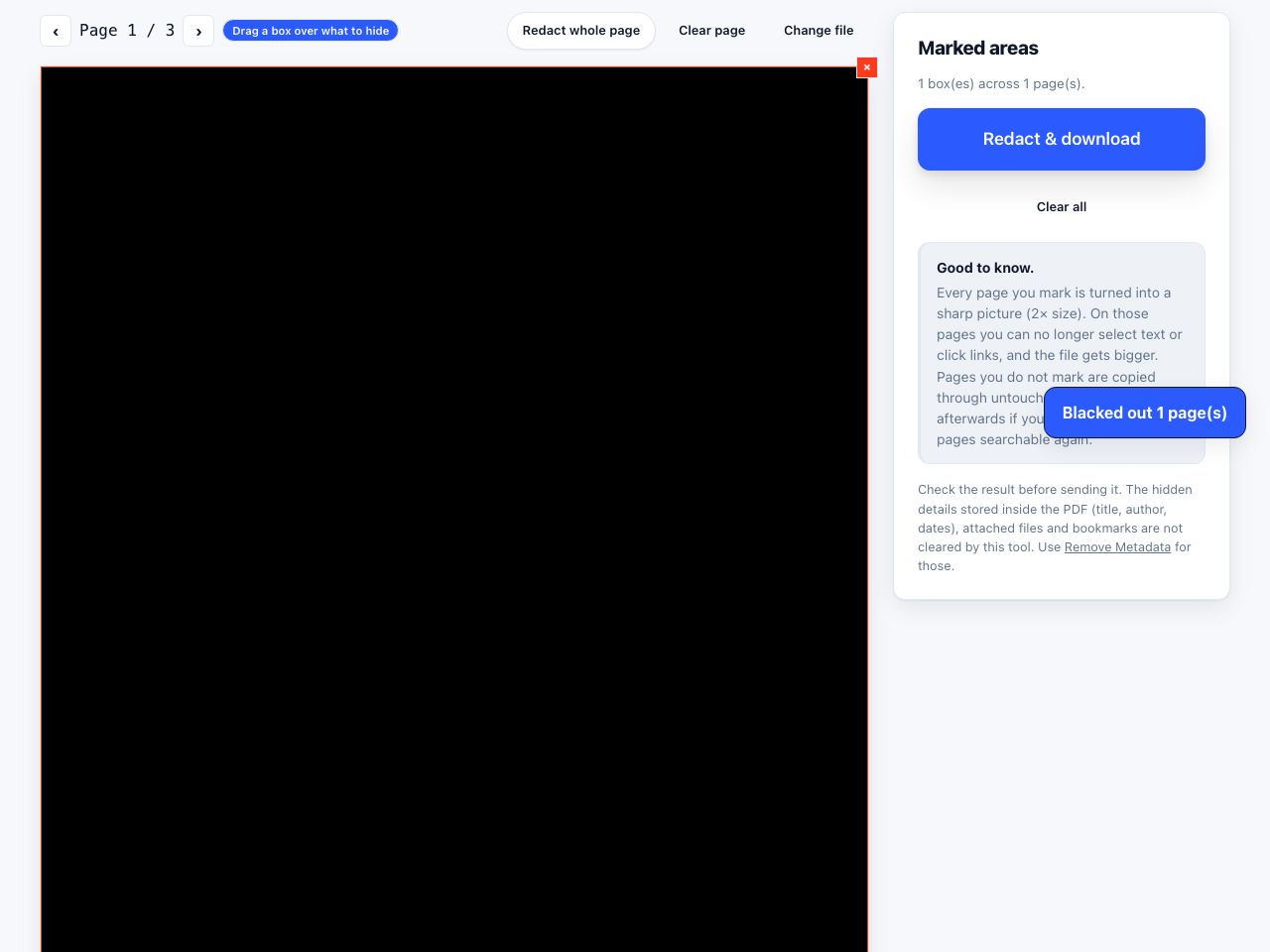
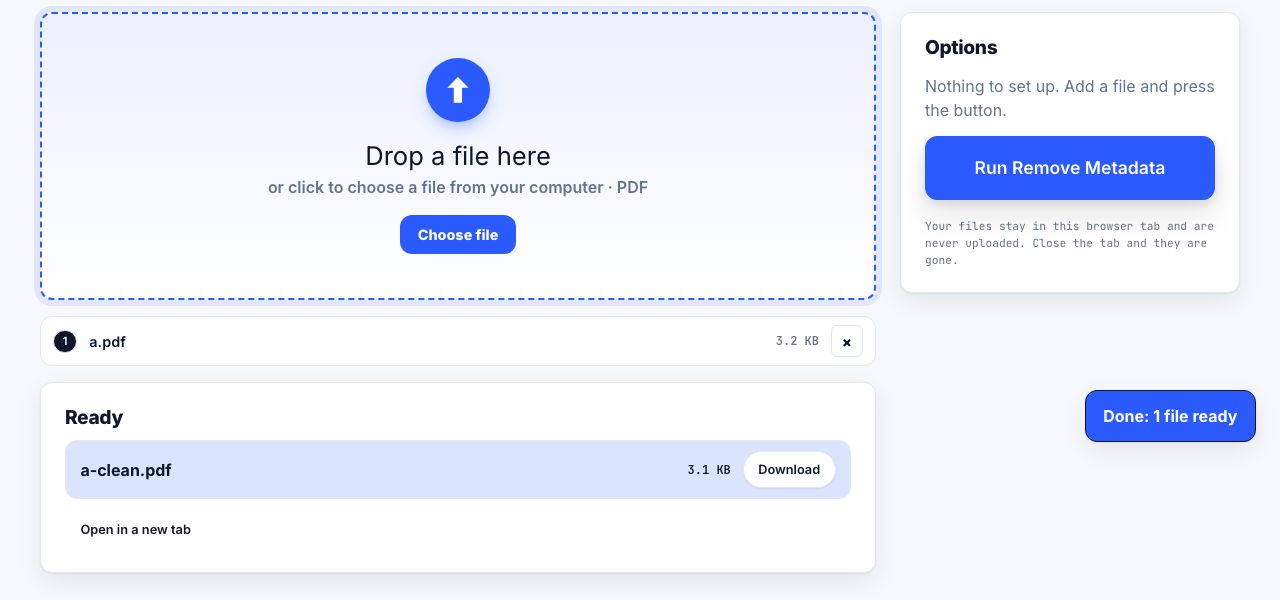
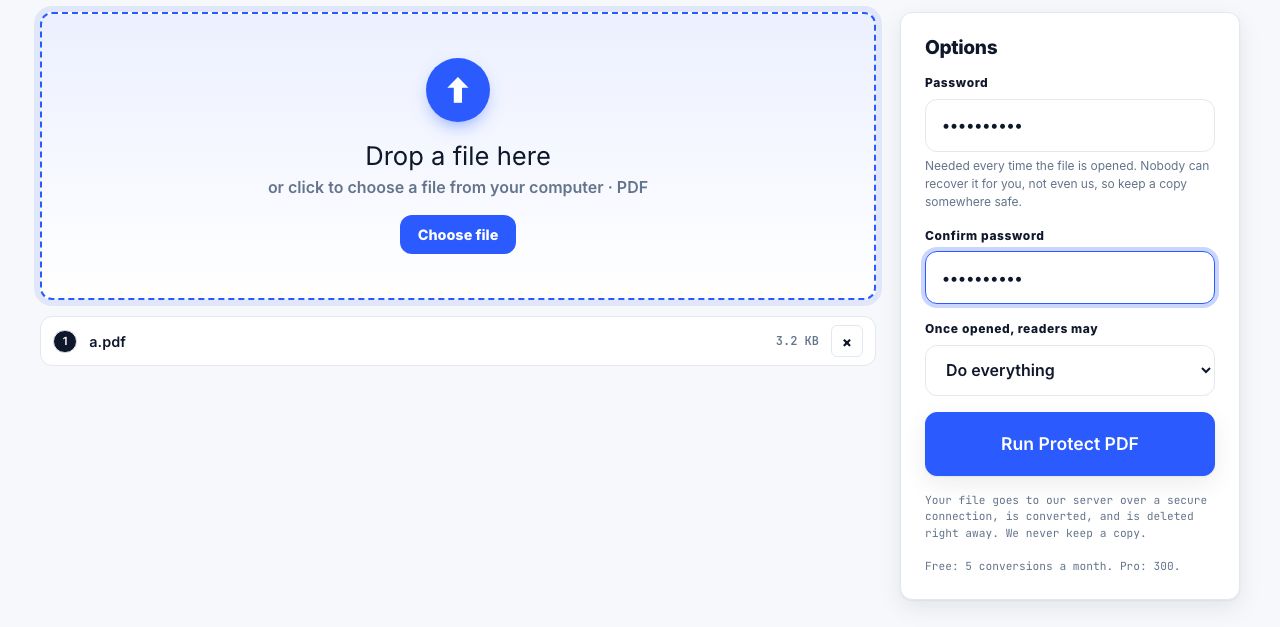
A CONFIDENTIAL watermark helps prevent a draft or restricted PDF from being mistaken for a public version. It is a visible reminder, not an access-control system. Keep the clean original, make a labelled copy, and send only the version that matches the recipient and sharing rules. PrintxPDF adds a standard text watermark in your browser tab, with no account, card, watermark on the tool output, or routine file upload.
How to add a confidential watermark to a PDF
- Keep the unmarked originalStore a clean source copy before marking a draft, proof, or restricted distribution version.
- Open Add WatermarkAdd the PDF to Add Watermark in your browser.
- Set the watermark text and placementUse CONFIDENTIAL, DRAFT, INTERNAL, or the approved label. Keep it readable without obscuring critical text.
- Choose the pagesApply it to every page or only the pages required by your review process.
- Download and inspectOpen the new PDF and verify the mark, signatures, totals, and page layout.
Label a PDF in your tab. Free, no signup, no watermark.
Add Watermark →Watermark versus privacy protection
| Need | Best tool | What it does |
|---|---|---|
| Label a draft | Add Watermark | Adds a visible status label. |
| Remove confidential text | Redact PDF | Removes content using a redaction workflow. |
| Remove document properties | Remove Metadata | Creates a separate copy without standard properties. |
| Control access | Protect PDF | Applies password protection when appropriate. |
Make the label clear but usable
A watermark should be visible at normal zoom and on paper, but it should not cover a signature, invoice total, diagram label, or legal clause. A diagonal light mark often works for a general status label. For a recipient-specific proof, use a clear name or copy identifier only if that is allowed by your privacy policy. Check the first, middle, and final pages because a consistent placement can overlap different content on different pages.
A watermark does not secure a PDF
A visible label reminds recipients how to handle a file, but it does not remove sensitive words, prevent screenshots, or control forwarding. Use Redact PDF when material must not be visible. Use Remove Metadata for standard document properties when required. Choose a secure approved delivery path for sensitive files rather than relying on the watermark alone.
Why browser-local processing matters
Contracts, reports, proofs, and client documents can be sensitive even before final approval. Browser-local watermarking avoids an unnecessary upload for a routine label. You still decide where the downloaded copy goes, so use a clear filename, check the recipient, and retain the unmarked source until the review or delivery is complete.
Review the distribution copy
Open the final PDF before it leaves your device. Confirm the watermark is correct, page count is unchanged, and no page element is hidden. If the same document needs multiple status versions, create each one from the original rather than from another marked copy. This avoids stacked labels and helps keep version control straightforward.
Frequently asked questions
Can I watermark a PDF for free?
Yes. Add text, set its placement and pages, then download a separate copy. PrintxPDF core watermarking requires no signup.
Does a confidential watermark protect the PDF?
No. It is a visible label, not access control or redaction. Use appropriate privacy and delivery controls for sensitive data.
Will adding a watermark change my original PDF?
No. Keep the original and download a separately watermarked copy.
Can I remove a watermark later?
Keep the original clean copy. A drawn-in watermark is meant to stay with the labelled distribution version.