How to make a Word document a searchable PDF

To make a Word document a searchable PDF, convert the DOCX, then run OCR on the resulting image-based PDF and verify important text. Keep the DOCX as the editable source.
See the tools in action
A fixed-page PDF is useful for sharing, but readers may also need to search or select text.
How to convert a Word document to PDF
- Save as DOCXUse a .docx file. Older .doc, ODT, and RTF files must be saved as DOCX first.
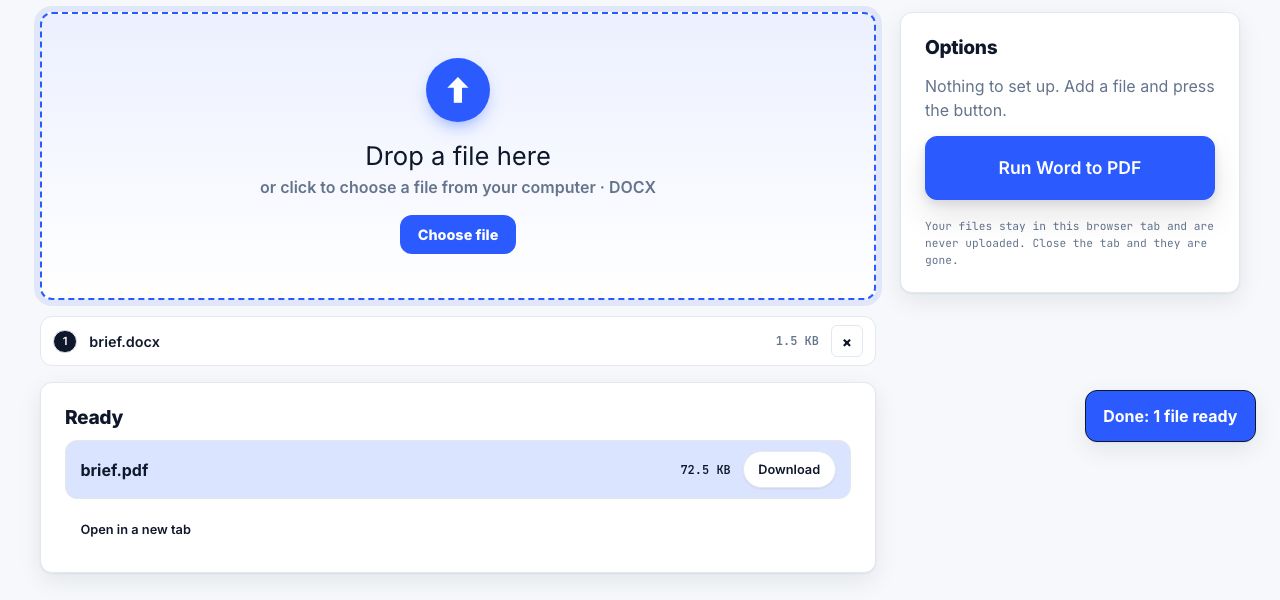
- Open Word to PDFAdd the document to Word to PDF in a modern browser.
- Convert in the browserRun the tool and download the new A4 PDF. The document stays on your device for this standard conversion.
- Inspect every pageCheck headings, tables, pictures, page breaks, and any information near the page edge.
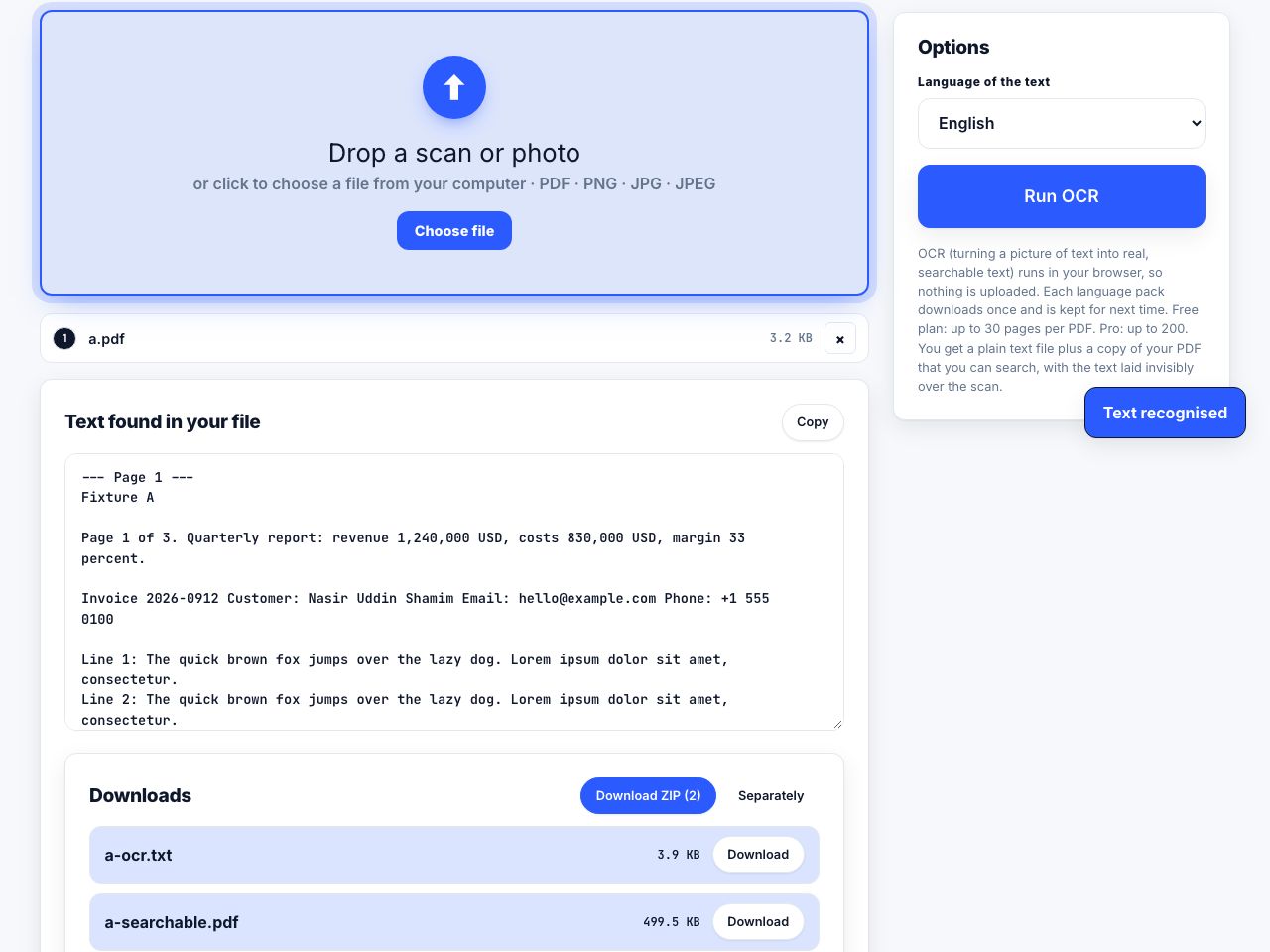
- Create a searchable copy if neededThe PDF pages are images, so use OCR PDF on a copy when readers must search or select text.
Convert a DOCX to PDF in your tab. Free, no signup, no watermark.
Word to PDF →What Word to PDF keeps and changes
| Document element | Expected result | Check after conversion |
|---|---|---|
| Headings and paragraphs | Converted to fixed pages | Look for changed page breaks. |
| Tables and pictures | Included where supported | Check clipping and column widths. |
| Custom fonts and complex layout | May be simplified | Review visual brand or legal documents. |
| Text search and copy | Not included by default | Run OCR if searchability is needed. |
Why checking the PDF matters
A DOCX calculates layout each time it opens. The browser converter lays it out on A4 pages using supported styles, which can move a line, alter a font, or change where a table breaks. That is normal conversion behavior, not evidence that the source was edited. Open the resulting PDF and compare pages that include charts, multiple columns, headers, footers, text boxes, or signature blocks before sending it.
Browser-local conversion for sensitive drafts
Resumes, letters, proposals, and client documents may contain private information. PrintxPDF performs this Word-to-PDF workflow in the browser rather than routinely uploading the DOCX to a conversion server. This reduces an unnecessary transfer, but you should still store the downloaded PDF safely and review the recipient before sharing it.
Use OCR only when it solves a real need
The conversion produces pages as pictures. This preserves the visual result, but text is not selectable or searchable. For a searchable working copy, OCR PDF can add a text layer. Check names, dates, numbers, and links after OCR because recognition can make mistakes. Keep the original DOCX whenever you may need to revise content later.
Prepare the final delivery copy
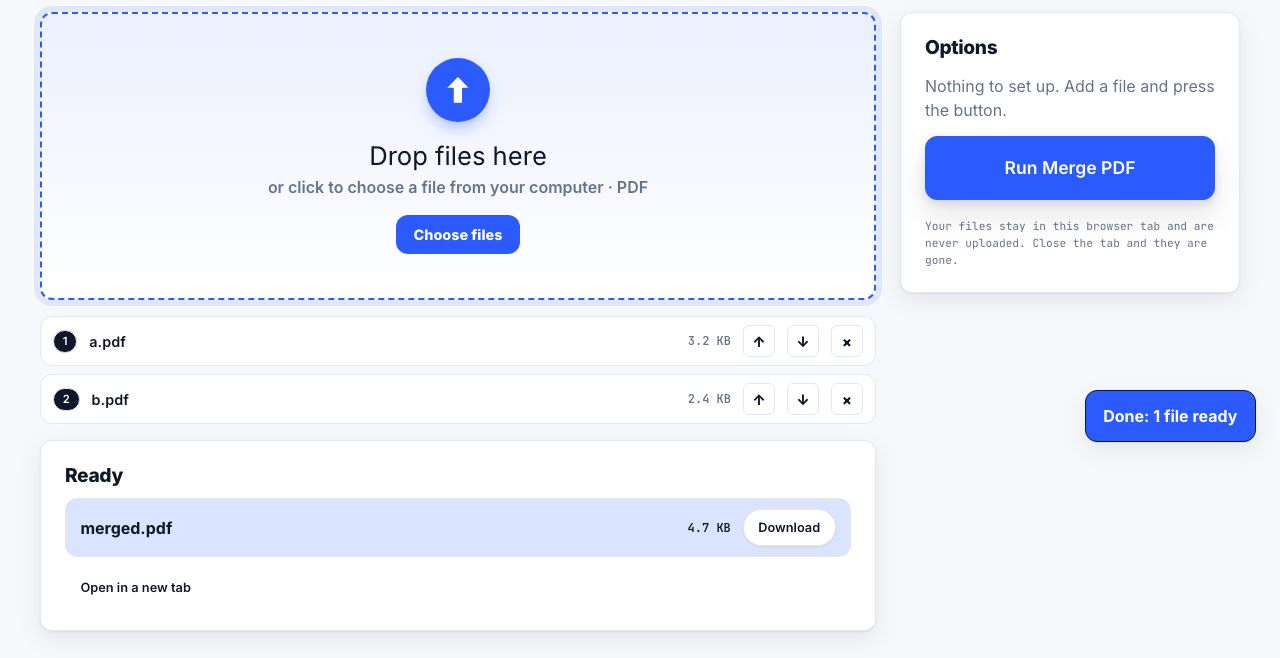
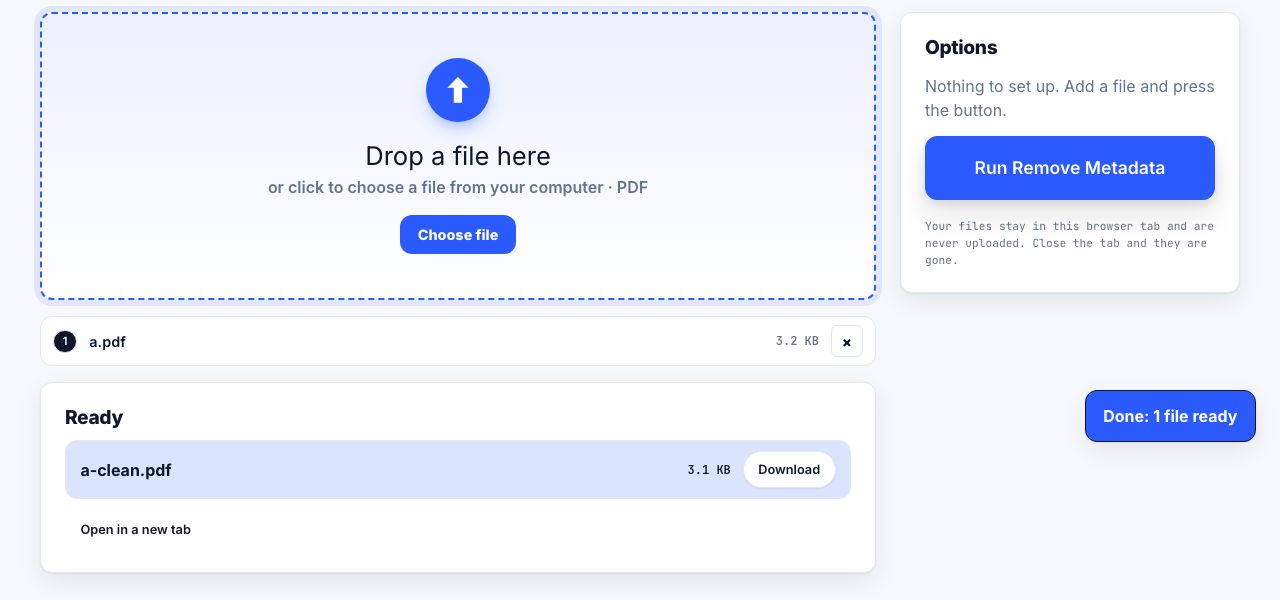
Use a descriptive filename and inspect the final PDF in a normal viewer. If you need to collect several documents, Merge PDF can make a separate packet after each file has been checked. If document properties must not travel with a distribution copy, use Remove Metadata according to your policy. These are separate steps, not replacements for a careful review.
Frequently asked questions
Can I convert Word to PDF for free?
Yes. Add a DOCX, run the in-browser converter, and download the PDF. Core use does not require signup or a watermark.
Does Word to PDF support DOC files?
No. Save older DOC files as DOCX in a word processor before conversion.
Is the converted PDF searchable?
Not by default. The PDF pages are images. Use OCR on a copy when you need searchable or selectable text.
Does Word to PDF upload my document?
No. Standard Word-to-PDF conversion runs inside the browser tab, so the document is not routinely uploaded.