How to convert Excel to PDF for printing


To print an Excel workbook as PDF, convert the final spreadsheet, check the A4 page breaks and table widths, then print a proof. Keep the XLSX source for edits and recalculation.
See the tools in action
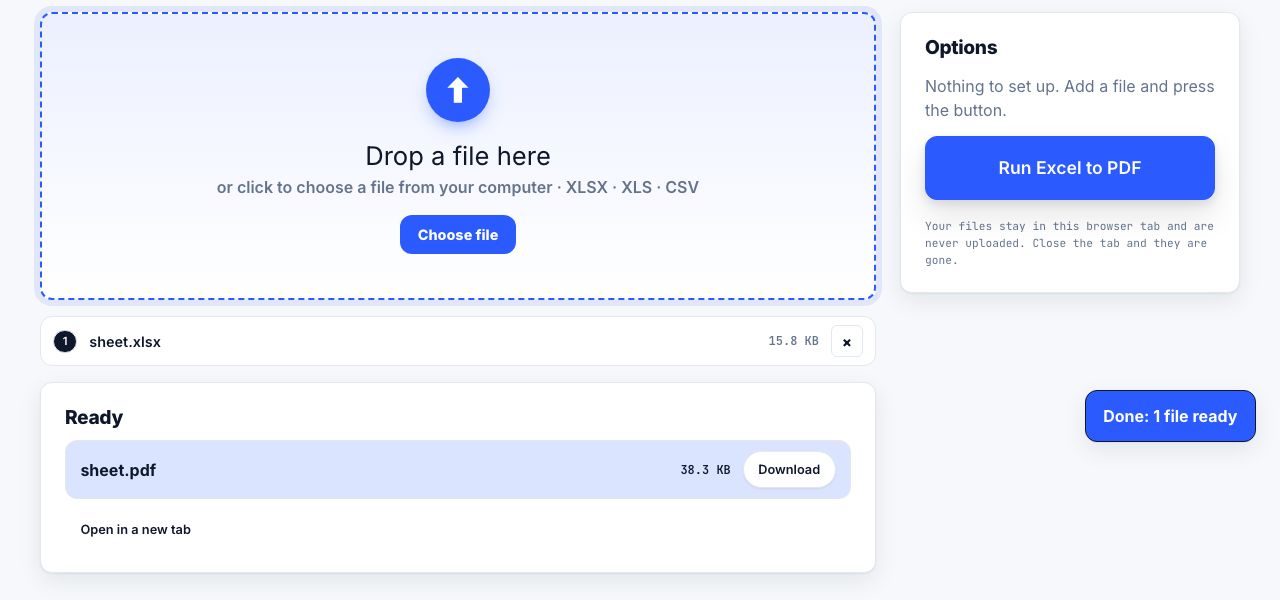
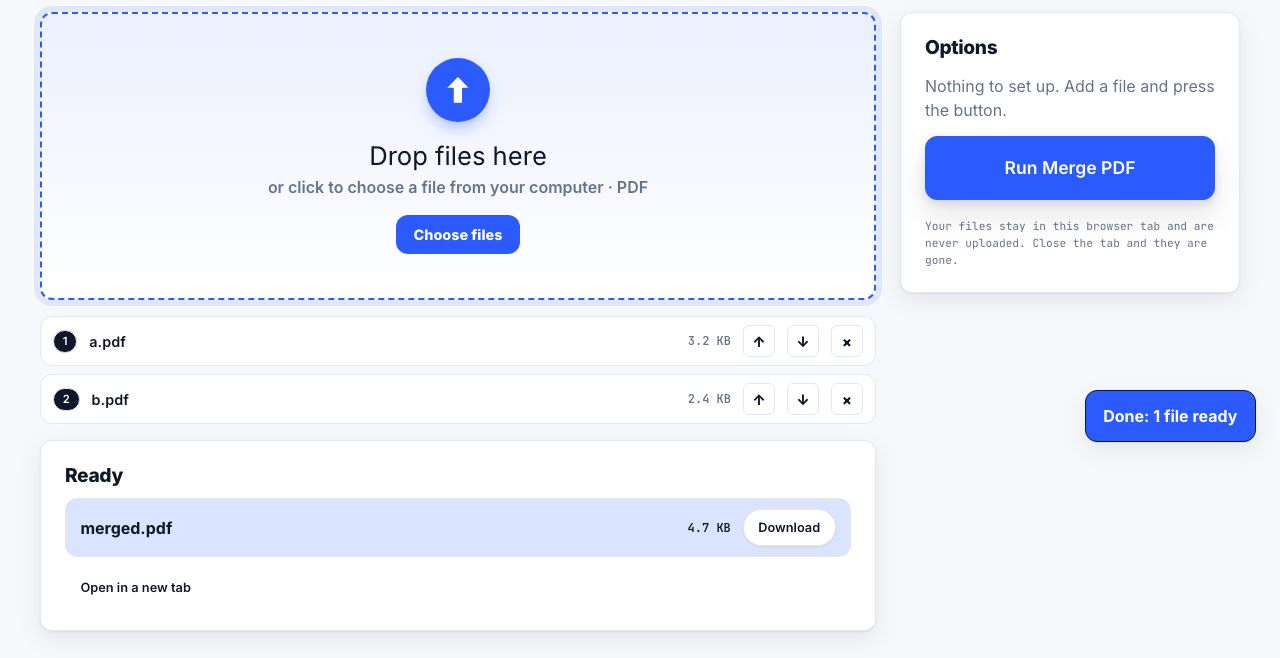
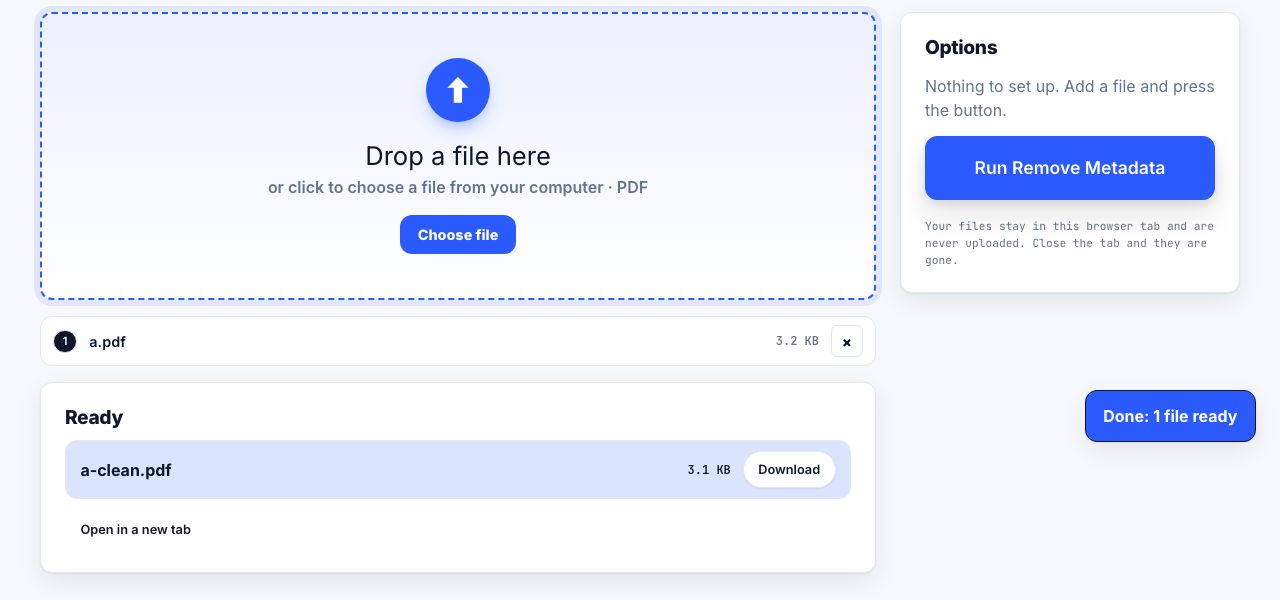
A spreadsheet can look right on a wide monitor yet break awkwardly across printed A4 pages.
How to convert a spreadsheet to PDF
- Check the source workbookConfirm the right sheets, values, and formula results are visible before conversion.
- Open Excel to PDFAdd an XLSX, XLS, or CSV file to Excel to PDF in your browser.
- Create the PDFRun the converter. Each sheet becomes a section with its sheet name and table values on A4 pages.
- Download and inspectOpen the PDF and check column widths, page breaks, headings, and totals.
- Keep the source workbookRetain the spreadsheet for future changes because a PDF is a fixed delivery copy.
Convert spreadsheet data to PDF in your tab. Free, no signup, no watermark.
Excel to PDF →Spreadsheet versus PDF
| Format | Best for | Main limitation |
|---|---|---|
| XLSX | Calculations and editing | Layout changes across devices and print settings. |
| CSV | Simple rows and one sheet | No styles, formulas, or multiple worksheets. |
| Fixed sharing and printing | Values cannot be sorted or recalculated in the recipient copy. | |
| Image export | Visual snippets | Text may no longer be selectable. |
Expect simplified styling
Excel to PDF preserves spreadsheet values and creates a clear table-based PDF layout, but it does not promise a pixel-identical copy of every Excel feature. Complex conditional formatting, charts, custom print areas, advanced formulas, and unusual fonts may need review. Use the tool for a practical shareable copy, then inspect each important sheet rather than assuming a spreadsheet will print exactly as it looked in a desktop workbook.
Check values and page breaks
Look for columns split across pages, repeated headers, cut-off cells, dates, decimal places, and totals. A table that is easy to edit on a wide screen can become cramped on A4 paper. If the worksheet is intended for a report or filing, compare its high-risk values with the workbook before distribution. Keep the XLSX source as the authoritative editable record.
Why browser-local conversion matters
Budgets, invoices, payroll exports, and project schedules can contain sensitive data. Standard Excel to PDF conversion runs locally in the browser, avoiding a routine upload for this task. You still choose the output name and sharing destination, so review the PDF before emailing or uploading it. Use an approved secure workflow whenever the underlying information requires one.
Prepare a final delivery copy
Use a descriptive filename that includes the version or period covered. If you need to package several PDFs afterward, use Merge PDF only after each file is reviewed. If document properties should not leave your device, use Remove Metadata on the distribution copy according to policy. Those steps do not replace checking visible spreadsheet data. Check every page at normal zoom before sending or printing the complete document. Keep the editable workbook as the source of record.
Frequently asked questions
Can I convert Excel to PDF for free?
Yes. Add an XLSX, XLS, or CSV file, create the PDF, and download it without signup or a watermark.
Does Excel to PDF preserve formulas?
The resulting PDF preserves displayed values, not editable spreadsheet formulas. Keep the original workbook for calculations and future updates.
Will the PDF look exactly like Excel?
Not always. The tool produces a simplified A4 table layout, so check page breaks, widths, and formatting after conversion.
Is Excel to PDF private?
Standard conversion runs in the browser tab, so the spreadsheet is not routinely uploaded for processing.