How to convert a scanned PDF to Markdown

To convert a scanned PDF to Markdown, OCR a working copy first, then extract the recognized text and review it against the scan. OCR errors and page layout still need manual checking.
See the tools in action

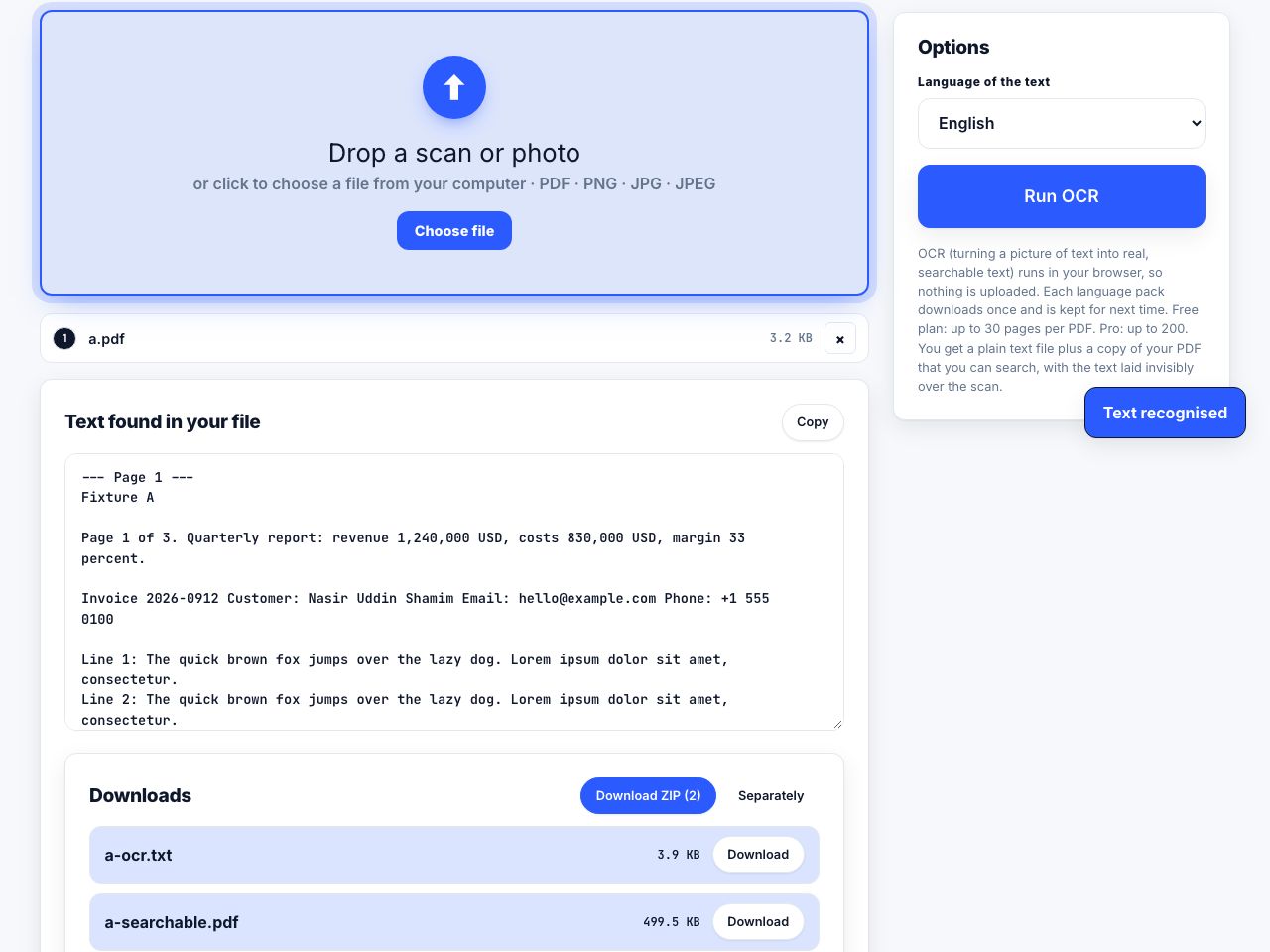
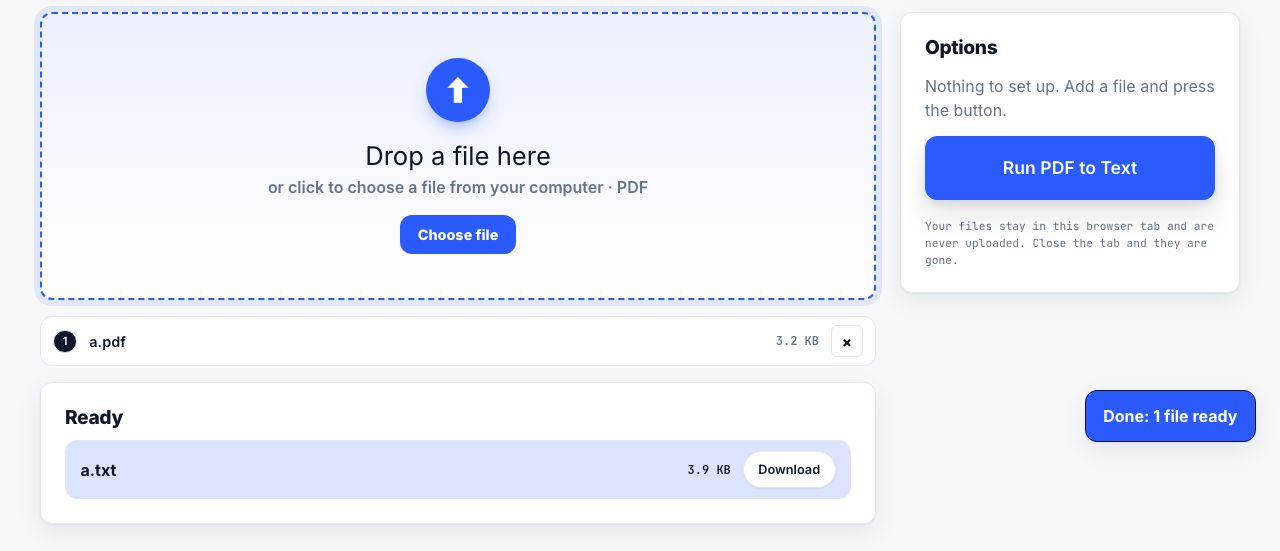
A scan is a picture of a page, so it needs text recognition before a Markdown converter can identify paragraphs and headings.
How to convert a text PDF to Markdown
- Check whether text can be selectedTry selecting a sentence in the PDF. If it is a scan, OCR a working copy first.
- Open PDF to MarkdownAdd the file to PDF to Markdown in your browser.
- Create the Markdown fileRun the conversion. Larger text becomes headings, bullets become lists, and lines are joined into paragraphs.
- Read the outputOpen the MD file in a text editor, notes app, or Markdown viewer and check headings, lists, and key terms.
- Keep the PDF sourceRetain the original when layout, signatures, charts, or visual evidence matters.
Turn a text PDF into Markdown in your tab. Free, no signup, no watermark.
PDF to Markdown →PDF versus Markdown for different jobs
| Format | Best for | Main trade-off |
|---|---|---|
| Fixed layout and printing | Harder to revise or compare as text. | |
| Markdown | Notes, docs, and version history | Does not preserve page layout. |
| Plain text | Simple extraction | Loses heading and list structure. |
| OCR PDF | Searchable scans | Recognition still needs checking. |
Markdown preserves structure, not page design
A PDF records positions on a page, not semantic sections in the way a source document does. PDF to Markdown uses practical layout clues: larger lines become headings, bullets become lists, and ordinary lines become paragraphs. This is useful for notes and documentation, but it cannot reproduce complex columns, charts, footnotes, precise typography, or visual placement. Treat the Markdown output as a reusable text copy, not a visual replacement for the PDF.
Review important text before using it
Check names, dates, numbers, links, headings, and lists against the PDF before publishing, summarizing, or feeding the content into another system. A line break can change meaning, and a table may need manual reformatting. For scanned pages, OCR recognition can introduce errors. Keep the original PDF available so each material detail can be checked in its visual context.
Local extraction for private documents
Internal reports, research notes, and unpublished drafts may contain private material. The standard conversion reads the PDF in your browser tab, avoiding a routine upload to an extraction service. You still choose where the Markdown file is stored or pasted. Review the output before sharing it because text that is easy to copy is also easy to redistribute.
Use the source format when layout matters
Use Markdown when you need editable text, documentation, or a clean input for a notes system. Use the original PDF for print design, signatures, official records, and page references. If a scan needs text recognition first, use OCR PDF. If you need a simple searchable text file rather than headings and lists, PDF to Text is a better fit.
Frequently asked questions
Can I convert PDF to Markdown for free?
Yes. Text-based PDFs can be converted to Markdown in the browser without signup or a watermark. Review the structure before using the result.
Can scanned PDFs convert to Markdown?
Not directly. Run OCR on a working copy first, then convert the recognized text and check it against the scanned page.
Does Markdown keep PDF page layout?
No. Markdown preserves useful headings, lists, and paragraphs, but not fixed pages, typography, or complex visual layout.
Is PDF to Markdown private?
The standard workflow reads the file in your browser tab, so it is not routinely uploaded for conversion.