How to add page numbers to a merged PDF


To add page numbers to a merged PDF, finish the page order first, create a numbered copy, inspect the first and final pages, then share the reviewed version. PrintxPDF adds standard page numbers locally in your browser with no signup or watermark.
See the tools in action
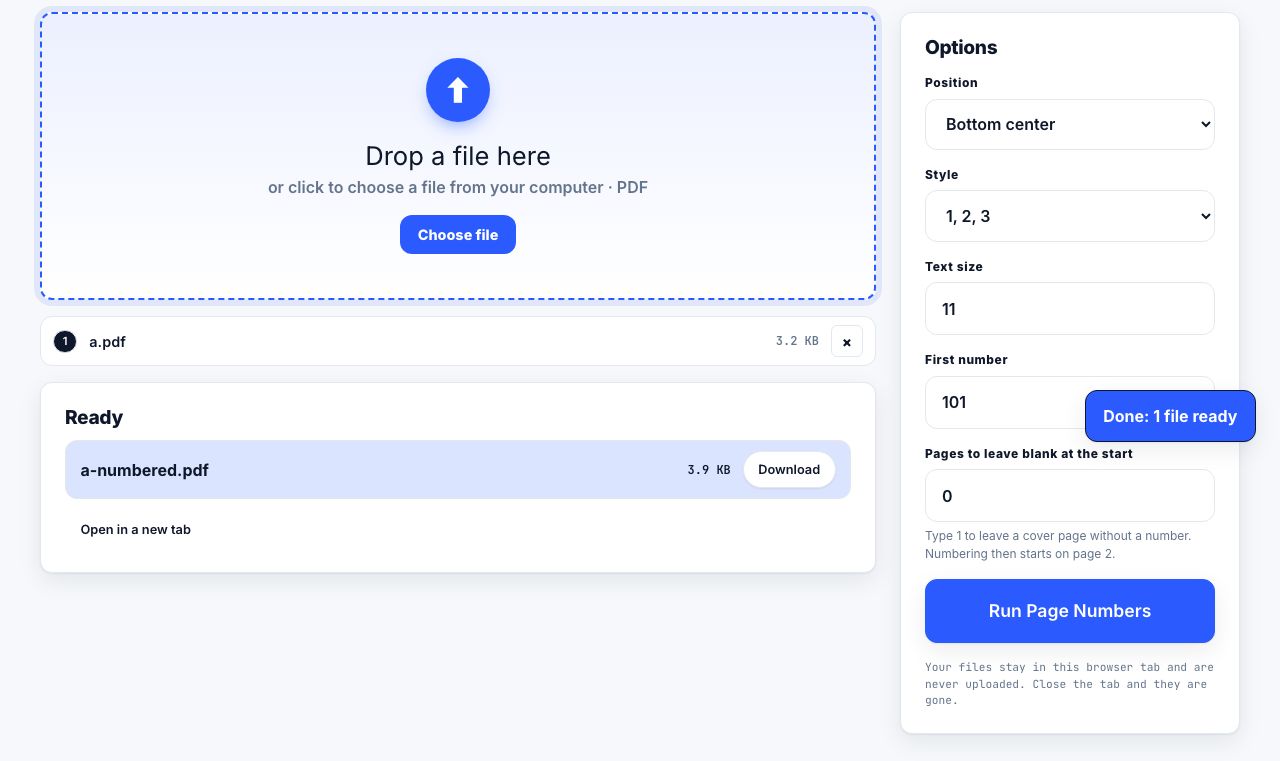
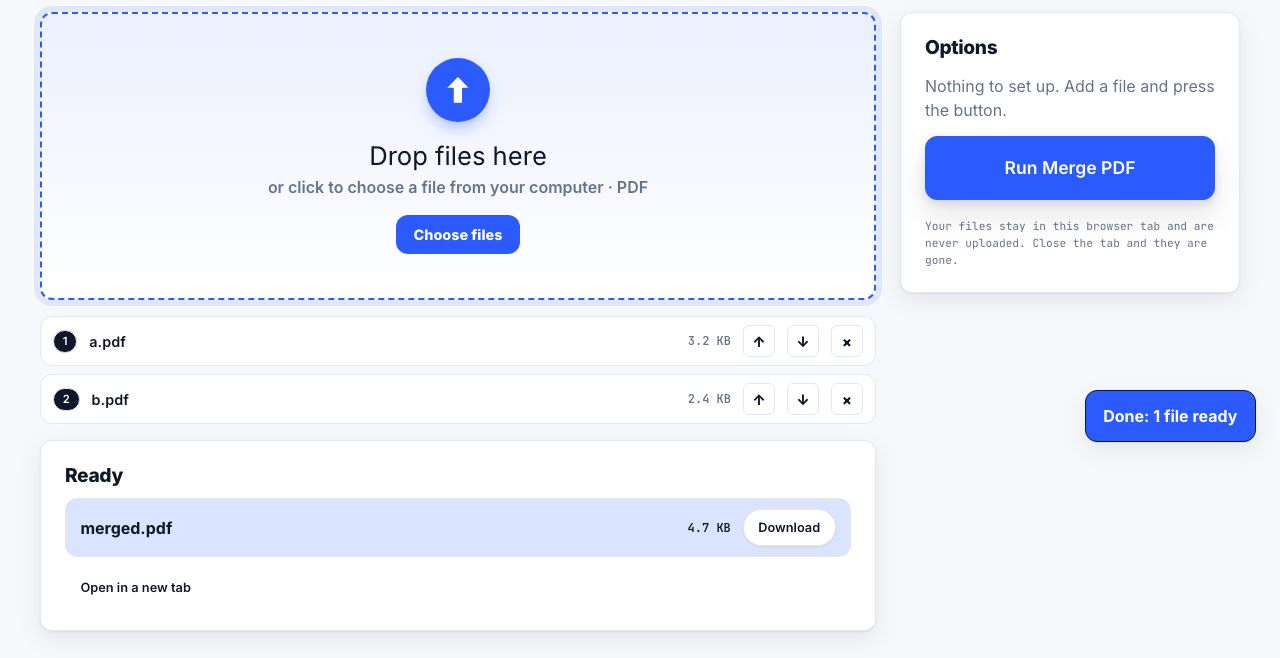
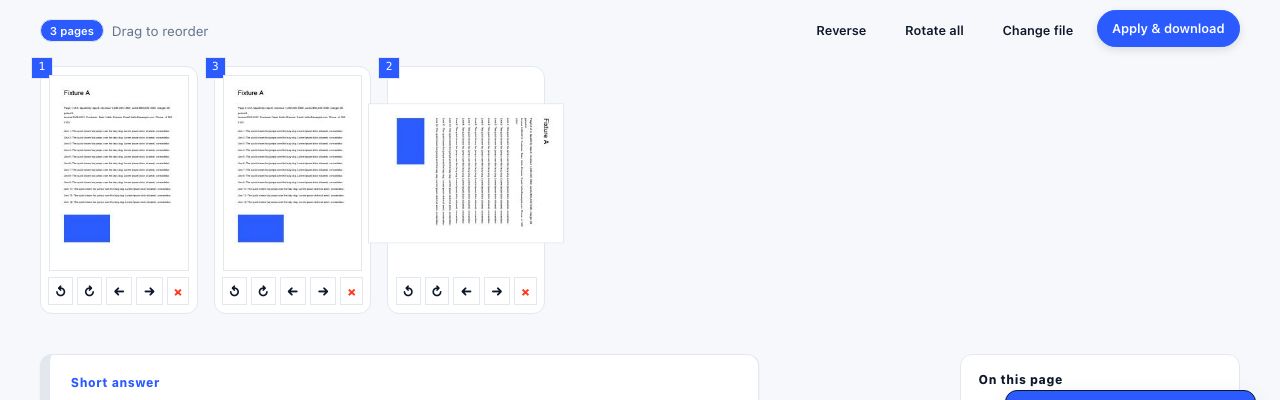
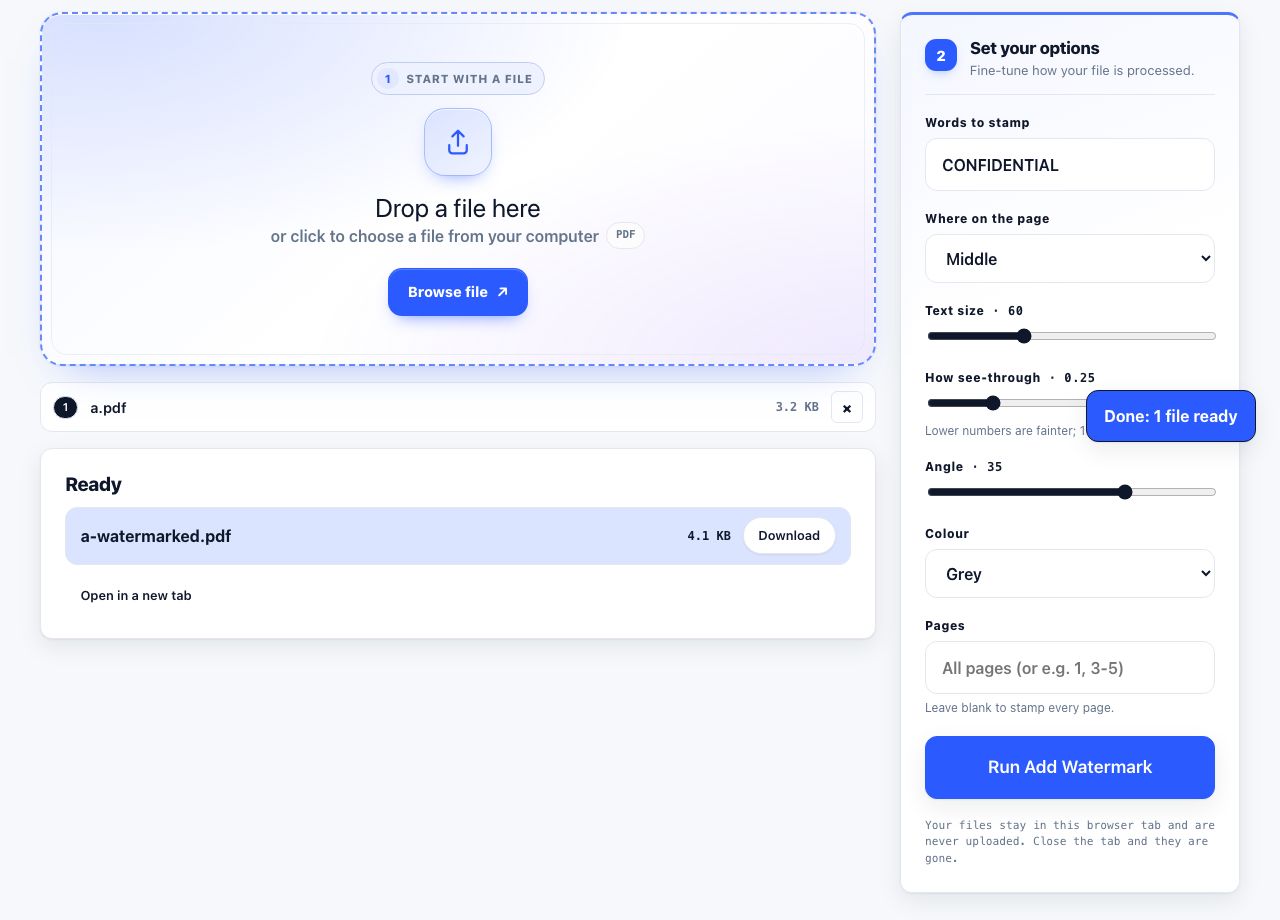
Page numbers make a merged PDF easier to review, cite, print, and discuss. Add them only after the document order is final, because splitting, deleting, or merging more pages afterward can make the sequence misleading. PrintxPDF adds standard page numbers in your browser tab, with no account, card, watermark, or routine upload. Keep the unnumbered source copy until the final packet is accepted.
How to add page numbers to a merged PDF
- Finish the page orderUse Merge PDF or organize pages first, then confirm the packet is complete.
- Open Page NumbersAdd the final PDF to Page Numbers in your browser.
- Choose placement and rangeUse a readable header or footer position and avoid areas used for signatures, labels, or existing footnotes.
- Create a numbered copyDownload a separate file with a clear version name.
- Inspect the outputCheck the first, middle, and last pages for the correct sequence and unobscured content.
Add page numbers in your tab. Free, no signup, no watermark.
Page Numbers →Number pages before or after merging?
| Workflow | Best choice | Why |
|---|---|---|
| Several PDFs become one packet | Merge first, then number | Creates one continuous sequence. |
| Each appendix needs separate numbering | Number each file first | Keeps independent sections distinct. |
| Pages need reordering | Organize before numbering | Avoids misleading numbers. |
| Only a few pages should be sent | Extract pages first | Numbers reflect the smaller delivery copy. |
Choose placement that does not hide information
Footer numbering is often easiest to read, but not every PDF leaves room at the bottom. Check pages with tables, signatures, exhibits, drawings, and scanned forms. A number placed over a total, a barcode, or a signature line can create a real problem. Use a consistent location and review pages from throughout the packet rather than relying only on the cover page.
Page numbers are not version control
A page number tells a reader where they are in one file. It does not show whether the document is the current approved version or whether a page was changed after review. Use descriptive filenames, revision labels, and an approved source of record. If a draft needs a visible status, use Add Watermark on a separate distribution copy.
Local processing for review packets
Merged reports, contracts, applications, and client files can contain private details. Browser-local page numbering avoids an unnecessary transfer for this routine finalization step. You still control where the output is saved and sent, so review the completed PDF before delivery and use the required secure channel for sensitive material.
Keep the source until acceptance
Save the original merged file and the numbered delivery copy separately. If a recipient requests an added page or a different sequence, create a new final version instead of trying to patch a previously distributed file. This keeps the page numbering accurate and makes it easier to identify which document was actually reviewed.
Frequently asked questions
Can I add page numbers to a PDF for free?
Yes. Add the final PDF, choose a position, create a numbered copy, and download it without signup or a watermark.
Should I merge PDFs before adding page numbers?
Usually yes when you need one continuous sequence across the whole packet. Merge and review the order first, then add numbers.
Will page numbers change my original PDF?
No. The tool creates a separate numbered copy. Keep the unnumbered source until the final version is accepted.
Can I add page numbers to a scanned PDF?
Yes. Page numbers can be placed on image-based pages, but review placement so they do not cover important scan content.