How to ZIP a folder without uploading it

To ZIP a folder without uploading it, use a browser-based ZIP creator, select the folder, name the package, download it, and inspect the contents. PrintxPDF builds standard ZIP files locally in the browser.
See the tools in action


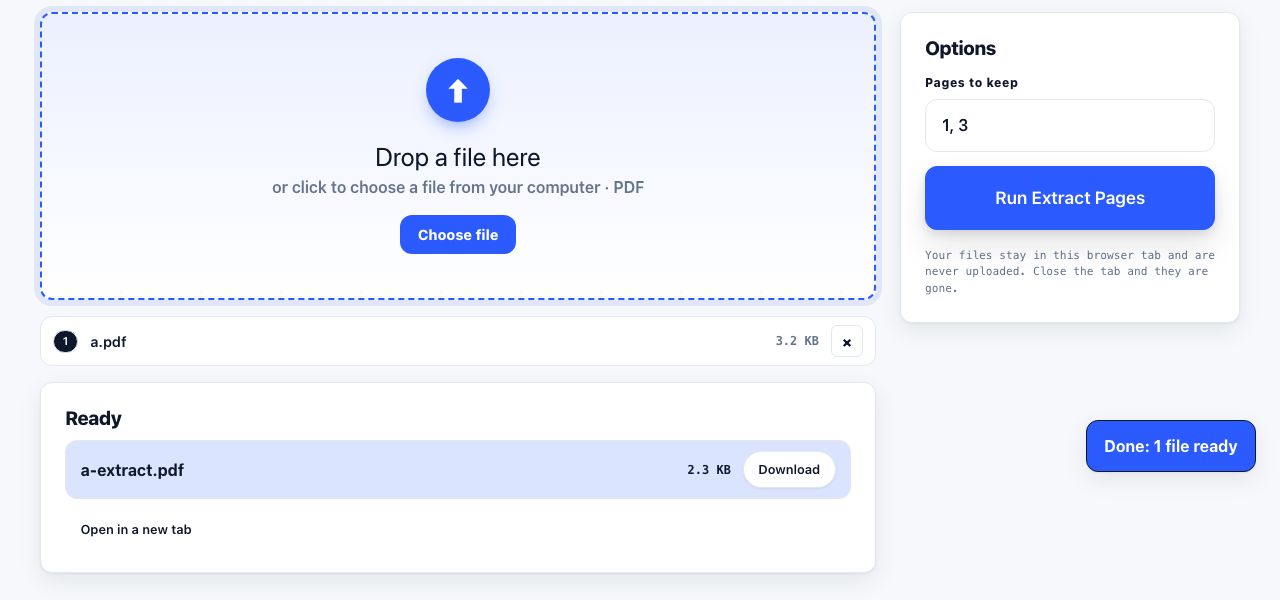
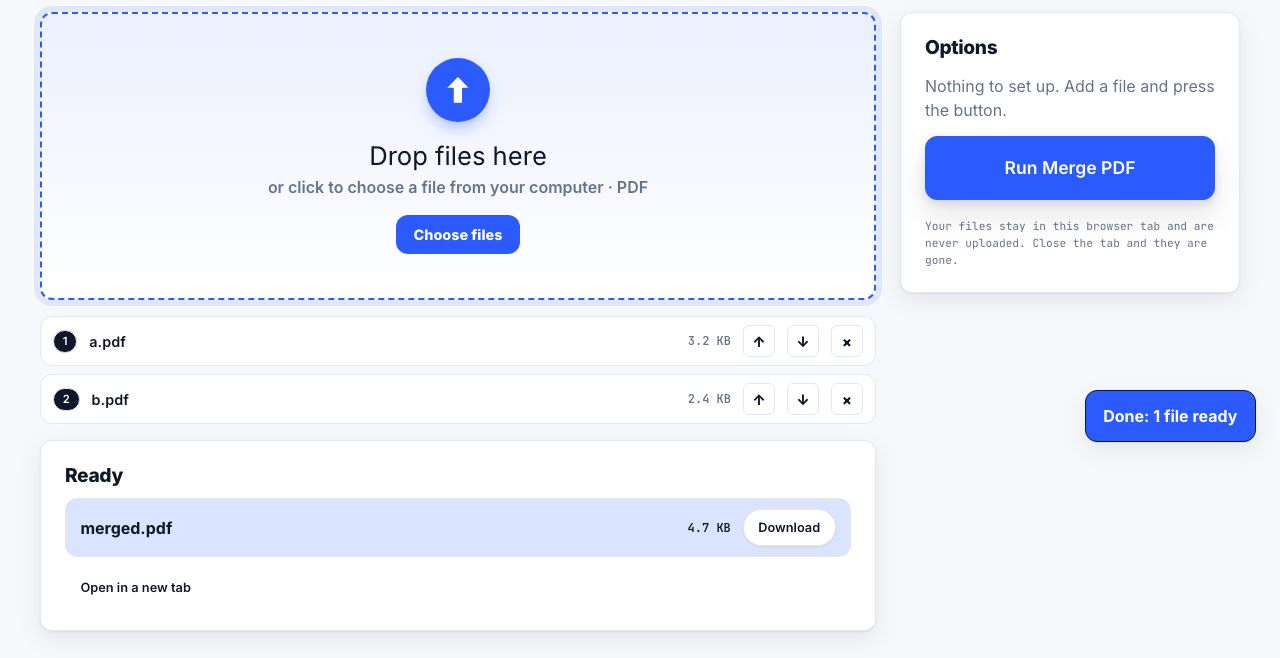
A folder can hold dozens of project files, and packing it locally avoids sending that collection to a file-packaging service.
How to create a ZIP file in your browser
- Collect the final filesPut only the approved files and folders in one place and use clear names.
- Open Create ZIPAdd files or a folder to Create ZIP in your browser.
- Name the ZIPUse a descriptive name that helps the recipient understand what the package contains.
- Create and downloadBuild the ZIP and save it. The standard workflow stays inside your browser.
- Open the ZIP onceCheck the folders and files before attaching or uploading it.
Pack files into one private ZIP in your tab. Free, no signup, no watermark.
Create ZIP →ZIP file versus separate attachments
| Method | Best for | Watch for |
|---|---|---|
| ZIP file | Many related files or folders | Recipient must be able to extract it. |
| Separate attachments | A few individual documents | Order and folder structure can be lost. |
| Cloud sharing link | Large files or ongoing collaboration | Access settings and retention require review. |
| Merge PDF | Several PDF pages in one reading packet | Only works for PDFs. |
What Create ZIP does and does not compress
Create ZIP packages files and retains folder structure, but it stores files as they are instead of trying to squeeze every format again. PDFs, photos, videos, Word documents, spreadsheets, and existing ZIP files are already commonly compressed, so re-compressing them saves little while using more time and memory. The main benefit is a clean single package, not a promise of a smaller file.
Review the package before sending
Open the ZIP once and check filenames, folder structure, and that no draft or private source file slipped in. A ZIP is a container, not an access-control system. If content requires confidentiality, use an approved secure-sharing method and follow your organization’s policy. Do not assume a ZIP protects data simply because it groups files together.
Why browser-local packaging helps
Project folders, client assets, tax records, and personal photos can be sensitive. Create ZIP runs in the browser so files do not need a routine upload for packaging. You still choose where the final download is stored and shared. Use a clear filename and retain the original folder until the recipient confirms it received the complete package.
Use the right tool after packaging
If a recipient only needs a few PDF pages, Extract Pages may make a smaller, simpler delivery. If several PDFs should read as one document, Merge PDF is more appropriate than a ZIP. For an archive that needs to be opened later, keep a normal folder copy as well as the ZIP and document what it contains. Confirm the archive extracts correctly on the recipient platform before deleting your original folder. Keep a dated backup until delivery is accepted.
Frequently asked questions
Can I create a ZIP file for free?
Yes. Add files or a folder, name the ZIP, create it, and download it. PrintxPDF core ZIP creation does not require signup.
Will a ZIP make every file smaller?
No. Many common formats are already compressed. A ZIP is most useful for packaging multiple files and retaining their folder structure.
Can I ZIP a folder in my browser?
Yes. Add the folder where the browser allows it, create the ZIP, and check that the expected folder structure is present in the download.
Is Create ZIP private?
The standard Create ZIP workflow runs in your browser, so files are not routinely uploaded just to package them.