How to remove Gemini image metadata before sharing

To remove common metadata from a Gemini image before sharing, keep the original, create a separate clean copy in PrintxPDF’s AI Metadata Remover, download it, and inspect the output. This browser-local workflow removes common metadata containers but does not remove visible labels, pixels, or every possible forensic signal.
See the tools in action
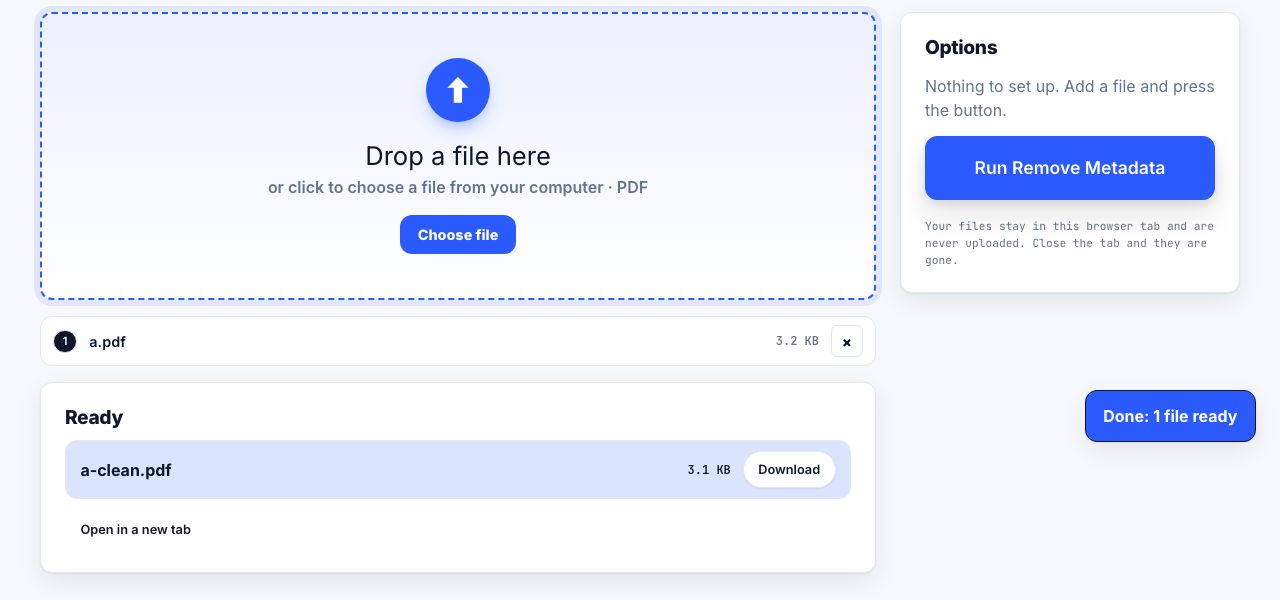

Before you share a Gemini image outside your team, decide whether the recipient needs its source metadata. If not, make a separate copy for distribution rather than changing the only original. PrintxPDF’s AI Metadata Remover creates a clean sharing copy locally in your browser. It is free for core use, needs no account, and does not add a watermark.
How to clean a Gemini image before sharing
- Save a copy firstKeep the original in case you need its provenance, edit history, or source record later.
- Open AI Metadata RemoverAdd the image to AI Metadata Remover in a current browser tab.
- Create a clean copyChoose the output where offered, process the file, and download the new image. The original is not overwritten.
- Check the resultOpen the output, compare the visible pixels, and inspect the intended sharing destination before posting or sending.
Create a metadata-clean image copy in your tab. Free, no signup, no watermark.
AI Metadata Remover →Which copy should you send?
| Approach | What it changes | When it fits |
|---|---|---|
| Re-save through AI Metadata Remover | Creates a new image without common metadata containers | Share a clean copy when the image itself is safe to share. |
| Edit metadata fields | Changes selected properties | Correct author or caption details without a full clean copy. |
| Blur or crop visible content | Changes pixels | Hide visible labels, faces, or sensitive surroundings. |
| Keep the original | Changes nothing | Retain provenance, workflow, or evidentiary details. |
Metadata removal is not image anonymization
A clean metadata copy can still reveal information through its pixels. A visible watermark, caption, location sign, reflected screen, filename shown in a screenshot, or recognizable person is not metadata. Removing EXIF, XMP, or common AI provenance data does not alter those visible clues. Review the image at full size and use a separate editing process when the picture itself needs changes.
Why local browser processing matters
Images can include private interiors, client work, IDs, or unreleased campaign assets. For this standard workflow, PrintxPDF processes the file locally in the browser instead of routinely sending it to a server. That reduces an unnecessary copy outside your device. It does not replace your organization’s privacy policy, and it does not make an image appropriate to share with an untrusted recipient.
Know what the output can and cannot prove
A metadata-clean copy is not an invisibility cloak. Screenshots, file names, browser history, reposts, and platform-side records can still establish context. The tool does not erase visible content or guarantee that a recipient cannot infer how an image was made. It only addresses common metadata containers in the resulting file.
A practical sharing checklist
Before publishing, confirm the recipient needs the image, the visible content is acceptable, and the downloaded copy is the one you selected. Keep the original separately if you may need to show its source or edit history later. If the file is too large for a platform, use Image Converter on a copy and check quality before posting.
Frequently asked questions
Can I remove Gemini metadata without an account?
Yes. PrintxPDF’s standard browser-local AI metadata-removal workflow does not require a signup or card.
Does this remove Content Credentials from every file?
It removes common metadata containers through a new image copy, but no tool should promise every signal is removable from every format or platform.
Can I use the cleaned image commercially?
Metadata removal does not grant copyright, license, or platform rights. Check the applicable terms and the source of the image.
Does the original Gemini image change?
No. The workflow creates a downloaded copy, so you can retain the original separately.