How to convert a scanned PDF to editable Word

To make a scanned PDF editable in Word, OCR a working copy first, then convert the recognized text to DOCX and verify it against the scanned pages. Handwriting, small print, and complex layouts need careful checking.
See the tools in action
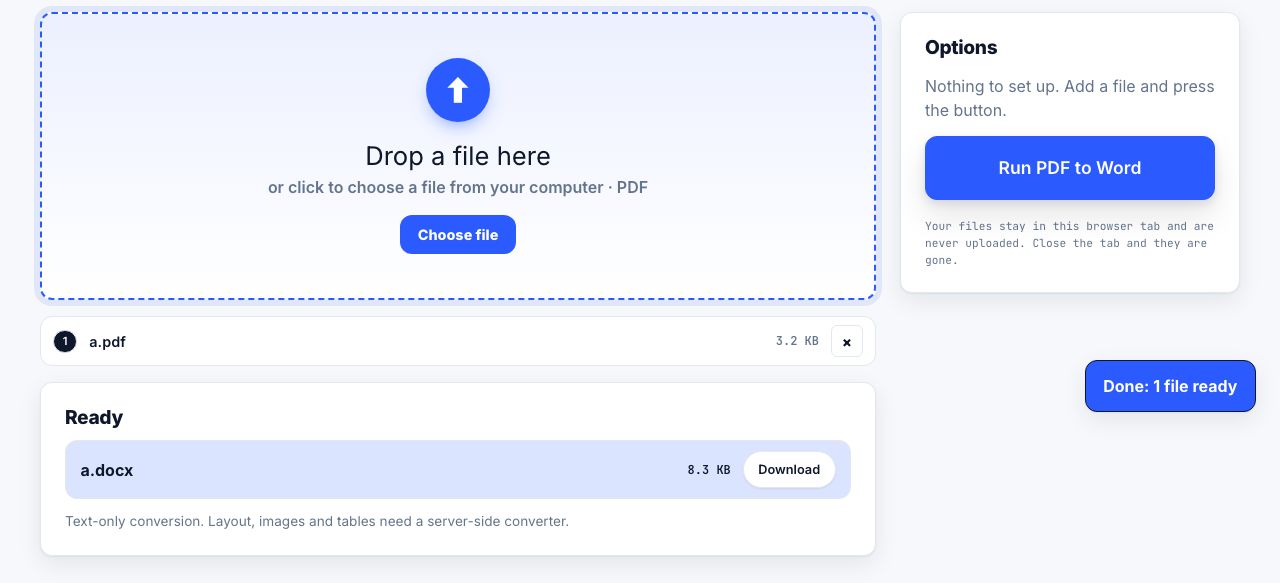
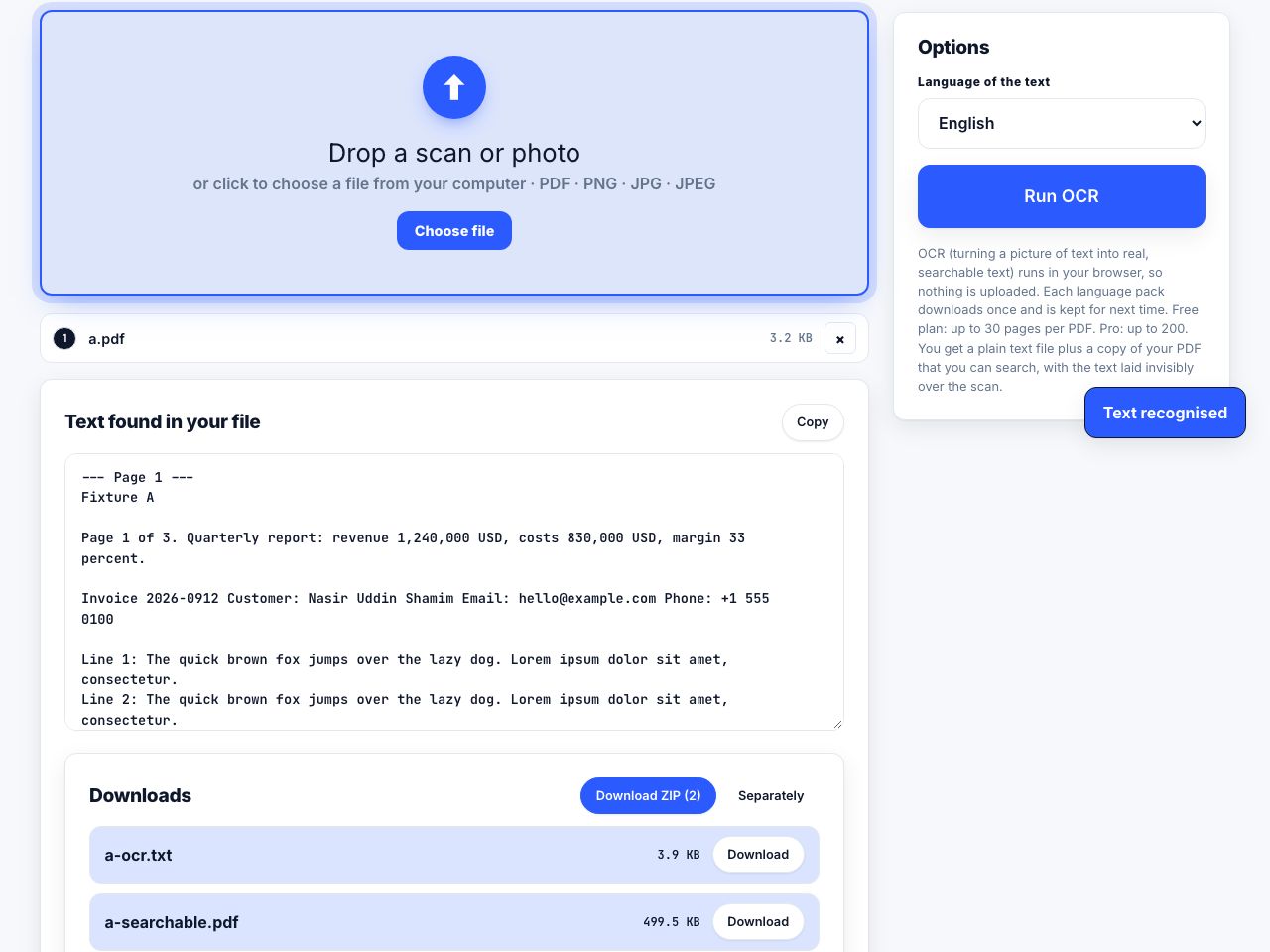
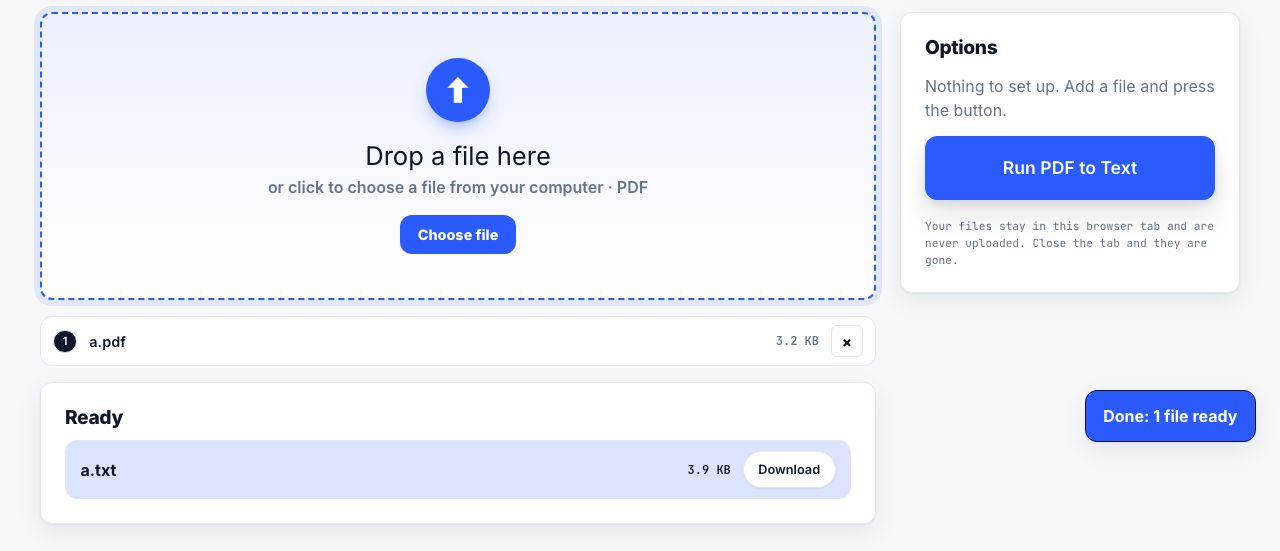
A scanned PDF is a page image, so Word cannot edit its words until OCR recognizes the text.
How to convert a text PDF to Word
- Check the PDF has real textTry selecting a sentence. A scanned page needs OCR on a working copy before text conversion.
- Open PDF to WordAdd the PDF to PDF to Word in your browser.
- Create the DOCXRun the conversion and download the editable Word file.
- Review the documentCheck headings, paragraphs, names, dates, numbers, and page breaks before relying on it.
- Rebuild complex layout if neededUse the DOCX as an editing starting point and retain the PDF source for visual reference.
Turn PDF text into an editable Word file in your tab. Free, no signup, no watermark.
PDF to Word →PDF to Word conversion limits
| PDF element | Likely DOCX result | What to do |
|---|---|---|
| Plain text paragraphs | Editable paragraphs | Review line breaks and headings. |
| Tables and columns | May become plain text | Rebuild structure in Word if needed. |
| Pictures and diagrams | Not retained in text-only conversion | Keep or add images from the source. |
| Scanned page image | No usable text without OCR | OCR a working copy first. |
A PDF is not the original Word document
A PDF records where text sits on a finished page. It does not reliably preserve the source paragraph flow, styles, table cells, columns, images, or original Word objects. PDF to Word extracts usable text into a DOCX, which is valuable for rewriting or reuse, but it is not a faithful reversal of the original authoring process. Use the converted file as an editable draft and keep the PDF available for layout reference.
Review important content carefully
Check names, dates, amounts, headings, lists, and legal wording against the PDF before publishing or signing anything. Line breaks, hyphenation, and table structure can change during extraction. For a scanned PDF, OCR can introduce recognition errors. When precision matters, compare the editable Word draft with the visual source page by page and use the original source document if it is available.
Why browser-local extraction helps
Contracts, reports, applications, and research papers can contain private text. Standard PDF to Word conversion runs in the browser, avoiding a routine upload to a text-extraction service. You still choose where to save the DOCX and who receives it. Keep edited copies in an approved location and do not assume a converted file is suitable for broad sharing without review.
Choose the right next step
Use Word for editing text, then create a fresh PDF when layout must be fixed for delivery. For searchable scanned documents, use OCR PDF before conversion. For a simpler plain-text output, PDF to Text may be a better match. Keep both the source PDF and the DOCX when you need a clear record of what was changed.
Frequently asked questions
Can I convert PDF to Word for free?
Yes. Convert text-based PDFs to DOCX in the browser without signup or a watermark, then review the editable result.
Will PDF to Word keep tables and images?
No. This is a text-only conversion. Tables, columns, pictures, and original page layout may need to be rebuilt in Word.
Can I convert a scanned PDF to Word?
Run OCR on a working copy first. OCR creates selectable text, but recognition and layout still need review.
Is PDF to Word private?
Standard conversion runs in the browser, so the PDF is not routinely uploaded for processing.